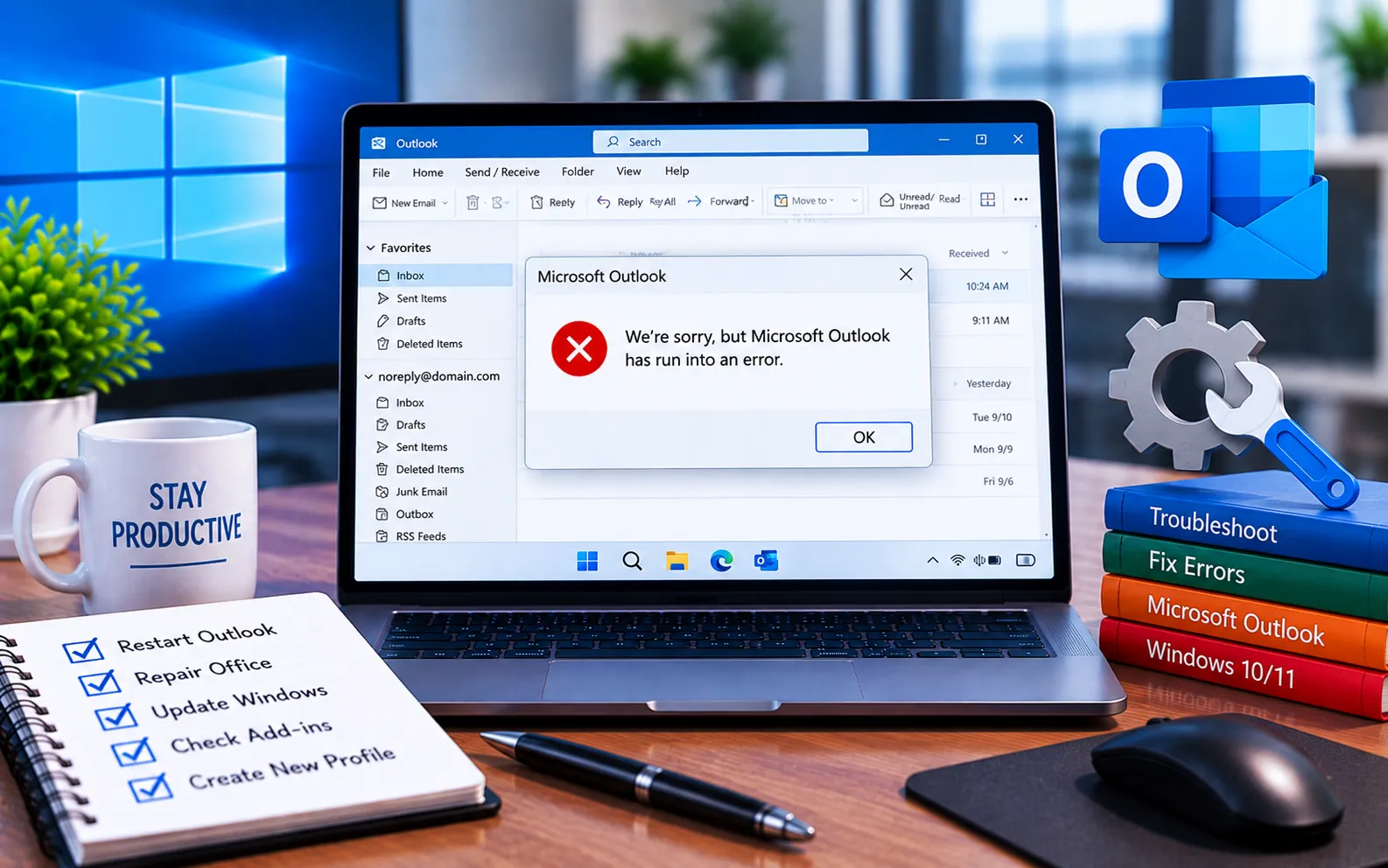
If you’re seeing “We’re sorry, but Outlook has run into an error that is preventing it from working correctly. Outlook will need to be closed as a result,” Outlook usually offers a built-in “Repair Now” option to try fixing it directly.
But if you’ve already tried Repair Now and the error keeps looping back, this guide covers the other fixes worth trying, since Microsoft Outlook (standalone, 365, or web) can all show this same message for different underlying reasons.
How to Solve “Microsoft Outlook Has Run Into an Error”
Since the repair tool alone didn’t resolve it, work through these causes and fixes one at a time.
Here’s what to try next:
Repair your OST or PST file
Outlook’s data files (OST/PST) can become corrupted and need repairing before Outlook will open normally. Close Outlook, use Microsoft’s built-in Inbox Repair Tool (SCANPST.EXE, found in your Office installation folder), browse to your data file, click Start to scan it, and select Repair if errors are found.
Make sure your data file is stored locally
If you’re on a server and local client setup, confirm your Outlook data files live on the local hard disk rather than a network location — this can prevent the error from recurring. Back up your Calendar, Tasks, and Contacts first, since running Outlook’s repair tool can sometimes affect these while it works.
Check for a specific error code during reinstall
If reinstalling Outlook surfaces a specific error code (rather than just the generic “run into an error” message), search for that exact code — it usually points to a documented issue with a clearer fix than the generic message alone provides.
Check your Office license and activation
If Outlook shows an “Unlicensed Product” message alongside this error, your Office 2016, 2019, or 2021 installation may not be properly licensed, which disables features and can trigger this crash. Sign in with the correct Microsoft account and verify your subscription or license status.
Create a new Outlook profile
A damaged profile or an incorrectly configured email account can also cause this error. Back up your current account settings and data first, then either repair the existing profile or create a new one through Control Panel → Mail → Show Profiles → Add.
Still Not Resolved?
If you’re still unable to resolve this error after trying these methods, we suggest chatting with our experts — they’ll suggest the best solutions to resolve it completely. Our experts are here to assist you — Chat with a specialist — for more technical support.
We are an independent technical support provider and are not affiliated with, endorsed by, or sponsored by Microsoft.
FAQ
What should I do if Outlook’s Repair Now option doesn’t fix the error?
Try repairing your OST/PST file directly with the Inbox Repair Tool, and check whether your data file is stored locally — both are common causes the built-in repair doesn’t address.
Can a licensing issue cause “Outlook has run into an error”?
Yes. If your Office installation isn’t properly activated, some features get disabled and can trigger this crash alongside an “Unlicensed Product” message.
Will creating a new Outlook profile delete my emails?
No, not if your account uses IMAP or Exchange/Microsoft 365 — your emails stay on the server and resync to the new profile once it’s set up.
Should I back up my data before repairing my Outlook profile?
Yes, always back up your Calendar, Tasks, and Contacts first — repair and profile changes can occasionally affect these while the process runs.
Tags: Excel Unlicensed Issues, office 2019 unlicensed error, office 365 unlicensed product, Outlook has run into an error, outlook has run into an error that is preventing it from working correctly, outlook unlicensed error, unlicensed product key, Unlicensed Word program is not a license related issue, we are sorry but outlook has run into an error, we are sorry outlook run into an error, we're sorry but outlook has run into an error, we're sorry but outlook has run into an error that is preventing it from working correctly
