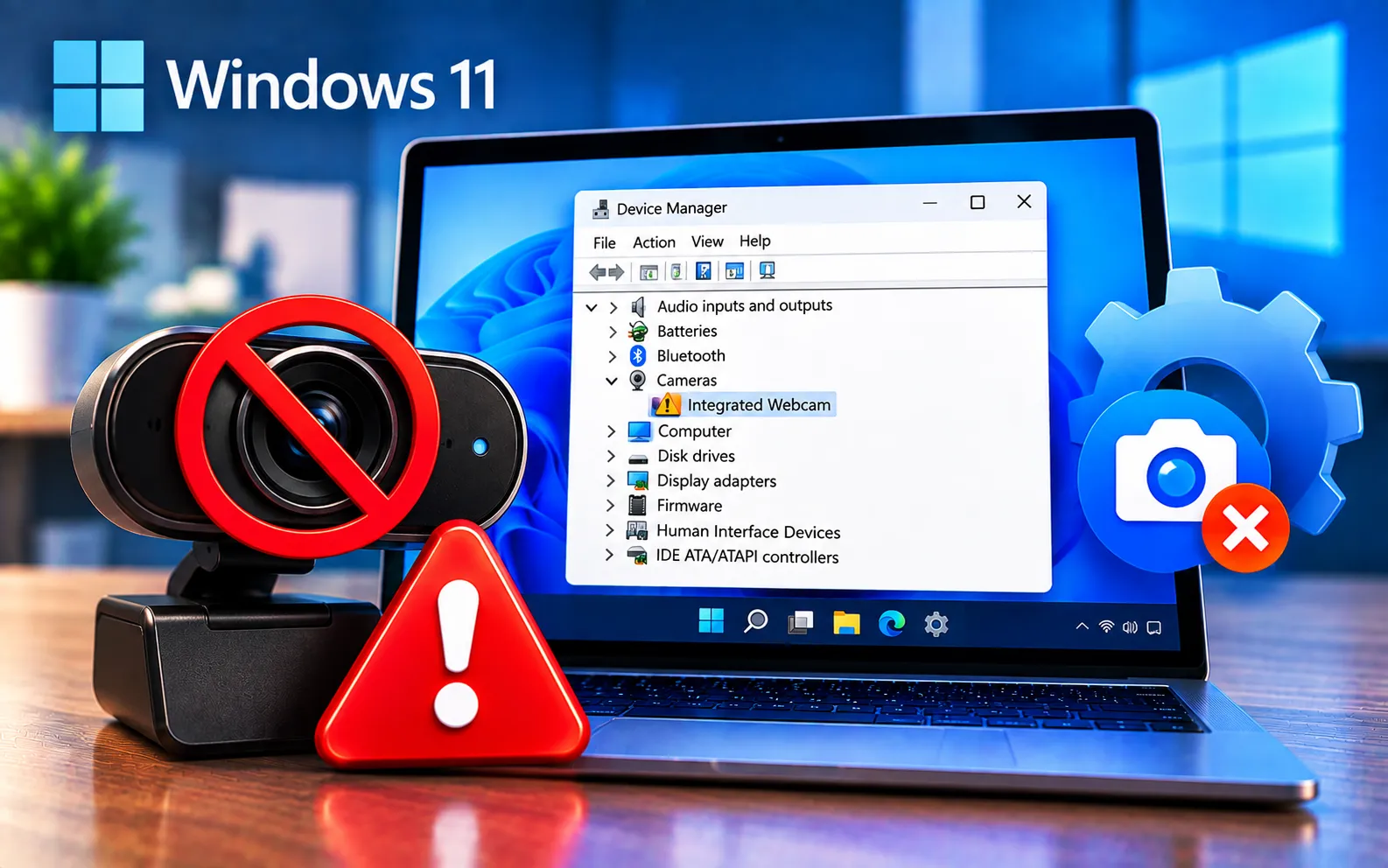
If your camera isn’t working in Windows Device Manager, the problem may be caused by a missing or outdated driver, privacy settings, a hardware issue, or a recent Windows update. An external camera can also fail because of a loose connection or a faulty USB port.
Most camera problems can be resolved with a few basic troubleshooting steps. This guide explains the common causes and the steps to get your camera working again.
Why Is My Camera Not Working in Windows Device Manager?
Driver issues — outdated, corrupt, or missing camera drivers can prevent the camera from functioning properly.
Hardware problems — faulty hardware components, such as a damaged camera module or a loose connection, can cause the camera to malfunction.
Privacy settings — Windows privacy settings may be blocking camera access for certain applications.
Software interference — conflicts with other software or applications trying to access the camera at the same time can cause problems.
Operating system updates — a recent Windows update may have introduced a compatibility issue with the camera driver or related software.
Here’s how to fix a camera not working in Windows Device Manager:
Check hardware connections
Make sure your camera is properly connected. If you’re using an external camera, confirm the cables are securely plugged into the correct ports. For built-in cameras, check that nothing is physically covering the lens.
Restart your device
Restart your computer — a simple restart can resolve minor software glitches and temporary hardware detection issues. After restarting, check whether the camera is detected in Device Manager.
Update device drivers
If the camera is still not working, outdated or corrupted drivers may be the cause. Open Device Manager (Win + X → Device Manager), locate “Imaging devices” or “Cameras” and expand it, right-click your camera device, select Update driver, and follow the prompts to install the latest version.
Check camera privacy settings
If updating the driver doesn’t help, check your privacy settings — Windows controls which applications can access the camera. Go to Settings → Privacy → Camera, make sure “Allow apps to access your camera” is turned on, then scroll to “Choose which apps can access your camera” and confirm the apps you need are enabled.
Scan for hardware changes
If Windows still doesn’t detect the camera, manually scan for hardware changes. In Device Manager, click Action in the menu bar, select “Scan for hardware changes,” and check whether the camera appears once the scan finishes.
Run the Windows troubleshooter
Windows includes troubleshooting tools that can identify common hardware and device problems. Go to Settings → System → Troubleshoot → Other troubleshooters, run the one relevant to your camera or connected device, and follow the on-screen instructions.
Check for system updates
Make sure Windows is fully up to date — system updates often include driver improvements and bug fixes that resolve hardware compatibility issues. Install any available updates, restart your computer, and check whether the camera is working correctly.
Still Not Working?
These steps resolve most camera problems in Windows Device Manager. If the issue persists after trying all seven, it may indicate a hardware malfunction or a deeper driver issue — contact the camera or computer manufacturer’s support team for further assistance, and consider professional repair if the hardware is damaged. Back up your important data before making any major system changes. Our experts are here to assist you — Chat with a specialist — for more help with tech stuff.
We are an independent technical support provider and are not affiliated with, endorsed by, or sponsored by Microsoft.
FAQ
Why does my camera not show up in Device Manager at all?
This usually points to a driver issue or a hardware connection problem — try scanning for hardware changes and checking that all cables or connections are secure.
Can privacy settings block my camera even if the driver works fine?
Yes. Windows can block specific apps from accessing the camera through its privacy settings, even when the camera itself is detected and functioning correctly.
Can a Windows update break my camera?
Yes. A recent update can occasionally introduce a compatibility issue with the camera driver — checking for further updates or rolling back the driver can resolve this.
When should I contact the manufacturer instead of troubleshooting further?
If you’ve tried all the software-level fixes and the camera still isn’t detected, it may be a hardware malfunction — at that point, manufacturer support or professional repair is the next step.
