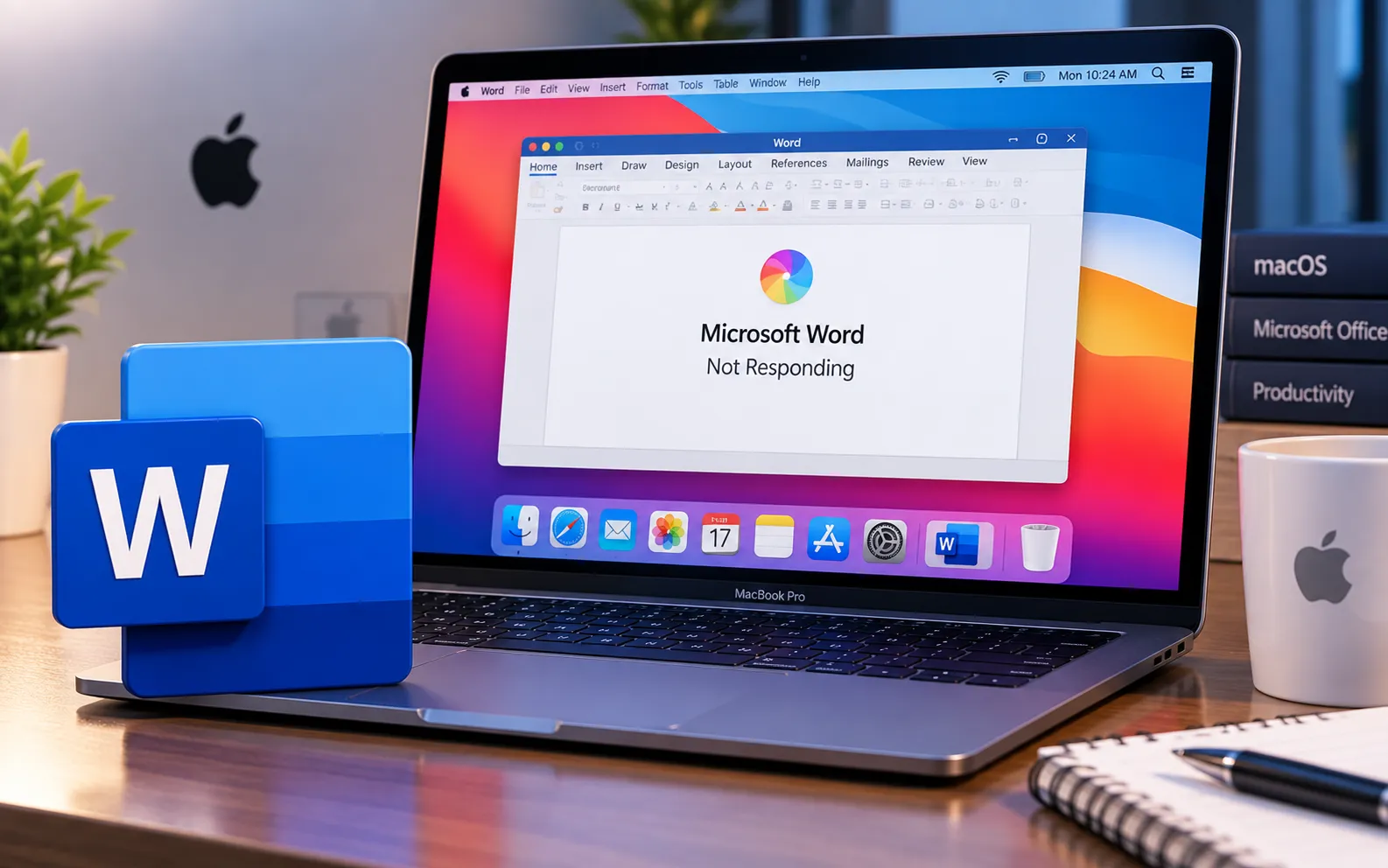
Microsoft Word is one of the most essential tools for creating and working on documents, whether you’re in the office, at home, or in school. Sometimes, though, it runs into problems — one of the most common being “Word Not Responding” on Mac.
It’s frustrating, but there are several reliable ways to fix it. This guide covers the likely causes and the exact steps to get Word working again on your Mac.
Common Causes of “Word Not Responding” on Mac
Overloaded system resources — If too many applications are running at once, Word can freeze because your Mac’s memory is full.
Corrupted Word files — Word can crash or hang when it’s left in a suspended state by a damaged document.
Software bugs — Most instability in Word comes from running an outdated or buggy version of the software.
Conflicting add-ins — Some non-Microsoft add-ins available in Word can interfere with how the application runs.
Insufficient disk space — Word, like other applications, can stop responding if your Mac’s drive is running low on storage.
Here’s how to fix Word not responding on Mac:
Force quit Microsoft Word
If Word has hung, the first step is to force close it. Press Command + Option + Escape to bring up the Force Quit Applications window, select Microsoft Word, and click Force Quit.
Restart your Mac
A simple reboot often clears temporary system glitches. Click Restart from the Apple menu, then reopen Word and check whether the issue persists.
Update Microsoft Word
Older versions of Word can carry bugs that cause it to hang. Open the App Store or the Microsoft AutoUpdate tool, check for updates, and install the latest version of Microsoft Office.
Remove temporary files
Corrupt temporary files can cause Word to malfunction. Go to ~/Library/Containers/com.microsoft.Word and delete the folder or the files inside to clear temporary data. Back up any important data first before deleting anything.
Disable add-ins
A conflicting add-in could be the root cause. Open Word in Safe Mode by holding the Shift key while launching it, go to Tools → Templates and Add-ins, and disable them all. Restart Word and re-enable add-ins one at a time to identify the one causing the problem.
Check for disk space
Make sure your Mac has enough free storage. Check Apple Menu → About This Mac → Storage to see what’s currently available, then delete unnecessary files or use a cleanup tool to free up space.
Still Having Trouble?
If you’ve tried all six steps and Word is still freezing or not responding, the cause may need a closer, device-specific look. Our experts are here to assist you — Chat with a specialist — and they’ll help guide you through resolving the issue.
We are an independent technical support provider and are not affiliated with, endorsed by, or sponsored by Microsoft.
FAQ
Why does Microsoft Word keep freezing on Mac?
The most common causes are overloaded system resources, corrupted Word files, outdated software, conflicting add-ins, or low disk space on your Mac.
Will I lose unsaved work if I force quit Word?
Yes, unsaved changes in the document you were editing can be lost. Word’s AutoRecover feature may restore some of it the next time you open the app, but it’s not guaranteed.
How do I know if an add-in is causing Word to crash?
Open Word in Safe Mode (hold Shift while launching), disable all add-ins, then re-enable them one at a time and restart Word after each — the one that brings back the freezing is the culprit.
Is it safe to delete Word’s temporary files?
Yes, generally. The folder at ~/Library/Containers/com.microsoft.Word holds cached data, not your documents — but it’s still good practice to back up important files before deleting anything.
Tags: Document Editing Tips, Fix Microsoft Word, Mac Troubleshooting, Microsoft Word, Update Word on Mac, Word Add-ins, Word Crashes, Word Not Responding
