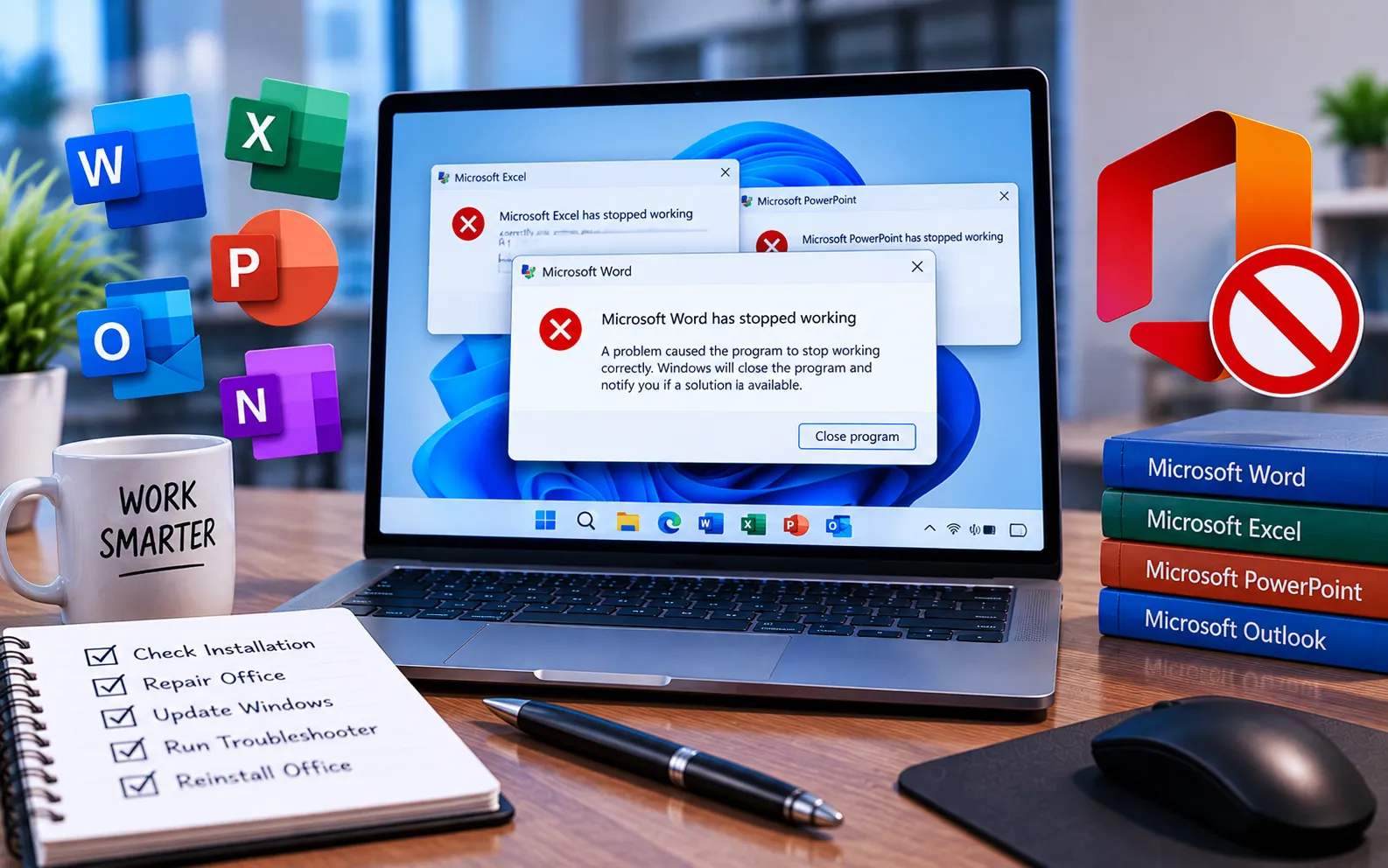
If a Word, Excel, or PowerPoint file opens in the wrong app, or you see a “file does not have software associated with it” error, the cause is almost always a broken file association or a damaged Office installation.
You can fix this for free using Windows’ built-in “Default Apps” settings and Office’s built-in “Quick Repair” tool — no paid software or third-party support is required.
What Causes This Error
An Excel workbook, Word document, or PowerPoint file can open in the wrong program, or in an older version of Office instead of Office 2019/2021/365. Windows may show a message like “This file does not have a program associated with it for performing this action. Create an association in the Default Apps settings page,” or prompt you to install a program even though Office is already installed.
This usually happens after installing a second Office version, a Windows update, a PDF or other app taking over the file extension, or a corrupted Office installation.
Here’s how to fix it:
Set the correct default program (Default Apps)
Press Start and open Settings, or type “Default apps” directly into Windows Search — this works on both Windows 10 and 11 and is faster than going through Control Panel. Go to Apps → Default apps, search for Word, Excel, or PowerPoint, click the app, and set it as default for its file types (.docx, .xlsx, .pptx, and older .doc/.xls/.ppt if you use them). On Windows 11, you may need to set the default individually for each extension, since Windows 11 removed one-click “set as default for all file types.”
Repair your Office installation
Open Control Panel → Programs → Programs and Features (or Settings → Apps → Installed apps on Windows 11), find your Microsoft Office entry, click it, and select Change. Choose Quick Repair first — this takes a few minutes and doesn’t remove your files or settings. If the problem persists, run the process again and choose Online Repair instead, which re-downloads and reinstalls Office components and needs a stable internet connection.
Remove duplicate Office versions
Having more than one Office version installed (for example, Office 2016 alongside Office 365) is one of the most common causes of files opening in the wrong version. Go to Control Panel → Programs and Features, find the version you no longer need, right-click it, select Uninstall, follow the prompts, restart your PC, and try opening the file again.
Open the file from inside the program
If nothing above works, open Word, Excel, or PowerPoint directly (not the file), go to File → Open, and browse to your file from there. This doesn’t fix the underlying association, but it gets you working again while you troubleshoot.
Still Not Resolved?
If you’ve tried the steps above and are still stuck, our support team can walk through your specific setup with you. Our experts are here to assist you — Chat with a specialist — for more technical support.
We are an independent technical support provider and are not affiliated with, endorsed by, or sponsored by Microsoft.
FAQ
Why does my Excel file keep opening in an older version of Excel?
This happens when Windows’ file association still points to the older Office installation. Manually set your current Excel version as the default for .xlsx files in Settings → Apps → Default apps.
Will Quick Repair delete my files or settings?
No. Quick Repair only fixes the Office installation itself — your documents, saved settings, and add-ins are not affected. Online Repair is more thorough but also safe; it just takes longer.
Is it safe to have two versions of Microsoft Office on one PC?
Microsoft doesn’t officially support running multiple versions of Office side by side, and it’s the most common cause of file-association problems like this one. Uninstalling the version you don’t need is the more reliable long-term fix.
I fixed the association, but the file still won’t open. What now?
Try repairing Office, then check whether the file itself is corrupted by opening a different file of the same type. If only one specific file fails, the file itself — not the file association — may be damaged.
Tags: microsoft office 2016 not working, microsoft office not opening windows 10, microsoft office not working after update, microsoft office not working after windows 10 update 2020, microsoft office not working after windows 10 update 2021., microsoft office not working today, office 365 programs wont open
