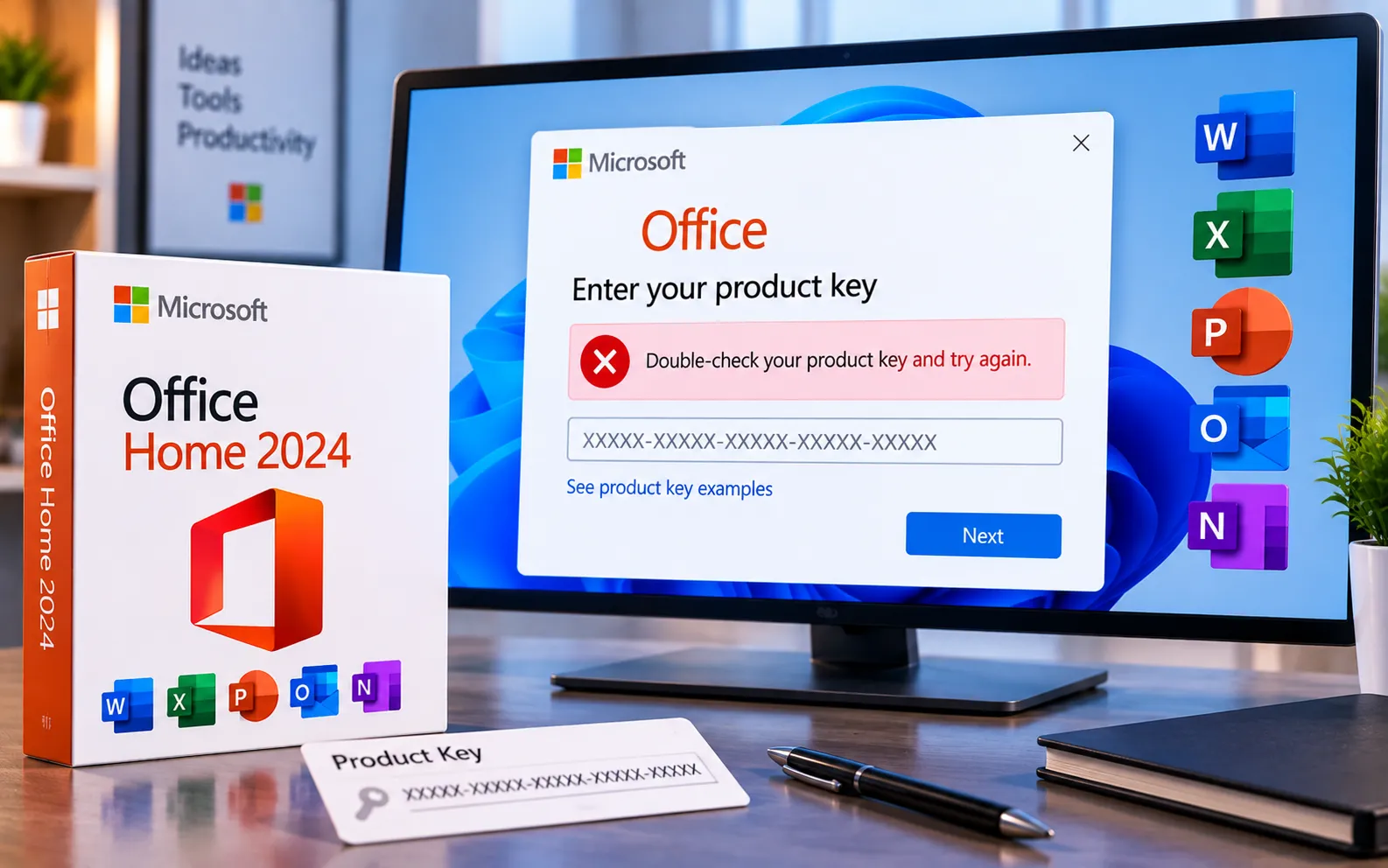
One common error during the Office activation process shows the message: “Double-check your product key and try again.” This guide covers several methods that can resolve the issue effectively.
Work through the steps below in order — most cases are resolved by the first two or three.
How to Fix “Office Activation Error: Double-Check Your Product Key and Try Again”
This error usually means Office can’t validate the key you entered — that can be a simple typing mistake, an outdated activation file, an incorrect system clock, or an app that needs elevated permissions to complete activation. The steps below rule out each of these in order.
Here’s how to fix it:
Check your product key
Make sure you’re pasting the correct key exactly as provided, and double-check it carefully to rule out any typing errors — especially easily confused characters like 0/O or 1/I.
Run Office as administrator
Shut down all Office applications. Right-click the Office application icon and select Run as Administrator, then try entering the product key again — activation sometimes needs elevated permissions to complete.
Delete prior activation keys
Open File Explorer and go to C:\Program Files\Microsoft Office\Office16 (or whichever version folder you’re using). Look for a file named OSPPREARM.exe, right-click it, and select Run as Administrator. This resets the activation status so you can enter your product key again cleanly.
Check your date and time settings
An incorrect system clock can cause activation to fail. Go to Settings → Time & Language → Date & Time, and turn on both “Set time automatically” and “Set time zone automatically.”
Update Office
Launch any Office application, then go to File → Account → Update Options → Update Now. This ensures your Office installation is running the latest build, which can include fixes for activation issues.
Need Further Assistance?
If you’ve checked your product key, run Office as administrator, reset the activation file, corrected your date and time, and updated Office — but the error continues — don’t hesitate to seek further assistance. Our experts are here to help — Chat with a specialist — and resolve any issues you may have.
We are an independent technical support provider and are not affiliated with, endorsed by, or sponsored by Microsoft.
FAQ
What does “Double-check your product key” mean in Office?
It means Office couldn’t validate the key you entered — the most common causes are a typing mistake, an outdated activation file, or an incorrect system clock.
What does OSPPREARM.exe do?
It resets Office’s activation status, clearing out prior activation attempts so you can enter your product key again without conflicts from earlier tries.
Can an incorrect system clock cause Office activation to fail?
Yes. Office checks your system date and time as part of license verification, so an incorrect clock can cause activation to fail even with a valid product key.
Why do I need to run Office as administrator to activate it?
Activation writes changes to protected system files, which sometimes requires elevated permissions — running Office as administrator ensures it has the access it needs to complete the process.
Tags: cannot activate Office, double-check your product key, fix Office activation error, Microsoft Office product key error, Office 2024 activation issue, Office activation error, Office key not working, Office product key troubleshooting, resolve Office key issue., update Office activation
