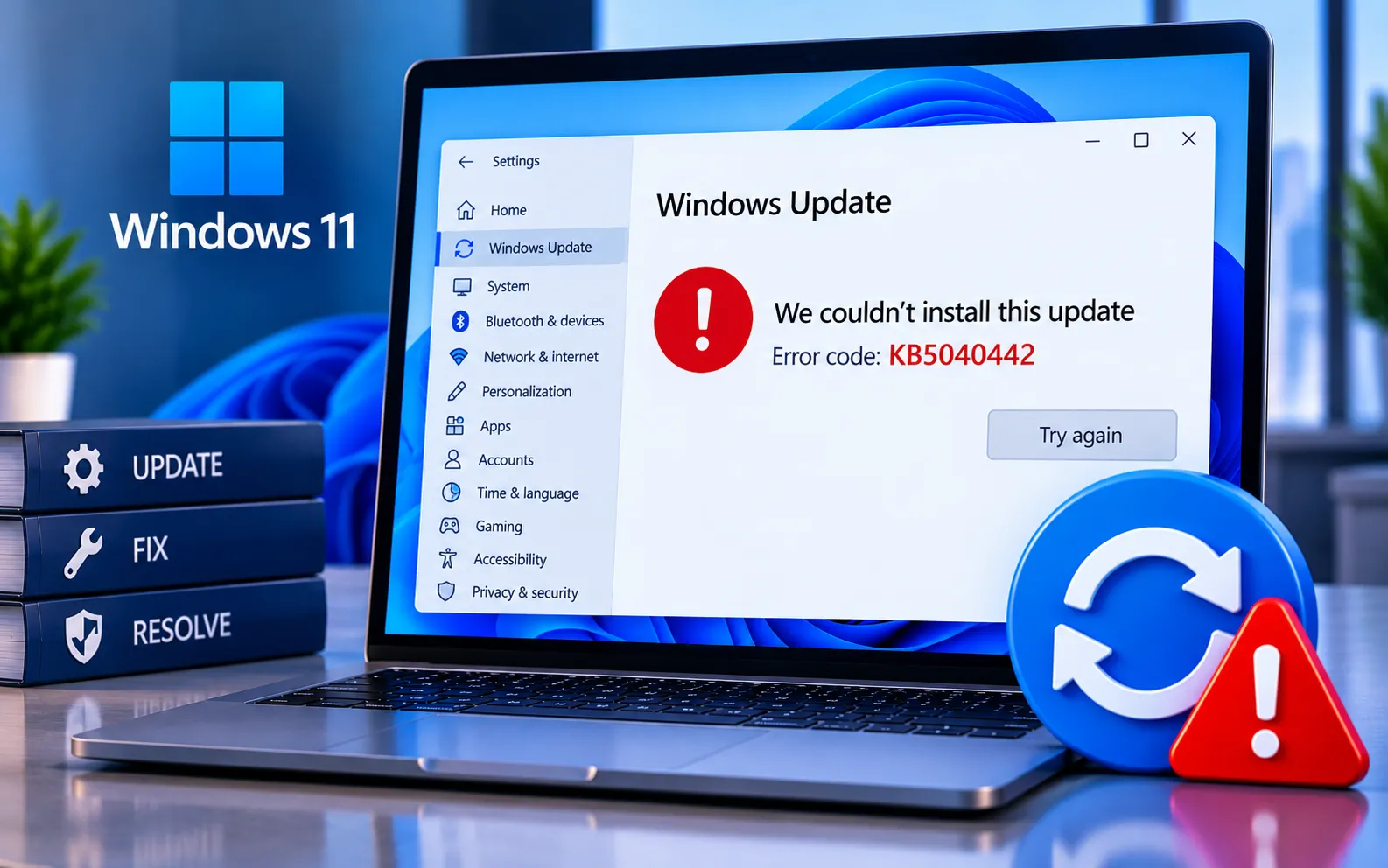
Having trouble with Windows Update KB5040442? You’re not the only one — this guide will help you resolve the error without any fuss.
Windows Update KB5040442 is a specific update for the Windows operating system. Updates like this aim to improve security, fix bugs, and add new features — but sometimes they run into problems during installation.
Common Error Signs of Windows Update KB5040442
Update won’t install — the update may repeatedly fail to install no matter how many times you try.
Error codes — you may see specific error codes tied to the update failure.
System slowdown — your computer may become slow or stop responding during or after the update attempt.
Here’s how to fix Windows Update KB5040442:
Restart your computer
A simple restart can often resolve update problems. Restart your PC and try installing the update again.
Check your internet connection
Make sure you have a stable internet connection — a weak or spotty connection can cause update failures on its own.
Run the Windows Update Troubleshooter
Press Win + I to open Settings, click Update & Security, go to Troubleshoot, select Additional troubleshooters, choose Windows Update, and click Run the troubleshooter. Follow the on-screen steps to finish the process.
Clear the Windows Update cache
Clearing the cache resolves update problems in some cases. Open Command Prompt as administrator (search “cmd,” right-click it, and select Run as administrator), then run each command below one at a time:
net stop wuauserv
net stop cryptSvc
net stop bits
net stop msiserver
ren C:\Windows\SoftwareDistribution SoftwareDistribution.old
ren C:\Windows\System32\catroot2 catroot2.old
net start wuauserv
net start cryptSvc
net start bits
net start msiserver
Reboot your computer and try updating again.
Download and install the update manually
If the automatic update doesn’t work, get it yourself. Visit the Microsoft Update Catalog website, search for KB5040442, download the correct version for your computer, and open the downloaded file to install it.
Update Windows using the Media Creation Tool
Download the Media Creation Tool from Microsoft’s website. Run the tool and select “Upgrade this PC now,” then follow the on-screen instructions to complete the upgrade.
Check for system file corruption
Damaged system files can also cause update problems. Open Command Prompt as administrator, run sfc /scannow, let the scan finish, and then restart your computer.
Still Stuck?
If you’re still stuck with the Windows Update KB5040442 error, don’t worry — our experts can help you out. Just chat with them and they’ll sort it out for you. Our experts are here to assist you — Chat with a specialist — for more help with tech stuff.
We are an independent technical support provider and are not affiliated with, endorsed by, or sponsored by Microsoft.
FAQ
What is Windows Update KB5040442?
It’s a specific Windows update aimed at improving security, fixing bugs, and adding new features — but like any update, it can occasionally fail to install correctly.
Why does my computer slow down after KB5040442?
This is usually a sign the update failed partway through or ran into a conflict — clearing the update cache and running the troubleshooter typically resolves it.
Can I install KB5040442 manually if the automatic update fails?
Yes. Download it directly from the Microsoft Update Catalog and install it manually — this often works even when the automatic Windows Update process keeps failing.
Will clearing the Windows Update cache delete my files?
No. The cache folders only hold temporary update files — clearing them does not affect your personal documents or installed applications.
Tags: KB5040442 Error, Update KB5040442 Error, Windows KB5040442 Error, Windows Update KB5040442, Windows Update KB5040442 Error
