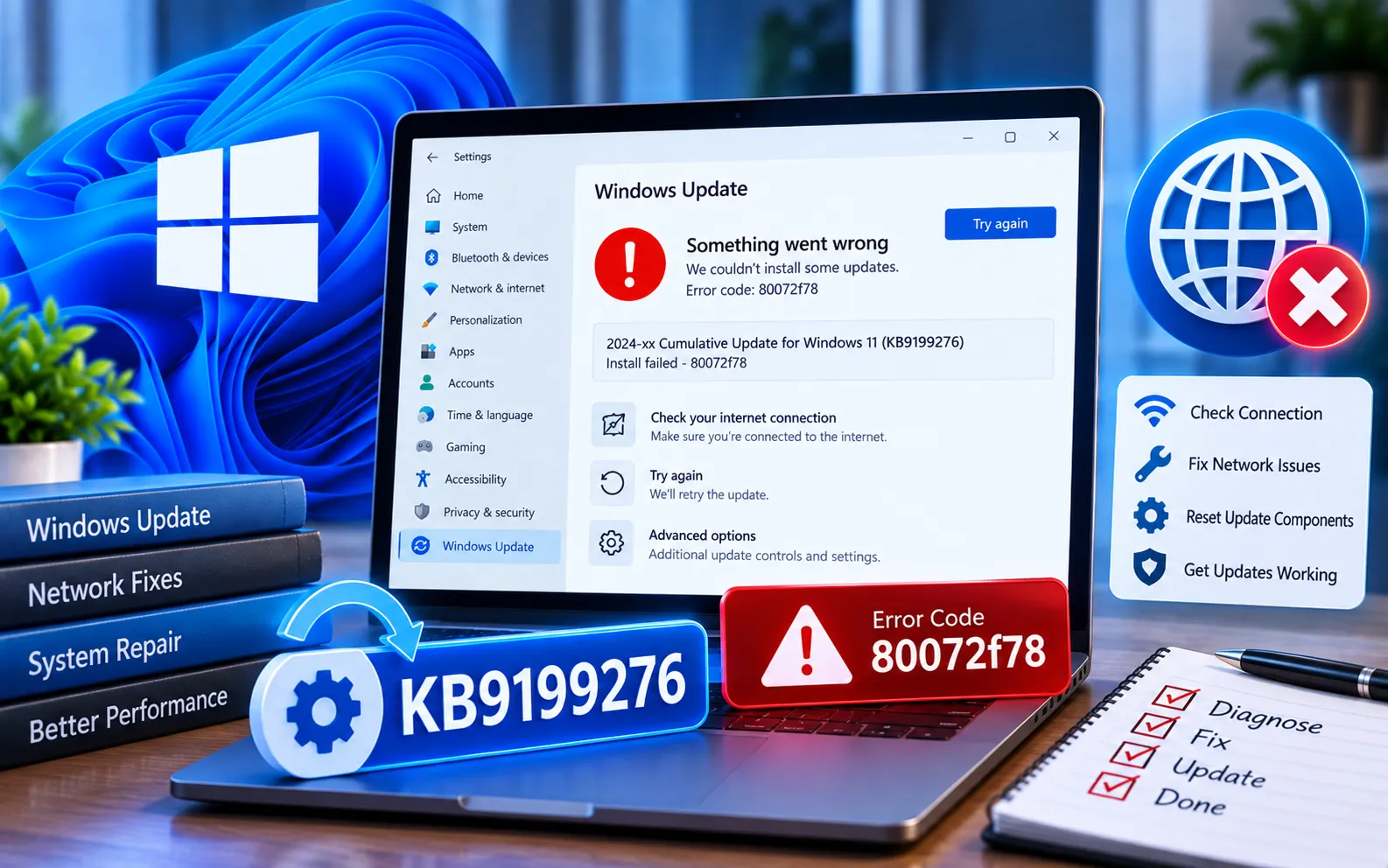
Windows Update Error Code 80072F78 can prevent Windows 10 or 11 from downloading or installing updates correctly. Network problems, corrupted system files, security software, and Windows Update components can all contribute to the failure.
You can try several troubleshooting methods before considering a Windows reset.
What Causes Error Code 80072F78?
Common factors include an unstable internet connection, antivirus or firewall interference, corrupted Windows system files, problems with Windows Update services, damaged update cache components, or incorrect Windows Update configuration. Start with the simpler solutions first.
Here’s how to fix Error Code 80072F78:
Temporarily disable third-party antivirus software
Open your antivirus application, go to Settings or Protection, find Real-time protection, and turn it off temporarily. Check Windows Update again, then re-enable your antivirus after testing. If updates work while protection is disabled, review your antivirus settings for features that may be blocking Windows Update.
Run SFC and DISM
Right-click Start, select Terminal (Admin), and run sfc /scannow. Wait for it to complete and restart your computer. If SFC can’t repair the problem, run each command below one at a time: DISM /Online /Cleanup-Image /CheckHealth, then DISM /Online /Cleanup-Image /ScanHealth, then DISM /Online /Cleanup-Image /RestoreHealth. Restart once complete. For a related issue involving damaged system files, see our guide to Windows Update Error Code 0x800F0900.
Run the Windows Update Troubleshooter
Windows 11: Settings → System → Troubleshoot → Other troubleshooters → Windows Update → Run.
Windows 10: Settings → Update & Security → Troubleshoot → Additional troubleshooters → Windows Update → Run the troubleshooter.
Restart your computer and check for updates again.
Check the Windows Update service
Press Win + R, type services.msc, press Enter, find “Windows Update,” double-click it, set Startup type to Automatic, click Start if it’s stopped, and click Apply then OK. Also check Background Intelligent Transfer Service (BITS) and Cryptographic Services. Restart your computer after making the changes.
Check your internet connection
Try restarting your router or connecting to another network, and check whether other websites and online services work normally. For network, proxy, firewall, or update-service issues specifically, see our guide to Windows Update Error Code 0x8024402C.
Reset Windows Update components
Open Terminal (Admin) and run:
net stop wuauserv
net stop cryptSvc
net stop bits
net stop msiserver
ren C:\Windows\SoftwareDistribution SoftwareDistribution.old
ren C:\Windows\System32\catroot2 catroot2.old
net start wuauserv
net start cryptSvc
net start bits
net start msiserver
Restart your computer and check for available updates.
Check available storage
Go to Settings → System → Storage in Windows 11, and remove unnecessary files if your system drive is nearly full. If insufficient storage is preventing updates from installing, see our guide to Windows Update Error Code 0x80070070.
Reset Windows as a Last Resort
If the error continues after trying the methods above, back up your important documents, photos, and other personal files first — applications and settings may be removed depending on the reset option selected.
Windows 11: Settings → System → Recovery → Reset PC, then follow the on-screen instructions.
Windows 10: Settings → Update & Security → Recovery → Reset this PC → Get started, then follow the instructions provided by Windows.
Use a reset only after trying the less disruptive solutions above. Our experts are here to assist you — Chat with a specialist — for more technical support.
We are an independent technical support provider and are not affiliated with, endorsed by, or sponsored by Microsoft.
FAQ
What does Windows Update Error Code 80072F78 mean?
It indicates Windows Update encountered a problem during the update process — network issues, system-file corruption, security software, or damaged update components can all contribute.
Can SFC fix this error?
SFC can repair certain corrupted system files. If it can’t resolve the problem, DISM can help repair the Windows component store.
Should I permanently disable my antivirus?
No. Disable third-party security protection only temporarily while troubleshooting, and turn it back on after testing Windows Update.
Do I need to reset Windows?
Not usually. Try checking your connection, running SFC and DISM, checking Windows Update services, and resetting the update components first.
Tags: error 80072f78, Error Code 80072f78, KB9199276, Windows Update Error Code 80072f78
