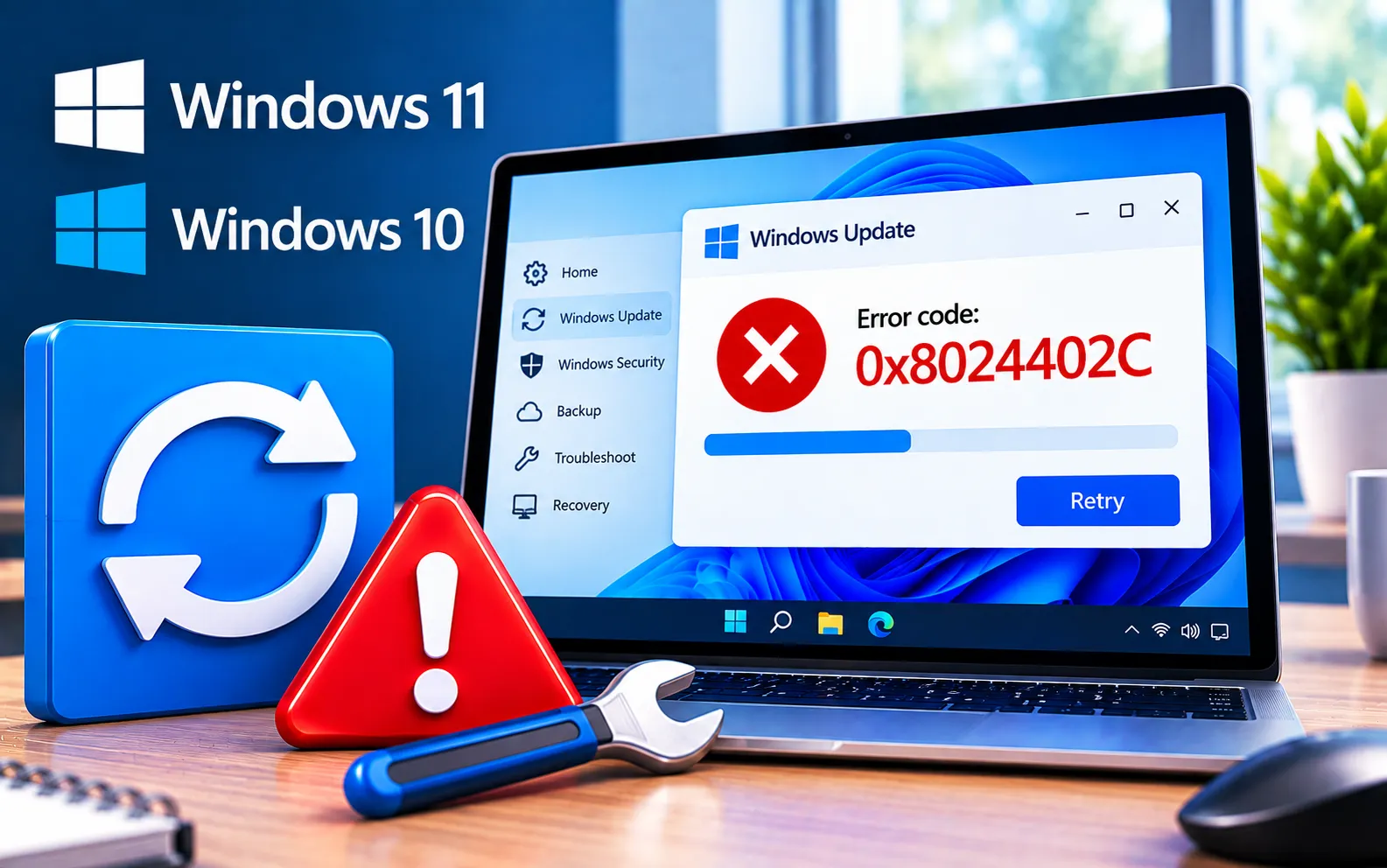
Windows Update Error Code 0x8024402C can occur when Windows has trouble connecting to the servers required to download or install updates. The problem may be related to network settings, proxy configuration, firewall restrictions, or the Windows Update service.
This guide explains the common reasons for Error Code 0x8024402C and provides practical solutions for both Windows 10 and Windows 11.
Why Does Error Code 0x8024402C Occur?
Error Code 0x8024402C in Windows Update often indicates a connection issue. Possible causes include network problems, firewall settings blocking updates, or issues with the Windows Update service itself.
Here’s how to fix Error Code 0x8024402C, starting with the simpler solutions:
1
Check your internet connection
Make sure your connection is stable and functional. A weak or unreliable connection can cause update failures — restart your router or switch to a different network if possible.
2
Run the Windows Update Troubleshooter
The built-in troubleshooter can automatically detect and fix common Windows Update issues. Go to Settings → Update & Security → Troubleshoot → Additional troubleshooters → Windows Update.
3
Restart the Windows Update service
The service itself may be causing the problem. Open the Services app by typing services.msc in the Run dialog, find “Windows Update,” and restart it.
4
Check date and time settings
Make sure your system’s date and time are accurate — incorrect settings can interfere with the update process and its secure connection to Microsoft’s servers.
5
Disable proxy settings
If you’re using a proxy server, disable it temporarily and try updating again — proxy settings can sometimes conflict with Windows Update.
6
Clear the Windows Update cache
A corrupted update cache can lead to this error. Stop the Windows Update service, navigate to the SoftwareDistribution folder (usually in C:\Windows), delete its contents, and restart the service afterward.
7
Check disk space
Make sure your system has enough free disk space to accommodate the update — Windows Update needs sufficient room to complete the installation process.
8
Update device drivers
Outdated or incompatible drivers can sometimes interfere with Windows Update. Check for driver updates through Device Manager or the manufacturer’s website.
9
Temporarily disable antivirus or firewall
Your antivirus or firewall might be blocking the update. Disable it temporarily, attempt the update, and remember to re-enable it afterward.
Still Not Resolved?
If all of the above doesn’t resolve it, you can manually download and install updates from the Microsoft Update Catalog, which ensures your system gets the update even when the automatic process fails. Regularly updating your system is important for security and performance, so resolving update issues promptly matters. Our experts are here to assist you — Chat with a specialist — for more technical support.
We are an independent technical support provider and are not affiliated with, endorsed by, or sponsored by Microsoft.
FAQ
What causes Windows Update Error Code 0x8024402C?
It’s usually a connection issue — caused by network problems, firewall restrictions, proxy configuration, or a problem with the Windows Update service itself.
Can incorrect date and time settings cause this update error?
Yes. Windows checks your system’s date and time as part of its secure connection to update servers, so an incorrect clock can trigger this error.
Will clearing the SoftwareDistribution folder delete my files?
No. This folder only holds temporary update cache files — clearing it doesn’t affect your personal documents or installed applications.
How can I install updates if the automatic process keeps failing?
Download the specific update directly from the Microsoft Update Catalog using its KB number, and install it manually — this bypasses whatever is blocking the automatic process.
Tags: 0x8024402c, Error 0x8024402c, Error Code 0x8024402c, Update Error 0x8024402c, Windows Error 0x8024402c, Windows Update Error 0x8024402c
