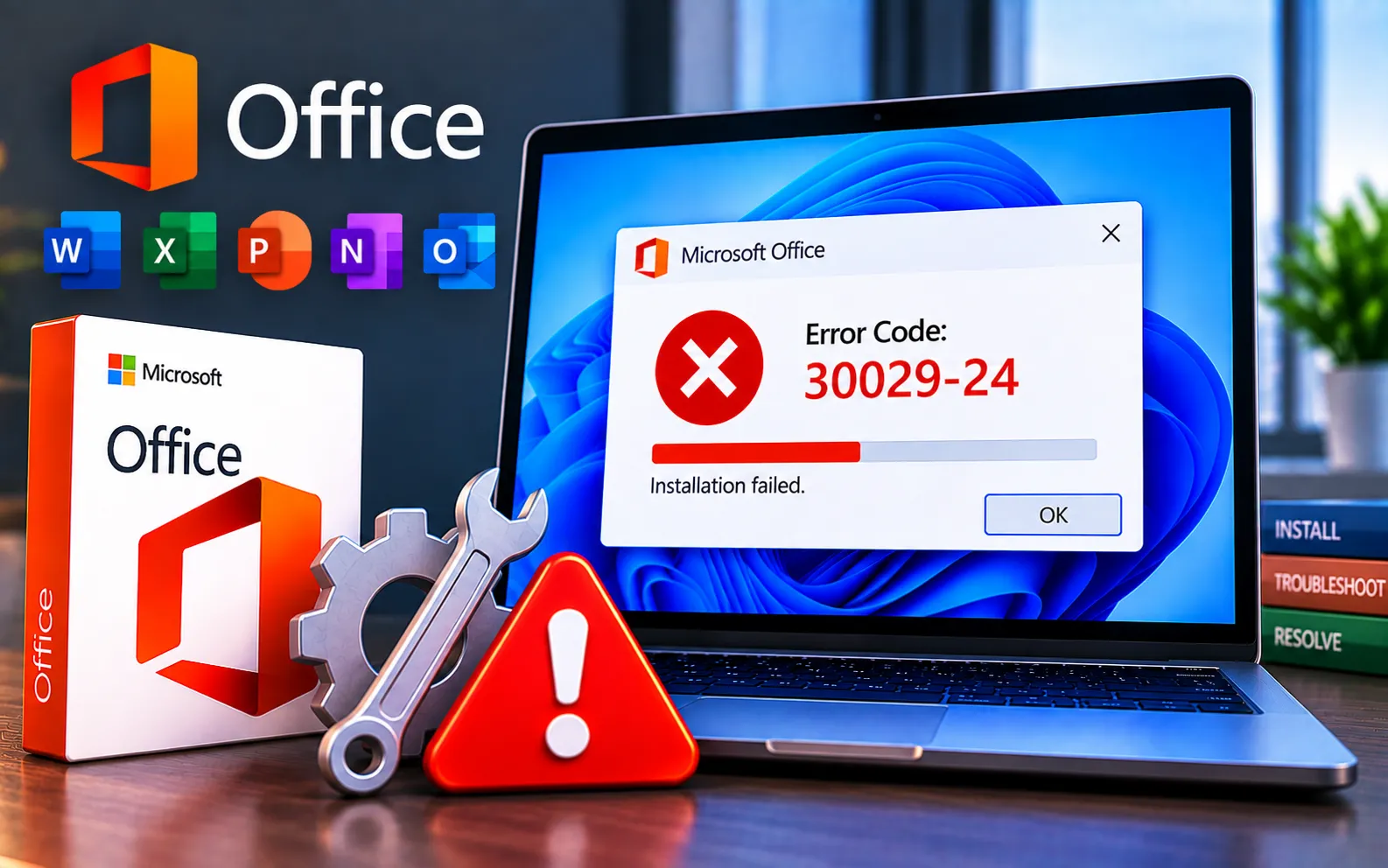
Running into setup problems or an installation error can be frustrating when you’re trying to install must-have programs like Microsoft Office. One issue that comes up often is Error Code 30029-24, which can appear during setup or when updating.
This error means the Office installer hit a snag it couldn’t fix on its own. This guide explains what’s causing it and how to fix Error Code 30029-24.
What’s the Deal with Error Code 30029-24?
Error Code 30029-24 appears when something goes wrong while installing or updating Microsoft Office. The error message reads “We’re sorry, we couldn’t install Office” along with the specific error code. It’s frustrating, but it usually comes down to a handful of common causes you can address directly.
The most common causes are: incomplete or corrupted installation files, antivirus or security software interference, an internet connectivity issue, or leftover files from a previous installation.
Here’s how to fix Error Code 30029-24:
Make sure you’re online
Check that your internet connection is stable and not dropping. It’s best to use a wired connection while installing Office if possible.
Temporarily disable antivirus and firewall
Turn off any antivirus software running on your computer, and disable your firewall to see if either is blocking Office from installing. Re-enable both once installation completes.
Use the Support and Recovery Assistant
Microsoft’s Support and Recovery Assistant helps diagnose and fix Office installation problems. Download and install it from Microsoft’s website, then run the tool and follow its guidance to find and resolve installation issues.
Remove old Office versions
Open Control Panel → Programs → Programs and Features, find your Office program in the list, click it, and select Uninstall. Follow the on-screen steps to finish removing it, then restart your computer.
Install Office in Clean Boot mode
Press Win + R, type msconfig, and press Enter. Go to the Services tab, check “Hide all Microsoft services,” and click “Disable all.” Go to the Startup tab, open Task Manager, and disable all startup items. Close Task Manager, click OK, and restart your computer. Once restarted, try installing Office again.
Contact support
If the problem doesn’t go away after trying all of the above, reach out to Microsoft Support or your IT admin for further help — they can offer additional steps or insights specific to your system setup.
Still Not Resolved?
If you’re still unable to resolve Error Code 30029-24 after trying all six steps, we recommend chatting with our experts — they’ll help you resolve this issue. Our experts are here to assist you — Chat with a specialist — for more technical support.
We are an independent technical support provider and are not affiliated with, endorsed by, or sponsored by Microsoft.
FAQ
What causes Office Error Code 30029-24?
It’s typically caused by incomplete or corrupted installation files, antivirus interference, an internet connectivity issue, or leftover files from a previous installation attempt.
What does the Support and Recovery Assistant do?
It’s Microsoft’s official diagnostic tool that automatically identifies and fixes many common Office installation and update problems.
What is Clean Boot mode and why does it help?
Clean Boot starts Windows with only essential services and no startup programs, which rules out third-party software conflicts that might be blocking the installation.
Should I remove old Office versions before reinstalling?
Yes, especially if a previous installation was incomplete. Leftover files from an old install can conflict with a fresh attempt and cause this same error.
Tags: 30029-24, Error 30029-24, Error Code 30029-24, Installation Error Code 30029-24, Microsoft Error Code 30029-24, Microsoft office Error Code 30029-24, Office Error Code 30029-24
