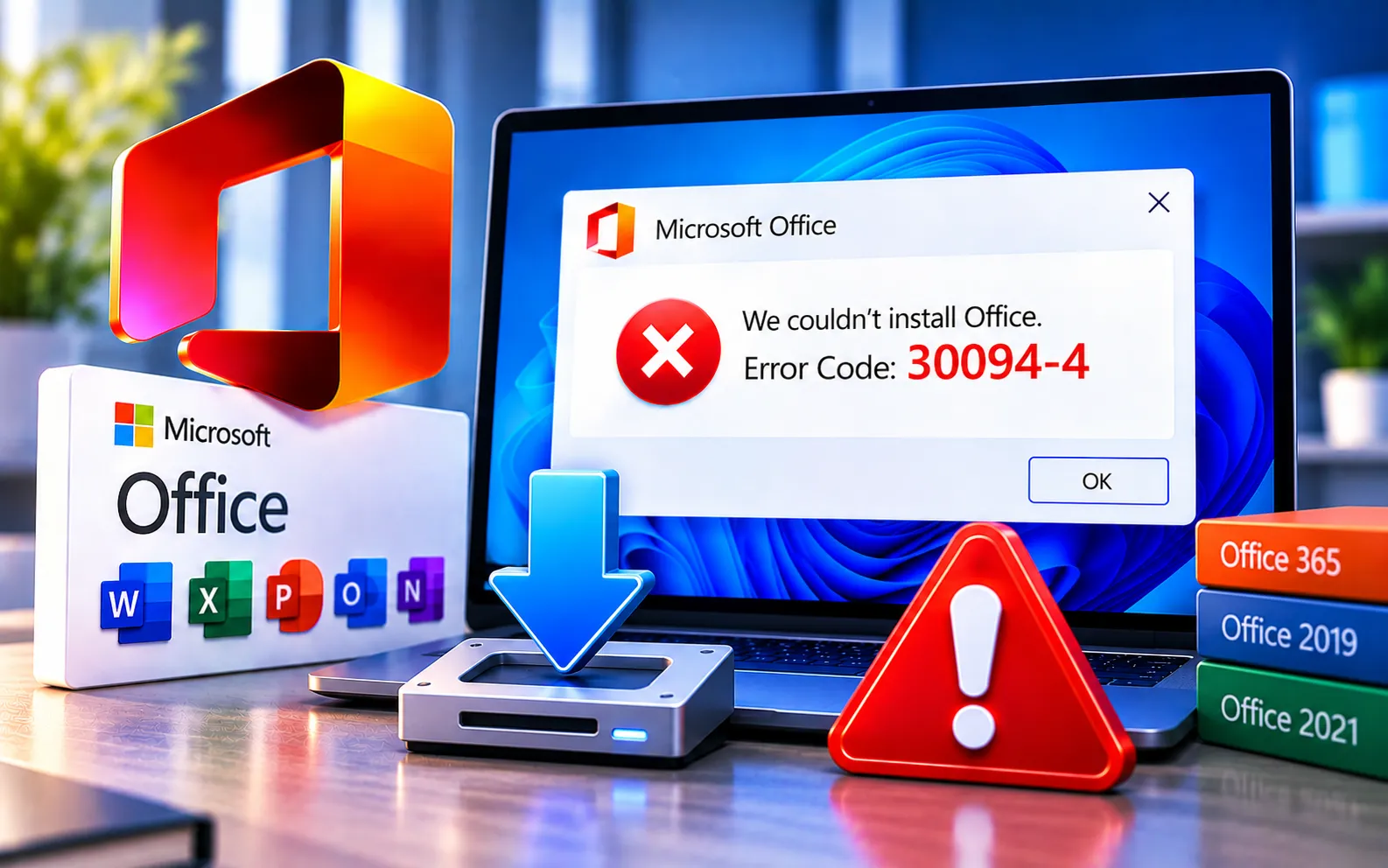
Microsoft Office 365/2021/2019 Installation Error Code 30094-4 is a frustrating issue that can prevent users from installing or updating Office. When this error appears, the installation may stop before completion, which can affect productivity.
This guide explains the common reasons for Error Code 30094-4 and the practical steps to resolve it.
Reasons for Microsoft Office Error Code 30094-4
Corrupted or damaged Office installation files — if the installation files are corrupted or damaged, setup may fail with this error.
Conflicts with other installed software — other applications running on the computer may interfere with the Office installation process.
Insufficient permissions — the user account may not have the permissions required to install or modify Office.
Network connectivity issues — a poor or unstable internet connection can interrupt the installation or update process.
Antivirus software interference — some security programs may interfere with Office installation files or processes.
Here’s how to fix Error Code 30094-4 — try these one at a time, checking installation after each:
Run the Office Troubleshooter
Run the available Microsoft Office troubleshooting tools and follow the on-screen instructions. Once it finishes, restart your computer and try installing Office again.
Run the Windows Update Troubleshooter
Windows 11: Settings → System → Troubleshoot → Other troubleshooters → Windows Update → Run.
Windows 10: Settings → Update & Security → Troubleshoot → Additional troubleshooters → Windows Update → Run the troubleshooter.
Restart your computer and try the Office installation again. If Windows Update itself is having installation problems, see our guide to Windows Update Error Code 0x8024A206.
Enable the Windows Update service
Press Win + R, type services.msc, and press Enter. Find “Windows Update” in the list, double-click it, set Startup type to Automatic if needed, click Apply, select Start if it’s stopped, and click OK. Restart your computer and try the installation again.
Uninstall and reinstall Office 365/2019/2021
Open Control Panel → Programs → Programs and Features, find Microsoft Office, right-click it, select Uninstall, and follow the prompts. Restart your computer, then install Office again using your official Microsoft account or installation source, making sure your internet connection stays stable throughout. If installation fails again, see our guide to Office Installation Error Code 1603.
Temporarily check antivirus software
If you suspect security software is causing the problem, temporarily pause its protection and try the installation again. Turn protection back on right after testing — don’t leave your computer unprotected longer than necessary. If Office continues to encounter installation problems, see our guide to Office Error Code 0-1005.
Check for available Windows updates
Windows 11: Settings → Windows Update → Check for updates.
Windows 10: Settings → Update & Security → Windows Update → Check for updates.
Install any available updates and restart your computer before trying to install Office again.
Run System File Checker
Open the Start menu, search for Command Prompt, right-click it, select “Run as administrator,” and run sfc /scannow. Wait for the scan to reach 100%, restart your computer, and try installing or updating Office again.
Still Not Resolved?
Error Code 30094-4 can occur because of damaged Office files, software conflicts, insufficient permissions, network problems, antivirus interference, or Windows system issues. Start with the troubleshooting tools and Windows Update service check, then reinstall Office and run SFC if the problem continues. Our experts are here to assist you — Chat with a specialist — for more technical support.
We are an independent technical support provider and are not affiliated with, endorsed by, or sponsored by Microsoft.
FAQ
What causes Office Installation Error Code 30094-4?
It’s usually caused by corrupted installation files, conflicts with other software, insufficient permissions, network issues, or antivirus interference.
Should I uninstall Office before troubleshooting other steps?
No, try the Office and Windows Update troubleshooters, and the Windows Update service check first — uninstalling and reinstalling is more effective after those simpler steps haven’t resolved it.
Can antivirus software cause this installation error?
Yes. Antivirus or security software can interfere with the Office installation process — temporarily pausing it during setup helps confirm whether it’s the cause.
Will an SFC scan fix this error?
It can, if a damaged Windows system file is interfering with the installation — it’s a safe, quick step worth running alongside the other fixes.
Tags: Error Code 30094-4, installation Error Code 30094-4, Microsoft 365, Microsoft 365/2021/2019 installation Error code 30094-4, Microsoft Office 365/2019/2021 Installation Error Code 30094-4, Microsoft office 365/2021/2019 installation Error Code 30094-4, Office 365/2021/2019, office 365/2021/2019 installation Error Code 30094-4, Office Installation, Office Installation Error 30094-4, office installation error code 30094-4
