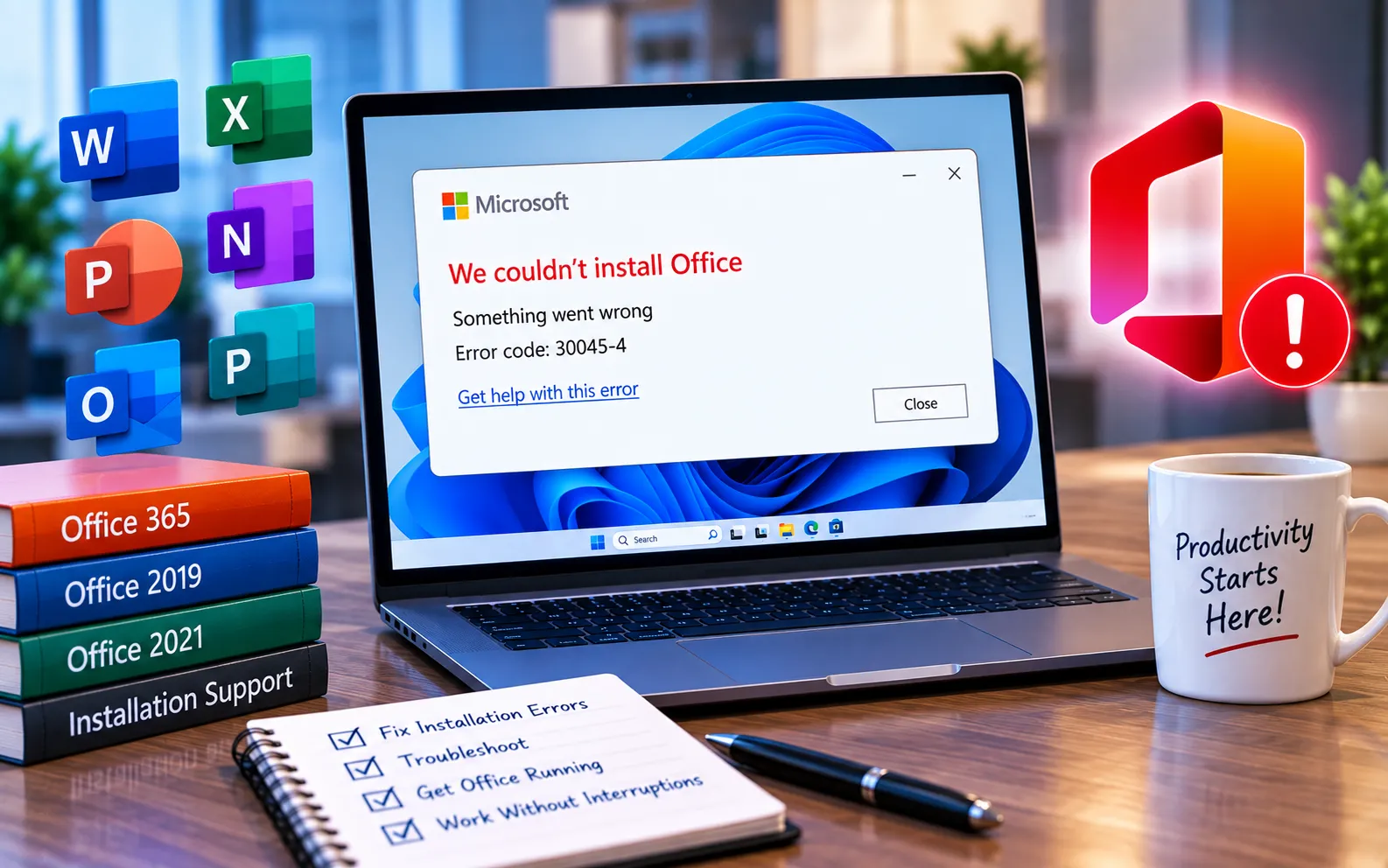
Microsoft Office Error Code 30045-4 can appear when you try to install, update, or repair Microsoft 365, Office 2021, or Office 2019. The problem may occur because of a damaged Office installation, a disabled Click-to-Run service, security software interference, Windows system-file problems, or an incomplete previous installation.
You can usually resolve this without resetting Windows. Start with the simpler solutions and move to reinstalling Office only if earlier steps don’t work.
What Causes Microsoft Office Error Code 30045-4?
Common causes include a damaged or incomplete Office installation, problems with the Microsoft Office Click-to-Run service, security software blocking the installation, corrupted Windows system files, an incomplete Office update, conflicts with an older Office installation, or network or proxy restrictions during installation. Before making major changes, restart your computer and try the installation again.
Here’s how to fix Error Code 30045-4:
Check the Microsoft Office Click-to-Run service
Press Win + R, type services.msc, press Enter, and find “Microsoft Office Click-to-Run Service.” Double-click it, check the Startup type, set it to Manual or Automatic, click Start if it’s stopped, then click Apply and OK. Restart your computer and try installing or updating Office again.
Repair Microsoft Office
Go to Settings → Apps → Installed apps, find your Microsoft 365 or Office product, select the three-dot menu, choose Modify, and select Quick Repair. If that doesn’t resolve it, repeat and select Online Repair — Microsoft recommends this for a more complete repair that replaces damaged files. For another installation problem involving damaged or incomplete files, see our guide to Office Installation Error Code 1603.
Run System File Checker
Search for Command Prompt, right-click it, select “Run as administrator,” and run sfc /scannow. Wait until the scan reaches 100% and restart your computer. If it reports files it couldn’t repair, run DISM /Online /Cleanup-Image /RestoreHealth from an elevated Command Prompt, restart, and run sfc /scannow again.
Check your internet connection and security software
Office installation may need to download files from Microsoft’s servers, and a VPN, proxy, firewall, or antivirus can interfere with that. Confirm your connection is stable, and disconnect any VPN temporarily to test. You can also temporarily check whether antivirus or firewall software is blocking the installer — don’t leave protection disabled after testing, and review the security app’s allow-list instead of permanently disabling it if that’s what resolved the issue. If you’re experiencing a different Office installation problem after an update, see our guide to Office Error Code 0-1005.
Install pending Windows updates
Go to Settings → Windows Update, check for and install any pending updates, and restart your computer if requested. Try the Office installation again afterward. If you encounter a different 30045 error, see our guide to Microsoft Office Error Code 30045-27.
Remove an older Office installation
Open Control Panel → Programs → Programs and Features, look for older Office products you no longer need, uninstall them, and restart your computer. Microsoft also provides an Office uninstall troubleshooter for removing Microsoft 365, Office 2021, Office 2019, and other supported installations.
Reinstall Microsoft Office
Make sure you know your Microsoft account or product key first, then uninstall the existing Office installation, restart your computer, sign in with the account tied to your license, download the correct installer, and start the installation. Keep your computer connected to the internet until it finishes, then open an Office application and sign in if activation is requested. Uninstalling Office removes the applications but not your documents, spreadsheets, or other files you created with it.
Try the Office offline installer
If the normal installer repeatedly fails because of a network, proxy, firewall, or antivirus problem, the Office offline installer can help bypass these issues for supported Microsoft 365 installations.
Still Not Resolved?
Error Code 30045-4 usually requires troubleshooting the existing Office installation rather than changing Windows settings unnecessarily. Start with the Click-to-Run service and repairing Office, then run SFC and DISM, check security and network restrictions, and install pending Windows updates. If the error continues, remove the existing installation and reinstall the correct Office version. Our experts are here to assist you — Chat with a specialist — for more technical support.
We are an independent technical support provider and are not affiliated with, endorsed by, or sponsored by Microsoft.
FAQ
What is Microsoft Office Error Code 30045-4?
It’s an installation or update-related error that can prevent Microsoft 365, Office 2021, or Office 2019 from completing an operation.
Can repairing Office fix Error Code 30045-4?
Yes. Try Quick Repair first — if that doesn’t work, Online Repair provides a more complete repair of the Office installation.
Should I reinstall Office immediately?
No. Try restarting Windows, checking the Click-to-Run service, repairing Office, running SFC and DISM, and checking security or network restrictions first — reinstall only when these steps don’t resolve it.
Will uninstalling Office delete my Word and Excel files?
No. Uninstalling Office removes the applications — your personal documents and workbooks are not removed by the normal uninstall process.
Tags: 30045- 4, Code 30045- 4, Error Code 30045- 4, KB63363912, Windows update error code 30045-4
