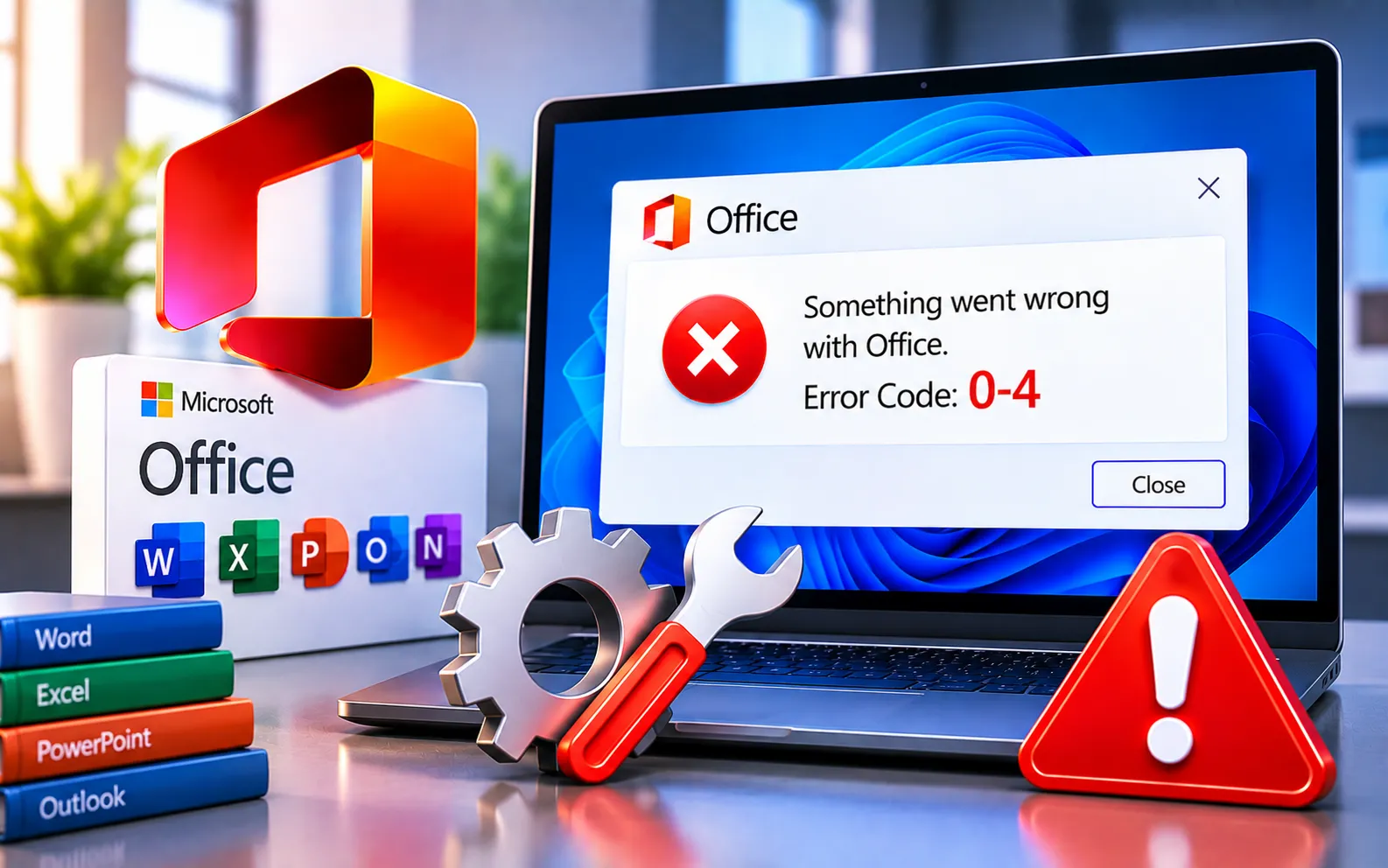
Microsoft Office Error Code 0-4 can appear when you try to install or update Microsoft Office. The problem may be caused by network connectivity issues, insufficient disk space, conflicting software, corrupted installation files, or problems with an existing Office installation.
This guide explains what causes Error Code 0-4 and the steps to complete the installation or update successfully.
What Is Microsoft Office Error Code 0-4?
Error Code 0-4 is generally associated with problems during the installation or update process. When Office setup can’t complete successfully, this error may prevent applications like Word, Excel, or PowerPoint from being installed or updated. The exact cause varies by system, so it’s worth checking your internet connection, available storage, existing installations, and security software before moving to more advanced troubleshooting.
What Causes Office Error Code 0-4?
Network problems — an unstable internet connection can interrupt Office downloads or updates.
Insufficient disk space — Office may not have enough available storage to complete installation.
Security software — antivirus or firewall settings can interfere with Office setup.
Corrupted installation files — damaged Office files can prevent installation or update from completing correctly.
Previous Office installations — an incomplete or damaged previous installation can interfere with a new setup.
Here’s how to fix Microsoft Office Error Code 0-4, starting with the simpler solutions:
Check your internet connection
Make sure your connection is stable — a weak or interrupted connection can prevent Office from downloading required files. Restart your router and try again, and temporarily disconnect from any VPN or proxy if you’re using one.
Free up disk space
Check the free space on the drive where Office is being installed. If it’s nearly full, setup may not have enough room to download and extract files — remove unnecessary temporary files or applications, then restart the installation.
Temporarily disable conflicting software
Third-party antivirus or firewall software can interfere with installation. Temporarily disable it, try installing or updating Office again, and remember to re-enable it afterward.
Repair Microsoft Office
If Office is already installed but the error appears while updating or repairing it, open Programs and Features in Windows, locate Microsoft Office, and select the Repair option. Start with Quick Repair — if the problem continues, try Online Repair and restart your computer.
Remove and reinstall Office
If repairing doesn’t resolve it, an existing or incomplete installation may be interfering with setup. Remove the existing installation, restart your computer, then download and reinstall the correct Office version using your Microsoft account. Make sure you have your account details or product information ready first.
Check for Windows and Office updates
Make sure both Windows and Office are fully up to date, since pending Windows updates can sometimes cause compatibility or installation problems. Install any available updates, restart, and try Office installation again.
What If Error Code 0-4 Still Appears?
If the error continues after trying the steps above, determine whether the problem occurs during installation, updating, or activation. If Office installs but you later see a licensing or activation message, that’s a separate issue requiring different troubleshooting. Also check that your computer meets the requirements for the Office version you’re installing, and that you’re using the correct Microsoft account or product information. Our experts are here to assist you — Chat with a specialist — for more technical support.
We are an independent technical support provider and are not affiliated with, endorsed by, or sponsored by Microsoft.
FAQ
What causes Office Error Code 0-4?
It’s usually caused by network connectivity issues, insufficient disk space, conflicting security software, corrupted installation files, or a problem with an existing Office installation.
Should I try Quick Repair or Online Repair first?
Start with Quick Repair, since it’s faster and fixes most common issues. If that doesn’t resolve the error, run Online Repair for a more thorough fix.
What do I need before removing and reinstalling Office?
Have your Microsoft account details or product information ready beforehand — this ensures a smooth reinstall and avoids activation issues afterward.
<div
Tags: 0-4, Error 0-4, Error Code 0-4, Installation Failure Error 0-4, Installation Failure Error Code 0-4, Microsoft Office Error Code 0-4, Office error 0-4, Office error Code 0-4
