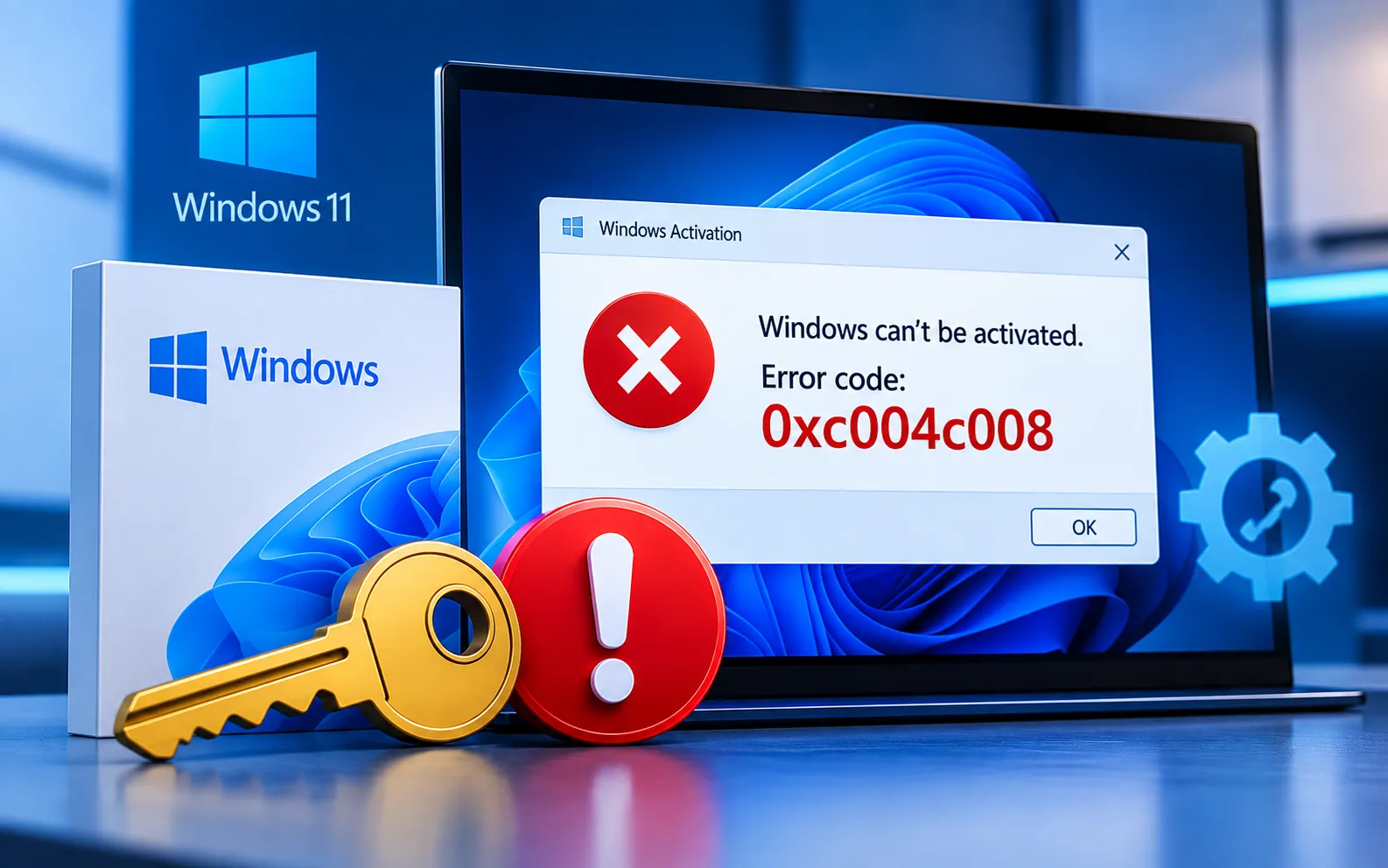
Windows Error Code 0xC004C008 usually indicates a problem with the activation or licensing of your Windows installation. It can appear when a product key has already been used on another device, when Windows detects a licensing conflict, or when activation can’t be completed correctly.
This guide explains what Error Code 0xC004C008 means and shows several ways to fix the activation problem, including checking your product key, running the Activation Troubleshooter, checking your internet connection, and using Microsoft’s available activation options.
Understanding Error Code 0xC004C008
Activation issues — this error often points to problems with Windows activation itself, such as the operating system not being properly activated or a discrepancy in the activation process, which prevents Windows from verifying your license correctly.
Product key mismatch — a mismatched or invalid product key is another common cause. Make sure the key entered during activation is valid and matches your Windows edition. If you’re upgrading or reinstalling Windows, our guide on using a Windows 10 key to activate Windows 11 may also help.
Here’s how to fix Error Code 0xC004C008:
Verify your product key
Double-check the product key used for activation and make sure it matches the key provided with your Windows installation media. Entering the correct key can resolve the issue directly if it was wrong.
Re-enter the product key
If there’s any doubt about accuracy, re-enter the key carefully, character by character, and check whether Windows activates successfully afterward.
Activate by phone
If standard online activation doesn’t work, Windows offers a phone activation option. Follow the on-screen instructions and provide the requested information to complete activation this way.
Check your internet connection
Make sure your device has a stable internet connection — without one, Windows can’t properly communicate with Microsoft’s activation servers.
Update Windows
Make sure your operating system is fully up to date, since updates can resolve system issues that affect activation. If your update is stuck, see our guide on fixing Windows 11 update problems, then try activating again.
Run the Activation Troubleshooter
Windows includes a built-in Activation Troubleshooter. Open Settings, navigate to Activation settings, select the available troubleshooting option, and follow the on-screen instructions to identify and resolve the issue.
Still Not Resolved?
Error Code 0xC004C008 can be a hurdle, but verifying your product key, checking your internet connection, updating Windows, and running the Activation Troubleshooter resolve it in most cases. If the problem continues, our experts are here to assist you — Chat with a specialist — for further technical support.
We are an independent technical support provider and are not affiliated with, endorsed by, or sponsored by Microsoft.
FAQ
What causes Windows Error Code 0xC004C008?
It’s usually caused by a product key already used on another device, a licensing conflict, or an issue completing the activation process correctly.
Can updating Windows fix an activation error?
Yes, in some cases. Updates can resolve underlying system issues that interfere with activation, so it’s worth updating before trying more advanced fixes.
When should I use phone activation instead of online activation?
Use phone activation when the standard online process fails to validate your key — Windows provides on-screen instructions to guide you through activating by phone instead.
Does a stable internet connection matter for activation?
Yes. Windows needs to communicate with Microsoft’s activation servers to verify your license, so a weak or dropped connection can cause this error even with a valid key.
