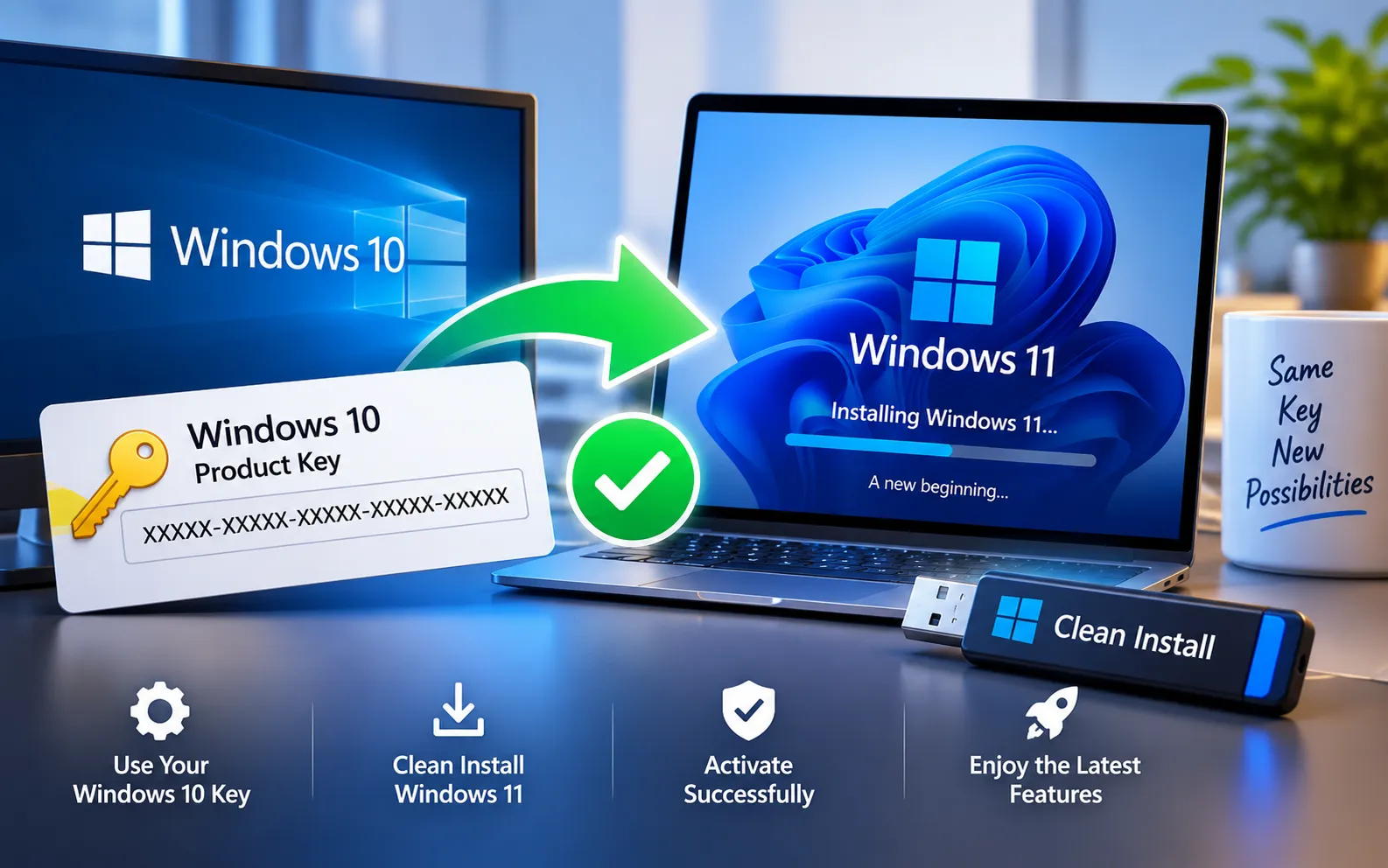
Users planning to upgrade or reinstall Windows 11 often wonder whether a Windows 10 activation key can be used during a clean installation. Questions about compatibility and activation are common because Windows 10 and Windows 11 have different system requirements and licensing details.
This article explains whether an existing Windows 10 license can be used to activate Windows 11, which editions are compatible with each other, and what to check before you start a clean installation.
Can a Windows 10 Key Be Used to Activate Windows 11?
Yes — in most cases, a valid Windows 10 license can be used to activate Windows 11, as long as the license and the Windows 11 edition you’re installing are compatible. Microsoft allows this because Windows 11 is built on the same licensing system as Windows 10, and upgrading is treated as a continuation of the same license rather than a brand-new purchase.
The edition of Windows you install must match the edition your key belongs to. A Windows 10 Home license will generally activate Windows 11 Home, and a Windows 10 Pro license will generally activate Windows 11 Pro. Special editions such as Enterprise or Education follow the same rule — the key only activates the matching edition. This applies whether you’re upgrading in place, doing a clean installation, or reinstalling Windows 11 on the same PC.
During a clean installation, Windows may ask you to enter a product key. If your device already has a valid digital license linked to its hardware (common if Windows 11 was activated on it before), you can often skip this step by choosing to continue without a key, then let Windows activate automatically once you’re signed in and connected to the internet.
Before reinstalling, it’s worth confirming two things: that your existing Windows 10 license is genuine (not a mass-market or volume-license key not meant for personal use), and that you’re installing the exact same edition your license covers. Mismatching editions is the most common reason activation fails after a clean install.
Here’s how to clean install Windows 11 using a Windows 10 key:
Create Windows 11 installation media
Download the Windows 11 Installation Media Creation Tool from the official Microsoft website. Run the tool and choose to create a bootable USB drive, or download an ISO file if you’d rather mount it directly or burn it to a DVD.
Boot from the media and start Custom Install
Restart your PC and boot from the Windows 11 USB installation media (you may need to change the boot order in BIOS/UEFI first). Follow the on-screen setup instructions, and when given the choice, select Custom Install rather than Upgrade — this gives you a clean installation.
Enter your product key
When prompted for a product key, enter your Windows 10 activation key. If you’re not sure it will work, or the device already carries a digital license, select “I don’t have a product key” to skip this step — you can activate afterward from within Windows.
Let Windows 11 activate
Once installation finishes and you’re connected to the internet, Windows 11 will usually activate automatically using your Windows 10 key or the digital license tied to your hardware. To check the status or enter a key manually, go to Settings → System → Activation → Change Product Key.
If Your Windows 10 Key Does Not Work
If your Windows 10 key didn’t activate Windows 11 after installation, work through these checks in order:
Check your license type — OEM keys are usually tied to the specific hardware they originally shipped with, so they may not transfer to a new motherboard or a different PC.
Confirm the edition matches — a Windows 10 Home key will never activate Windows 11 Pro, and vice versa. Check which edition your key belongs to before reinstalling.
Sign in to your Microsoft account — if Windows 11 was previously activated on this exact device, signing in with the same Microsoft account will often trigger automatic reactivation without needing to re-enter a key.
If you’ve checked all three and the error persists, our experts are here to assist you — Chat with a specialist and they’ll help resolve the issue.
We are an independent technical support provider and are not affiliated with, endorsed by, or sponsored by Microsoft.
FAQ
Can I use my Windows 10 key to activate Windows 11 for free?
Yes. In most cases, a valid Windows 10 license activates the matching edition of Windows 11 at no extra cost, as long as the license is genuine and the editions line up.
Does the Windows edition need to match my key?
Yes. A Windows 10 Home key only activates Windows 11 Home, and a Windows 10 Pro key only activates Windows 11 Pro — the editions must match exactly.
Why won’t my OEM Windows 10 key activate Windows 11?
OEM keys are typically locked to the specific hardware they were sold with, so they often can’t be transferred to a new installation or a different device.
Do I need to enter a product key during installation?
Not always. If your device already carries a valid digital license, you can skip the key during setup by choosing “I don’t have a product key” and let Windows activate automatically afterward.
Tags: activate Windows 11 with Windows 10 key, reinstall Windows 11 with Windows 10 key, Windows 10 key for Windows 11, Windows 10 product key compatibility, Windows 11 activation issues, Windows 11 clean install activation, Windows activation troubleshooting
