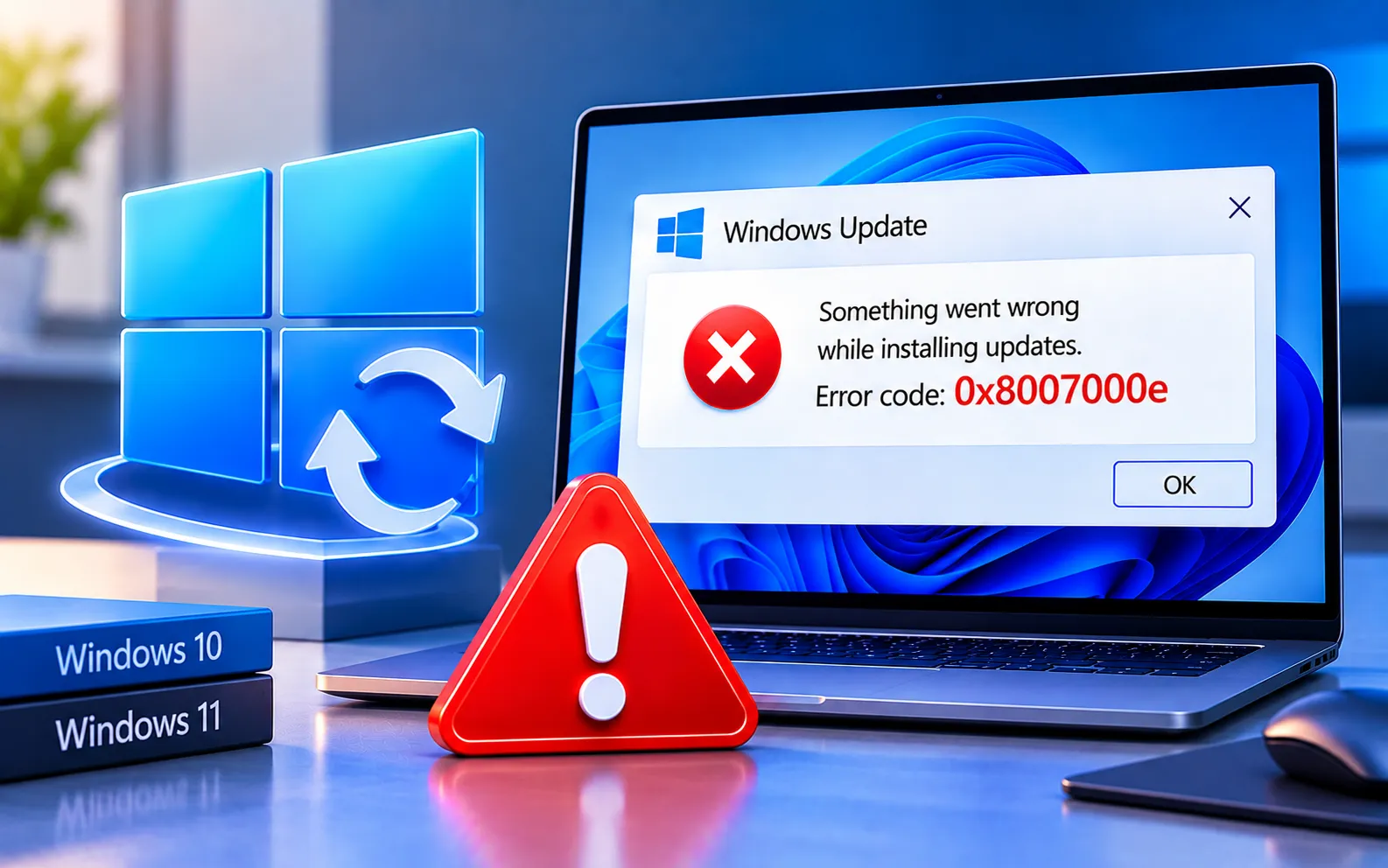
Windows Update Error Code 0x8007000E can prevent Windows 10 or Windows 11 from downloading or installing updates successfully. The problem may appear when Windows doesn’t have enough available resources, when system files are damaged, or when Windows Update components aren’t working correctly.
You can usually resolve this without reinstalling Windows. Start with the simpler solutions below and move to the more advanced steps if the problem continues.
What Causes Windows Update Error Code 0x8007000E?
Common causes include insufficient available memory or system resources, corrupted or missing Windows system files, damaged Windows Update components, incomplete or failed update downloads, problems with the Windows Update cache, software conflicts, or an unexpected shutdown during a previous update. Before making major changes, restart your computer and try Windows Update again, since a temporary system problem may be enough to trigger the error.
Here’s how to fix Error Code 0x8007000E:
Run the Windows Update Troubleshooter
Windows 11: Settings → System → Troubleshoot → Other troubleshooters → Windows Update → Run.
Windows 10: Settings → Update & Security → Troubleshoot → Additional troubleshooters → Windows Update → Run the troubleshooter.
Restart your computer once it finishes, then check for updates again.
Check available storage
Go to Settings → System → Storage and remove unnecessary temporary files, old downloads, or other large files you no longer need. You can also use Storage Sense to clean up temporary data automatically. If your computer also reports low disk space during updates, see our guide to Windows Update Error Code 0x80070070 for additional troubleshooting.
Run System File Checker
Right-click the Start button, select Terminal (Admin) or Windows PowerShell (Admin), and run sfc /scannow. Wait until the scan reaches 100% — don’t close the Terminal window while it’s running. Restart your computer once it finishes and try Windows Update again.
Run DISM to repair Windows
If SFC can’t repair all damaged files, open Terminal as administrator and run DISM.exe /Online /Cleanup-image /ScanHealth. Once that finishes, run DISM.exe /Online /Cleanup-image /RestoreHealth — this may take a while since Windows checks and repairs the component store. Restart your computer and check Windows Update. For repeated failures caused by system-file corruption, see our guide to Windows Update Error Code 0x800F0900.
Reset the Windows Update cache
Open Terminal as administrator and run:
net stop wuauserv
net stop bits
Open File Explorer, navigate to C:\Windows\SoftwareDistribution, and delete the contents of that folder (not the folder itself). Then return to the administrator Terminal and run:
net start wuauserv
net start bits
Restart your computer and check for updates again.
Check Windows Update services
Press Win + R, type services.msc, and press Enter. Look for Windows Update, Background Intelligent Transfer Service, and Cryptographic Services — make sure each is running. If any are stopped, right-click and select Start. Restart your computer and try the update again.
Temporarily check third-party security software
If you recently installed or updated antivirus or security software, it’s worth checking whether it’s interfering with Windows Update. Don’t leave your computer unprotected for longer than necessary — if disabling it temporarily resolves the update problem, re-enable it and check its settings for any Windows Update restrictions.
Install the update again
Windows 11: Settings → Windows Update → Check for updates.
Windows 10: Settings → Update & Security → Windows Update → Check for updates.
Keep your computer connected to power during the installation process.
What If Error 0x8007000E Still Appears?
If the error continues after these steps, the problem may involve deeper Windows Update corruption or an incomplete update installation. Review your Windows Update history and note whether a secondary error code appears alongside 0x8007000E — that can point to a more specific cause. If the update downloads but stays stuck during installation, see our guide to Windows 11 Update Stuck or Not Installing. Our experts are here to assist you — Chat with a specialist — for more technical support.
We are an independent technical support provider and are not affiliated with, endorsed by, or sponsored by Microsoft.
FAQ
What does Windows Update Error Code 0x8007000E mean?
It generally indicates Windows doesn’t have enough available resources to complete an operation — during Windows Update, this can also relate to corrupted files or damaged update components.
Can SFC fix error 0x8007000E?
Yes, when corrupted or missing Windows system files are contributing to the problem — run sfc /scannow from an administrator Terminal and let the scan finish.
Should I reset Windows to fix 0x8007000E?
No, not as a first solution. Try the troubleshooter, storage cleanup, SFC, DISM, and Windows Update cache reset first — consider a reset only after less disruptive troubleshooting has failed.
Will deleting the SoftwareDistribution folder delete my personal files?
No. This folder contains Windows Update data and downloaded update files — deleting its contents doesn’t remove your personal documents, photos, or other files.
Tags: Error 0x8007000e, Error Code 0x8007000e, windows 10 update error code 0x8007000e, windows 10/11 update error 0x8007000e, Windows 10/11 Update Error Code 0x8007000e, windows 11 update error code 0x8007000e, Windows Update Error 0x8007000e, Windows Update Error Code 0x8007000e
