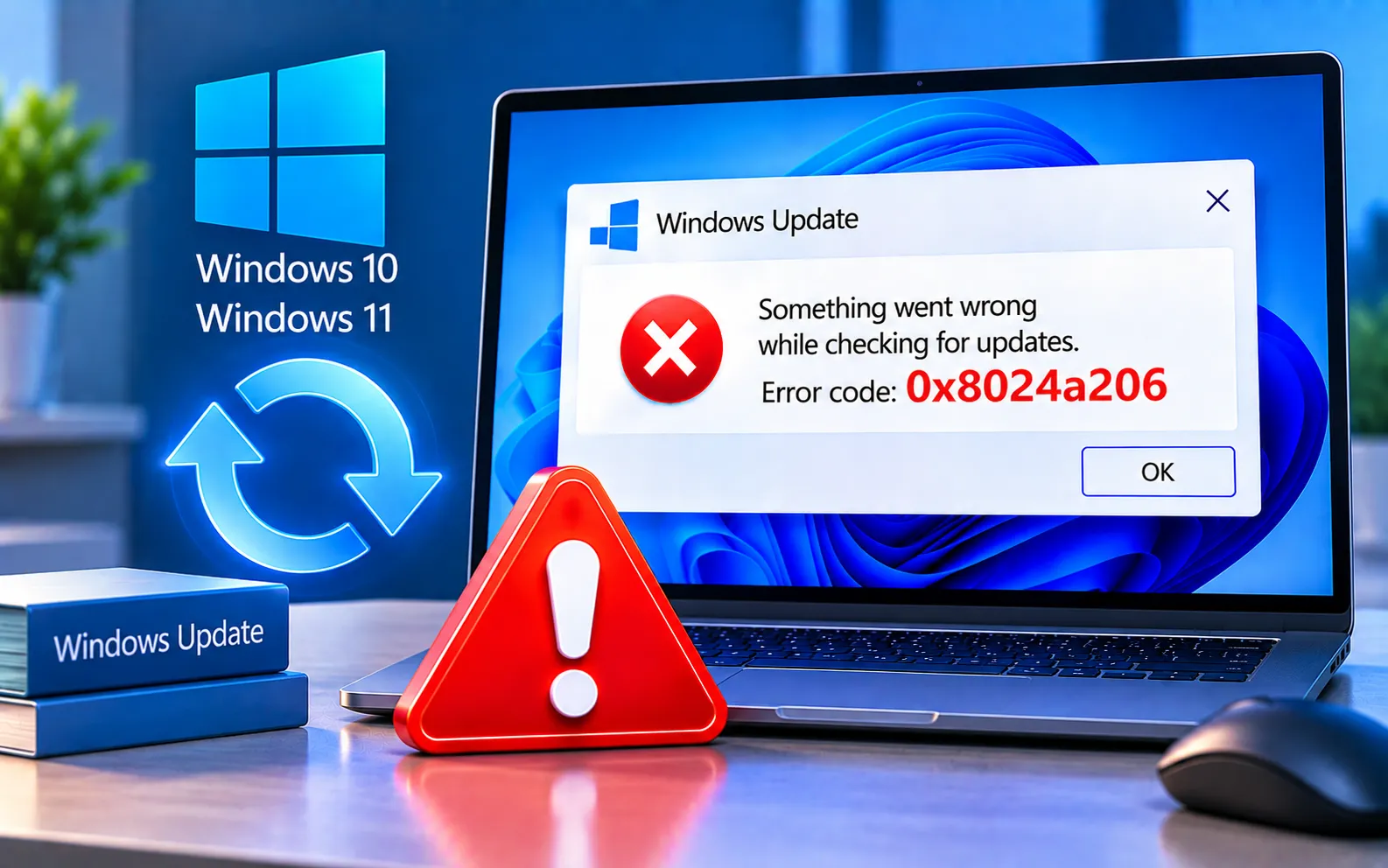
Windows Update Error Code 0x8024A206 can appear when Windows 10 or 11 fails to download or install an available update. The error may occur because of network problems, corrupted Windows Update files, outdated network drivers, or issues with Windows Update services.
Start with the simpler solutions below and continue until Windows Update works normally.
Quick Ways to Fix Windows Update Error Code 0x8024A206
Before changing any Windows Update components, check your internet connection — a stable connection is necessary to download updates successfully. You can also restart your computer and try Windows Update again before working through the steps below.
Here’s how to fix Error Code 0x8024A206:
Check your internet connection
If you use Wi-Fi, restart your router and reconnect your computer, or try a wired connection if available. If you use a proxy, go to Settings → Network & Internet → Proxy, check whether one is enabled, and disable it temporarily if you don’t need it. Restart your computer and check for updates again. If the update still fails because of a network issue, see our guide to Windows Update Error Code 0x8024402C.
Update network drivers
Open Device Manager, expand Network adapters, right-click your network adapter, select Update driver, and choose “Search automatically for drivers.” Install any available update, then restart your computer and try Windows Update again.
Clear Windows Update temporary files
Open Disk Cleanup, select your system drive (usually C:), click “Clean up system files,” select the temporary Windows update-related files, click OK, and select Delete Files to confirm. Restart your computer and check Windows Update again.
Reset the Windows Update cache
Open Windows Terminal or Command Prompt as administrator and run each command below one at a time, letting each finish first:
net stop wuauserv
net stop cryptsvc
net stop bits
net stop msiserver
ren C:\Windows\SoftwareDistribution SoftwareDistribution.old
ren C:\Windows\System32\catroot2 catroot2.old
net start wuauserv
net start cryptsvc
net start bits
net start msiserver
Restart your computer and check for updates again.
Run the Windows Update Troubleshooter
Windows 11: Settings → System → Troubleshoot → Other troubleshooters → Windows Update → Run.
Windows 10: Settings → Update & Security → Troubleshoot → Additional troubleshooters → Windows Update → Run the troubleshooter.
Restart your computer and try the update again.
Enable the Windows Update service
Press Win + R, type services.msc, press Enter, find “Windows Update,” double-click it, set Startup type to Automatic, click Apply, click Start if it’s stopped, and click OK. Also confirm Background Intelligent Transfer Service (BITS) is running. Restart your computer after making these changes.
Check for Windows updates again
Windows 11: Settings → Windows Update → Check for updates.
Windows 10: Settings → Update & Security → Windows Update → Check for updates.
Allow Windows to complete the download and installation process.
Check for corrupted system files
Open Command Prompt as administrator and run sfc /scannow. Wait until the scan reaches 100% and restart your computer. If SFC reports it couldn’t repair some files, run DISM /Online /Cleanup-Image /RestoreHealth, then restart and check Windows Update again.
What If Error Code 0x8024A206 Still Appears?
If the error continues after these steps, check your internet connection, Windows Update services, and available storage space again. Make sure Windows has enough free disk space, disconnect unnecessary external devices, and restart your computer before trying the update again. Avoid using “Reset this PC” as an initial troubleshooting step — it’s much more disruptive and should only be considered after less destructive solutions have failed. Our experts are here to assist you — Chat with a specialist — for more technical support.
We are an independent technical support provider and are not affiliated with, endorsed by, or sponsored by Microsoft.
FAQ
What is Windows Update Error Code 0x8024A206?
It can occur when Windows has trouble downloading or installing updates — network problems, corrupted update files, and Windows Update service issues can all contribute.
Can restarting the Windows Update service fix 0x8024A206?
Yes. If the service is stopped or experiencing a temporary problem, restarting it can help restore the update process.
Can clearing the Windows Update cache fix this error?
Yes. Clearing or resetting the cache can help when corrupted temporary update files are preventing Windows from downloading updates correctly.
Should I reset Windows to fix 0x8024A206?
No. A complete PC reset shouldn’t be your first option — try troubleshooting the network, Windows Update services, update cache, and system files first.
Tags: Error 0x8024a206, Error Code 0x8024a206, Windows 10, Windows 10 update Error code 0x8024a206, Windows 10/11 update Error code 0x8024a206, Windows 11, Windows 11 update Error code 0x8024a206, Windows Update Error Code 0x8024a206, Windows Updates
