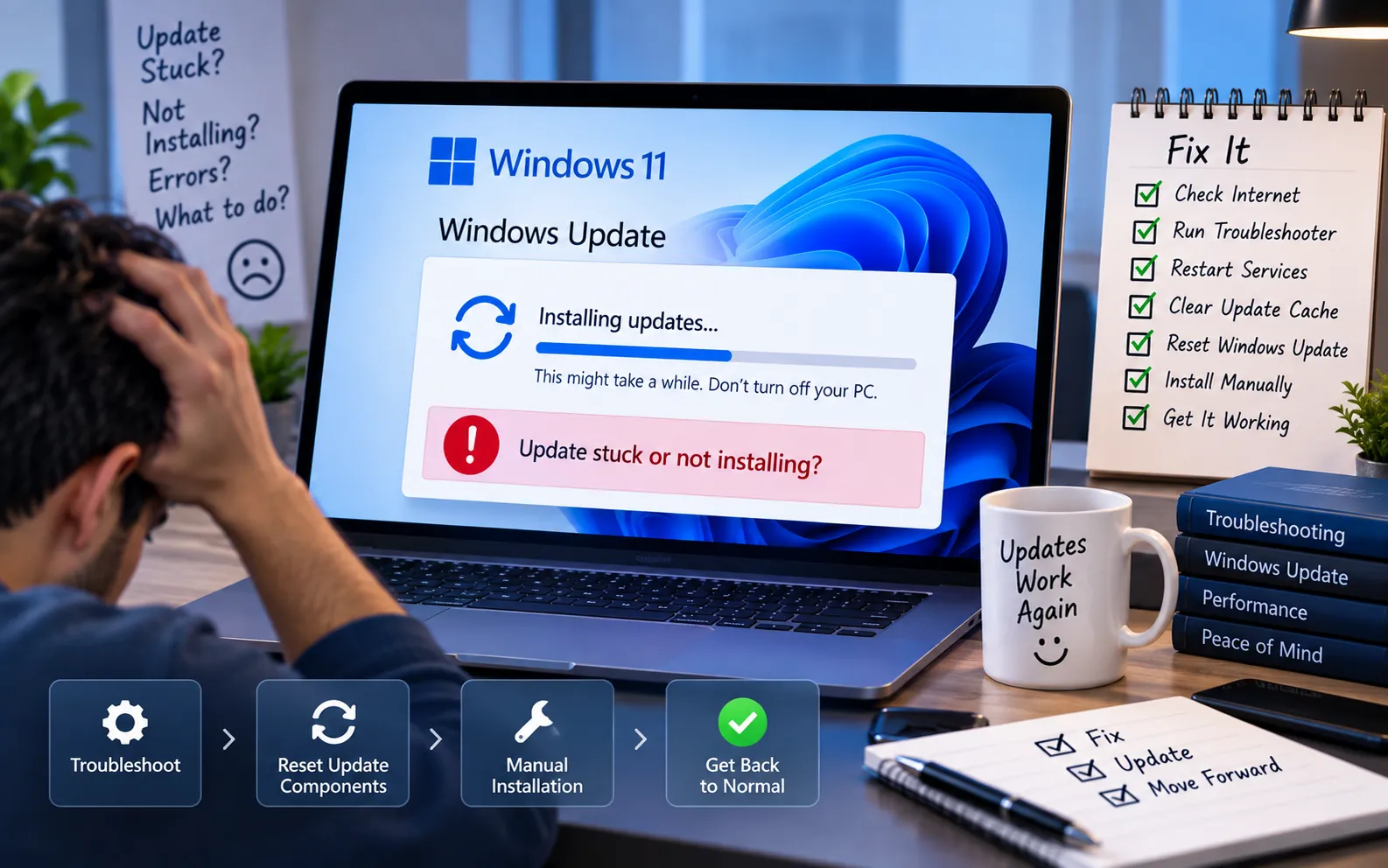
Windows 11 Professional updates may fail to install for several reasons, including corrupted system files, insufficient disk space, or software conflicts.
If your latest Windows update is stuck or fails to install, the following troubleshooting steps can help identify and resolve the most common causes.
Troubleshooting Steps for Windows 11 Update Stuck or Not Installing
Work through these steps in order — they’re arranged from the simplest fix to the most thorough, so most people won’t need to go past step 2 or 3.
Here’s how to fix it:
Restart and try again
Before trying anything more complex, simply restart your PC and attempt the update again. A restart clears temporary system glitches that can prevent an update from installing correctly.
Clear up disk space
Go to Settings → System → Storage, then use Storage Sense or manually delete large, unnecessary files to free up space. Windows updates need a minimum amount of free disk space to install, and low storage is one of the most common causes of a stuck update.
Run the Windows Update Troubleshooter
Open Settings using Win + I, go to System → Troubleshoot → Other troubleshooters, then click Run next to Windows Update and follow the prompts. This automatically detects and fixes many common update issues.
Reset Windows Update components
If the update still won’t install, reset the update components manually. Open Command Prompt as administrator (search “cmd,” then select Run as administrator), and run each command below one at a time, pressing Enter after each:
net stop wuauserv
net stop bits
net stop cryptsvc
ren C:\Windows\SoftwareDistribution SoftwareDistribution.old
ren C:\Windows\System32\catroot2 catroot2.old
net start wuauserv
net start bits
net start cryptsvc
Once all commands have run, restart your PC and try the update again.
If the Update Still Won’t Install
If you’ve restarted, freed up disk space, run the troubleshooter, and reset the update components — but the update still fails — the cause may need a closer, device-specific diagnosis. Our experts are here to assist you — Chat with a specialist — and they’ll help resolve any issues you may have.
We are an independent technical support provider and are not affiliated with, endorsed by, or sponsored by Microsoft.
FAQ
Why does a Windows 11 update get stuck?
The most common causes are corrupted system files, insufficient disk space, or a software conflict interfering with the installation process.
How much free disk space do I need for a Windows update?
Requirements vary by update size, but Windows generally needs several gigabytes of free space to download and install updates successfully — freeing up space with Storage Sense is a good first check.
Will resetting Windows Update components delete my files?
No. The commands rename the update cache folders rather than deleting them, and only affect update-related data — your personal files and installed apps are not touched.
Do I need admin access to fix a stuck Windows update?
Yes, for the Command Prompt steps. Resetting update components requires running Command Prompt as administrator, since it stops and restarts core Windows services.
Tags: Fix Windows Errors, Software Issues, System Updates, Update Stuck, Windows 11, Windows 11 Professional, Windows Troubleshooting, Windows Update
