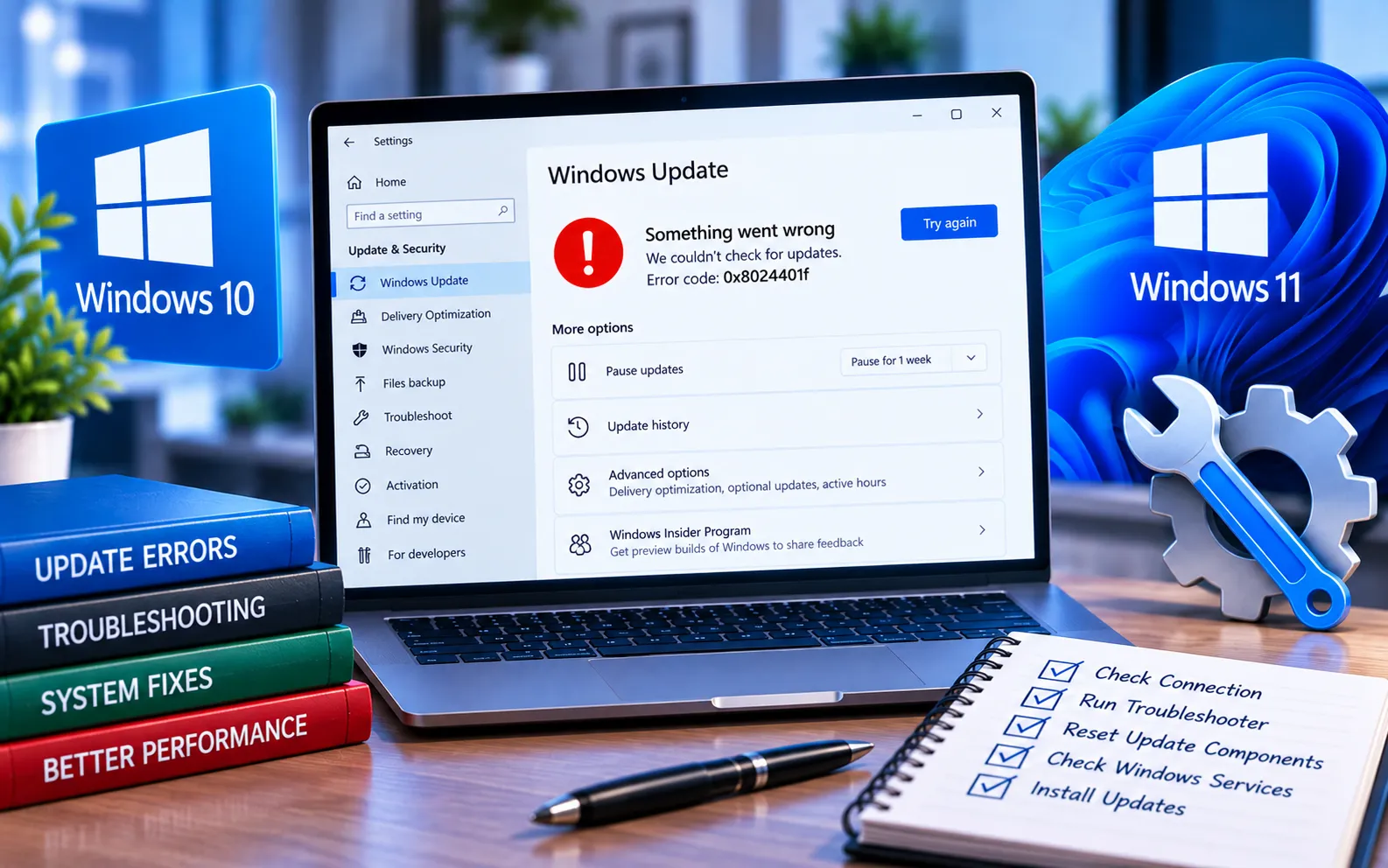
Windows Update Error Code 0x8024401F can appear when Windows has trouble communicating with the update service or completing the update process. Proxy settings, VPN connections, security software, and corrupted Windows components can all interfere with Windows Update.
You can try several built-in troubleshooting methods before considering a Windows reset. This guide explains how to fix it in Windows 10 and 11.
What Causes Windows Update Error Code 0x8024401F?
Common causes include incorrect proxy settings, an active VPN connection interfering with Windows Update, third-party antivirus or security software blocking update activity, corrupted Windows system files, damaged Windows Update components, or temporary update files causing installation problems. Start with the network and security checks below.
Here’s how to fix Error Code 0x8024401F:
Temporarily disable third-party security software
For Windows Security: Settings → Privacy & security → Windows Security → Virus & threat protection → Manage settings, and temporarily turn off Real-time protection. For third-party antivirus, pause its real-time protection and firewall features too. Check Windows Update again, then turn protection back on — don’t leave it disabled longer than necessary. If the update works with it off, check your security software settings for a feature blocking Windows Update.
Disconnect your VPN
Open your VPN application, disconnect, and close it temporarily. Restart your computer and check Windows Update again. If the update works after disconnecting, reconnect the VPN once the update finishes.
Check your proxy settings
On both Windows 10 and 11: Settings → Network & Internet → Proxy, review the configured settings, and turn off a manual proxy if you don’t need one. Restart your computer and check for updates again. If connection problems continue, see our guide to Windows Update Error Code 0x8024402C.
Run the Windows Update Troubleshooter
Windows 11: Settings → System → Troubleshoot → Other troubleshooters → Windows Update → Run.
Windows 10: Settings → Update & Security → Troubleshoot → Additional troubleshooters → Windows Update → Run the troubleshooter.
Restart your computer and check for updates again. Microsoft currently recommends this as one of the first steps when an update fails.
Run System File Checker
Open Command Prompt as administrator and run sfc /scannow. Wait for the scan to reach 100%. If it repairs corrupted files, restart and try Windows Update again. If SFC can’t repair all files, run DISM.exe /Online /Cleanup-Image /RestoreHealth, restart, and run sfc /scannow again. If corrupted components continue causing update problems, see our guide to Windows Update Error Code 0x800F0900.
Reset Windows Update components
Open Command Prompt as administrator and run:
net stop wuauserv
net stop cryptsvc
net stop bits
net stop msiserver
ren %systemroot%\SoftwareDistribution SoftwareDistribution.bak
ren %systemroot%\System32\catroot2 catroot2.bak
net start wuauserv
net start cryptsvc
net start bits
net start msiserver
Restart your computer, then open Windows Update and select “Check for updates.”
Clear temporary files
Press Win + R, type cleanmgr, press Enter, select your system drive (usually C:), select the temporary files to remove, click OK, and select Delete Files when prompted. Restart your PC and try Windows Update again.
Check Windows Update again
Windows 11: Settings → Windows Update.
Windows 10: Settings → Update & Security → Windows Update.
Select “Check for updates” and let Windows download and install what’s available. If the update fails to download rather than connecting successfully, see our guide to Windows Update Error Code 0x8024A206.
Should You Reset Windows?
A Windows reset should be a last resort. Before considering it, make sure you’ve checked your VPN connection, reviewed proxy settings, temporarily tested third-party security software, run the Windows Update Troubleshooter, repaired system files with SFC and DISM, reset Windows Update components, and cleared unnecessary temporary files. If all of these fail, back up your important files before using Windows recovery options. Our experts are here to assist you — Chat with a specialist — for more technical support.
We are an independent technical support provider and are not affiliated with, endorsed by, or sponsored by Microsoft.
FAQ
What is Windows Update Error Code 0x8024401F?
It’s an update-related error that can occur when Windows encounters problems communicating with update services or completing the update process.
Can a VPN cause error 0x8024401F?
Yes. A VPN can interfere with Windows Update connections in some network configurations — disconnecting it temporarily helps determine whether it’s contributing to the problem.
Can antivirus software cause Windows Update errors?
Yes. Third-party antivirus or firewall software can sometimes interfere with update activity — temporarily disabling protection helps identify whether it’s involved.
Can SFC fix Windows Update Error Code 0x8024401F?
SFC can repair corrupted protected system files. If it can’t resolve the issue, DISM can repair the Windows component store before running SFC again.
Tags: 0x8024401f, Code 0x8024401f, Error Code 0x8024401f, KB9199234, Windows error code 0x8024401f, Windows Update Error Code 0x8024401f
