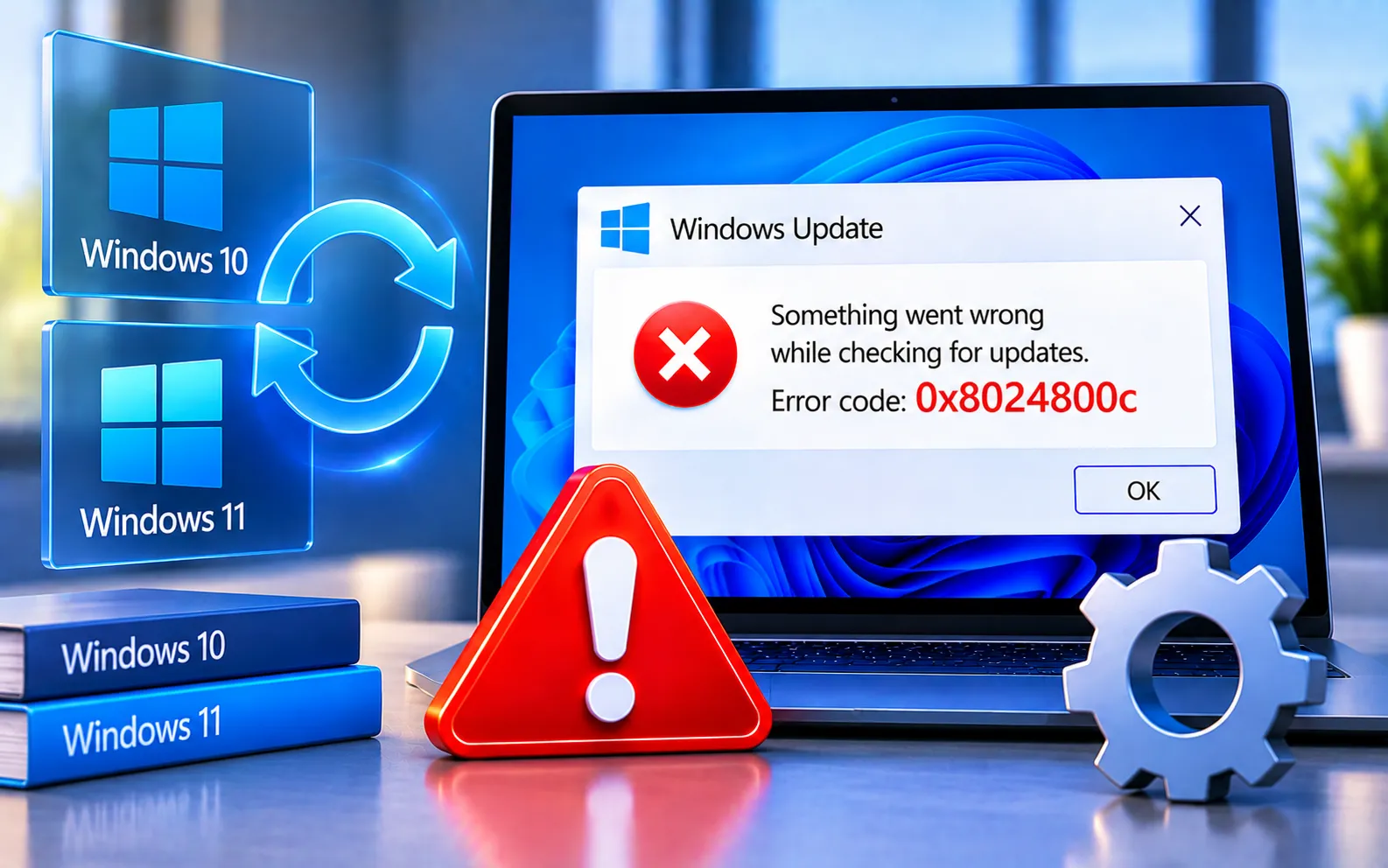
Windows Update Error Code 0x8024800C can prevent Windows 10 or 11 from downloading or installing updates. The problem may occur because Windows Update has corrupted cache files, damaged system components, or problems with the Windows Update service.
You can usually resolve this without resetting your PC. Start with the simpler solutions below and move to the advanced steps if the problem continues.
What Causes Windows Update Error Code 0x8024800C?
Common causes include corrupted Windows Update cache files, damaged system files, problems with Windows Update services, an outdated or inconsistent SoftwareDistribution cache, temporary Windows Update component errors, or security software interfering with the update process. Clearing the update cache and restarting the required services often resolves the problem.
Here’s how to fix Error Code 0x8024800C:
Run the Windows Update Troubleshooter
Windows 11: Settings → System → Troubleshoot → Other troubleshooters → Windows Update → Run.
Windows 10: Settings → Update & Security → Troubleshoot → Additional troubleshooters → Windows Update → Run the troubleshooter.
Restart your computer once it finishes, then check for updates again.
Clear the Windows Update cache
Press Win + R, type services.msc, press Enter, find “Windows Update” in the list, right-click it, and select Stop. Then press Win + R again, enter %windir%\SoftwareDistribution\DataStore, press Enter, select everything inside the DataStore folder, and delete it. Return to Services and start the Windows Update service again. For connection-related update problems specifically, see our guide to Windows Update Error Code 0x8024402C.
Restart Windows Update services
Open Command Prompt as administrator and run:
net stop wuauserv
net stop bits
net stop cryptsvc
net start cryptsvc
net start bits
net start wuauserv
Close Command Prompt and restart your computer. You can also confirm both Windows Update and Background Intelligent Transfer Service are running through services.msc, restarting either if needed.
Run System File Checker
Open the Start menu, search for Command Prompt, right-click it, select “Run as administrator,” and run sfc /scannow. Wait for the scan to reach 100% and restart your computer. If corrupted system files continue causing update problems, see our guide to Windows Update Error Code 0x800F0900.
Run DISM
If SFC can’t repair all damaged files, open Command Prompt as administrator and run DISM /Online /Cleanup-Image /ScanHealth. Once that finishes, run DISM /Online /Cleanup-Image /RestoreHealth — this second command may take several minutes, so don’t close the window while it’s running. Restart your computer and check for updates again.
Check your internet connection
If you’re on Wi-Fi, restart your router and reconnect, or try a wired connection if available. Temporarily disconnect from any VPN or proxy while checking for updates, since network configuration problems can sometimes prevent Windows Update from communicating correctly with its servers.
Temporarily check security software
If you recently installed or updated antivirus or security software before the error appeared, check whether it’s blocking Windows Update. Don’t leave your computer unprotected for longer than necessary — re-enable it immediately after testing.
Check for Windows updates again
Windows 11: Settings → Windows Update → Check for updates.
Windows 10: Settings → Update & Security → Windows Update → Check for updates.
Let Windows download and install any available updates.
What If Error Code 0x8024800C Still Appears?
If the error continues after clearing the cache and repairing system files, confirm that Windows Update and Background Intelligent Transfer Service are running, and check that you have enough free storage space for the update. Restart your computer and try again after completing all SFC and DISM repairs. Our experts are here to assist you — Chat with a specialist — for more technical support.
We are an independent technical support provider and are not affiliated with, endorsed by, or sponsored by Microsoft.
FAQ
What is Windows Update Error Code 0x8024800C?
It’s an update-related error that can prevent Windows from downloading or installing updates — corrupted update data and damaged system components can contribute to the problem.
Can clearing the Windows Update cache fix error 0x8024800C?
Yes. If corrupted files in the Windows Update cache are causing the problem, clearing the SoftwareDistribution data and restarting Windows Update can resolve the error.
Should I reset Windows to fix error 0x8024800C?
No, not as a first solution. Try the Windows Update troubleshooter, cache reset, SFC, DISM, and service checks first.
Does SFC help with Windows Update errors?
Yes, when damaged or corrupted system files are contributing to update failures. Running DISM afterward also helps repair the Windows component store. If failures continue due to network or connection problems, see our guide to Windows Update Error Code 0x8024402C.
Tags: code 0x8024800c, Error Code 0x8024800c, update Error code 0x8024800c, Windows 10, Windows 10 Error Code 0x8024800c, Windows 10 update Error code 0x8024800c, Windows 10/11 update Error code 0x8024800c, Windows 11, Windows 11 Update Error Code 0x8024800c, Windows Update Error Code 0x8024800c
