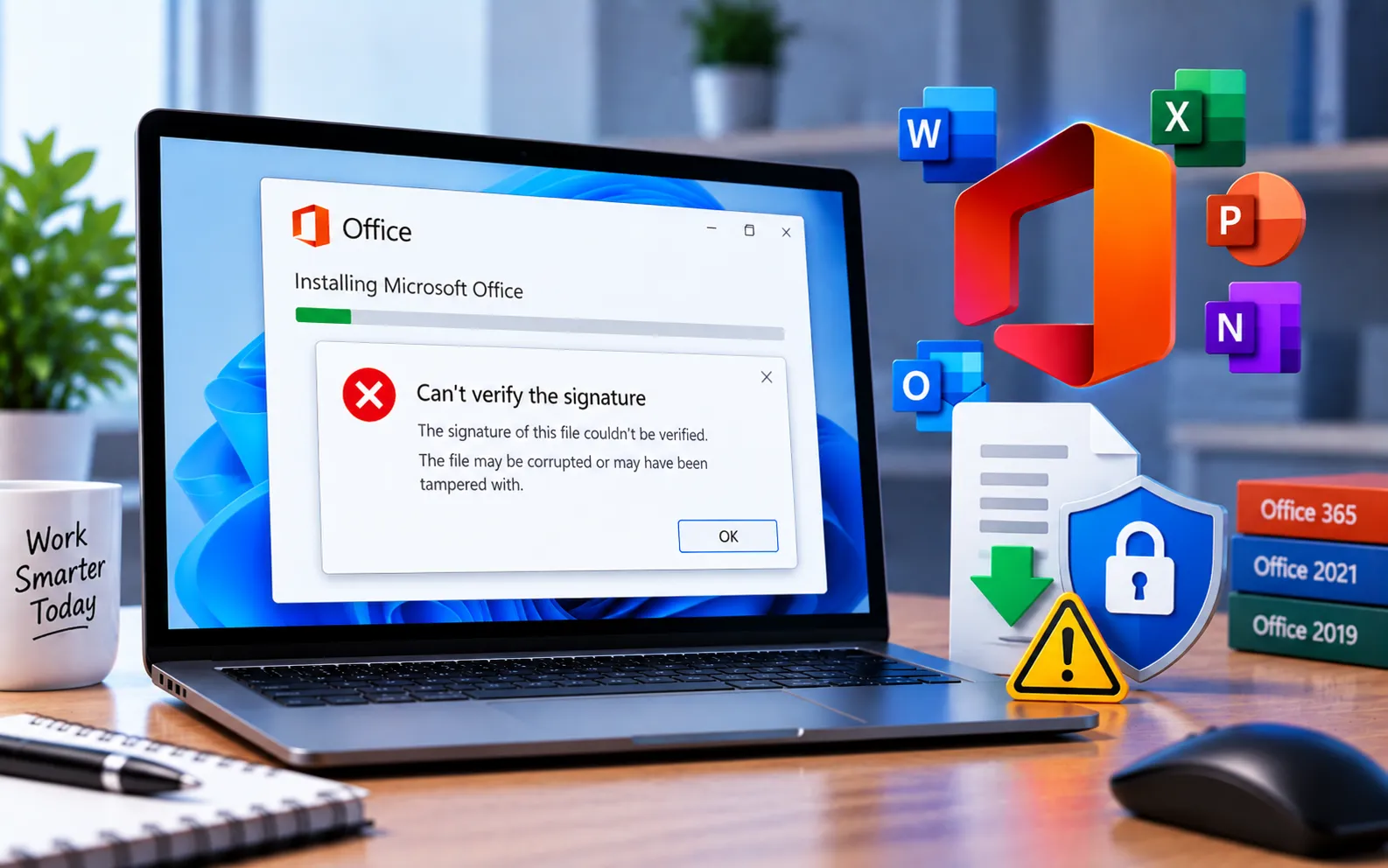
“We’re sorry, but we can’t verify the signature” can appear in two different contexts in Microsoft Office: when verifying a digitally signed email message, or when Office can’t verify the signature of files required during installation.
This guide covers both cases and the steps to fix each.
Email Signature Verification Issues
When this message appears for an email message, it typically means the sender’s digital signature can’t be confirmed, or there’s a problem with the certificate used to sign it. Common causes include:
Invalid or expired certificate — digital signatures rely on a valid, unexpired certificate. If the certificate used has expired or is invalid, verification fails.
Certificate chain issues — if the email’s certificate isn’t in the trusted certificate authorities list, or there’s a problem with the certificate chain, verification may fail.
Tampered content — if the email content was altered after the digital signature was applied, the signature can no longer be verified.
Office Installation Signature Verification Issues
A related but separate message — “We’re sorry, but we can’t verify the signature of files required to install your office product” — appears during Office 365/2021 installation. This is often caused by outdated temporary internet files, or by installing without properly verifying the required files, which Office needs to do to keep your computer secure. Clearing temporary internet files, then downloading Office fresh and checking for updates, resolves this in most cases.
Here’s how to fix “Can’t verify the signature”:
Check the document or file status
Ensure the document or email hasn’t been altered or corrupted. If possible, get a fresh copy and try verifying the signature again.
Update Office
Make sure your Microsoft Office software is fully up to date — updates often include security patches that resolve signature verification issues. If Office continues having problems after updating, see our guide to Microsoft Office Error Code 0-1005.
Check digital signature settings
Go to File → Options → Trust Center → Trust Center Settings → Digital Signatures, and confirm the correct options are selected.
Verify certificate trust and revocation status
Check the certificate details used to sign the document — confirm it was issued by a trusted authority and hasn’t been revoked. A revoked certificate will fail verification even if it hasn’t expired.
Check your system date and time
Ensure the date and time on your computer are accurate — incorrect settings can cause signature verification to fail even with a valid certificate.
Check your security software
Temporarily disable or adjust your antivirus and other security software to see if it’s interfering with signature verification, then re-enable it once you’re done testing.
Clear temporary internet files (for installation errors)
Clear all temporary internet files on your computer, then download Office fresh from your Microsoft account and check for Microsoft 365 updates before reinstalling.
Repair your Office installation
Press Win + X, select Programs and Features, find your Office application, click Change, and choose Quick Repair or Online Repair. Restart your computer once complete. If Office error code 30045-27 or 1603 shows up after this, see our guides to Microsoft Office Error Code 30045-27 or Office Installation Error Code 1603. If you’re in a corporate environment and can’t set up the installation yourself, contact your IT support, since they may have specific procedures or policies in place.
Still Not Resolved?
If signature verification issues persist after trying these steps, reaching out to technical support can provide specialized help for more complex problems. Our experts are here to assist you — Chat with a specialist — for more technical support.
We are an independent technical support provider and are not affiliated with, endorsed by, or sponsored by Microsoft.
FAQ
What causes “Can’t verify the signature” in Office?
It can be caused by an invalid or expired certificate, a certificate chain issue, tampered content, an incorrect system clock, or outdated temporary internet files interfering with installation.
Is this the same error for emails and Office installation?
They’re related but distinct — one refers to verifying a digitally signed email’s certificate, the other to Office verifying the signature of files during installation. The underlying causes and fixes overlap significantly.
Can a revoked certificate cause this error?
Yes. Even a certificate that hasn’t expired will fail verification if it has been revoked — checking the certificate’s current status helps confirm this.
Should I try Quick Repair or Online Repair first?
Start with Quick Repair, since it’s faster and fixes most common issues without needing an internet connection. If that doesn’t resolve it, run Online Repair for a more thorough fix.
Tags: cant verify the signature, KB63363901, Office 2016, Office 365/2021/2019, office couldn't install we're sorry but we can't verify the signature, we are sorry but we can't verify the signature office, we can't verify the signature of files office 365, we're sorry but we can't verify the signature of files required to install, we're sorry but we can't verify the signature of files required to install your office product
