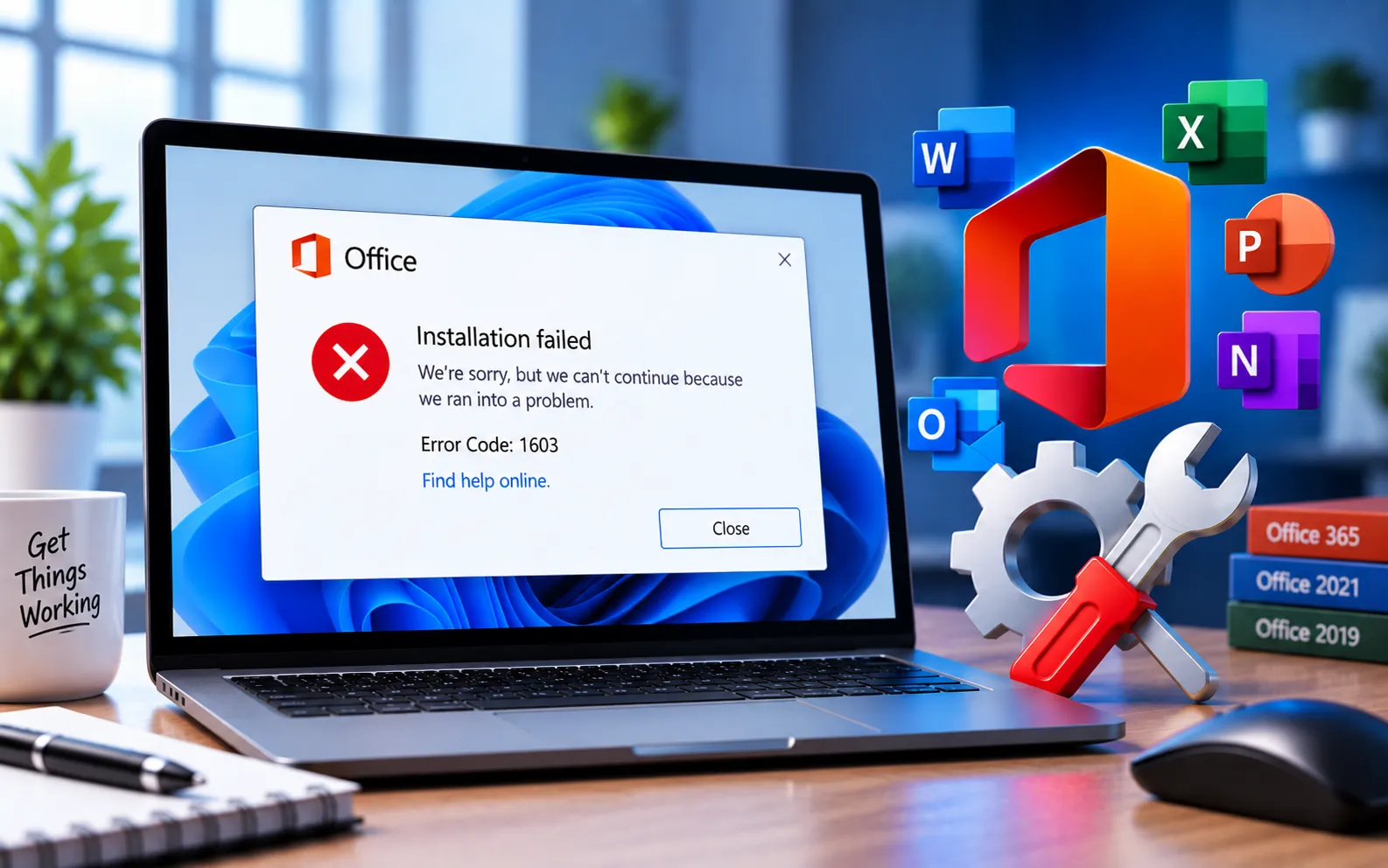
Office Installation Error Code 1603 is a general Windows Installer error that can appear while installing or updating Office 2021, 2019, or Microsoft 365. It indicates that the installer ran into a fatal error during setup, without a specific description of the exact cause.
This error can be triggered by leftover files from a previous Office installation, insufficient permissions, corrupted installer files, antivirus interference, or Windows Installer service problems. This guide covers the troubleshooting methods in order.
What Causes Office Error Code 1603?
Common causes include remnants of a previous Office installation conflicting with the new setup, insufficient user permissions, a damaged or incomplete installer file, third-party antivirus or firewall interference, a malfunctioning Windows Installer service, corrupted registry entries, or insufficient disk space. Because this is a general installer error, working through these checks in order helps identify the specific cause on your system.
Here’s how to fix Error Code 1603:
Remove leftover files from previous Office installations
Download the Microsoft Support and Recovery Assistant tool from Microsoft’s official website, run it, select the Office product you want to remove, and follow the prompts to completely uninstall any remnants before reinstalling.
Run the installer as administrator
Right-click the Office installer file and select “Run as administrator.” Insufficient permissions during setup is a common trigger for this error.
Check the Windows Installer service
Press Win + R, type services.msc, and press Enter. Find “Windows Installer” in the list, right-click it, and select Restart (or Start if it’s not running). Make sure its Startup type is set to Manual, then try the installation again.
Temporarily disable antivirus or firewall
Security software can sometimes block parts of the Office installation process. Disable it temporarily, run the installer again, and re-enable your antivirus once installation completes.
Check your free disk space
Go to Settings → System → Storage, and confirm you have enough free space on your system drive. Remove unnecessary files if space is low, then retry the installation.
Download the installer again
A corrupted or incomplete download can trigger Error 1603. Delete the current installer file and download a fresh copy directly from your Microsoft account’s Services and Subscriptions page.
Run System File Checker
Open Command Prompt as administrator and run sfc /scannow. This checks for and repairs corrupted system files that could be interfering with the Windows Installer process.
Perform a clean boot
Press Win + R, type msconfig, press Enter. Go to the Services tab, check “Hide all Microsoft services,” click “Disable all.” Go to Startup, open Task Manager, disable unnecessary items, restart, and try the installation again. Restore your normal startup configuration once the installation succeeds.
Still Not Resolved?
Start by removing leftover files from previous installations and running the installer as administrator. If the error continues, check the Windows Installer service, temporarily disable security software, confirm your disk space, and try a clean boot. Our experts are here to assist you — Chat with a specialist — for more technical support.
We are an independent technical support provider and are not affiliated with, endorsed by, or sponsored by Microsoft.
FAQ
What causes Office Installation Error Code 1603?
It’s usually caused by leftover files from a previous Office installation, insufficient permissions, a corrupted installer, antivirus interference, or a problem with the Windows Installer service.
What does the Microsoft Support and Recovery Assistant do?
It fully removes Office from your computer, including leftover files a standard uninstall might miss, giving you a clean slate before reinstalling.
Can antivirus software cause this installation error?
Yes. Antivirus or firewall software can block parts of the installation process — temporarily disabling it during setup often resolves the conflict.
Should I download the installer again if it’s already on my computer?
Yes, if the original download might be corrupted or incomplete. Downloading a fresh copy from your Microsoft account ensures you have an uncorrupted installer.
Tags: Error Code 1603, installation of Office 365/2021/2019, KB63363906, Microsoft 365, Microsoft 365 Error Code 1603, Microsoft 365 Installation Error Code 1603, microsoft office error 1603, Microsoft Office Error Code 1603, Office 2021/2019/Microsoft 365, office 365/2021/2019 error code 1603, Office Installation Error Code 1603
