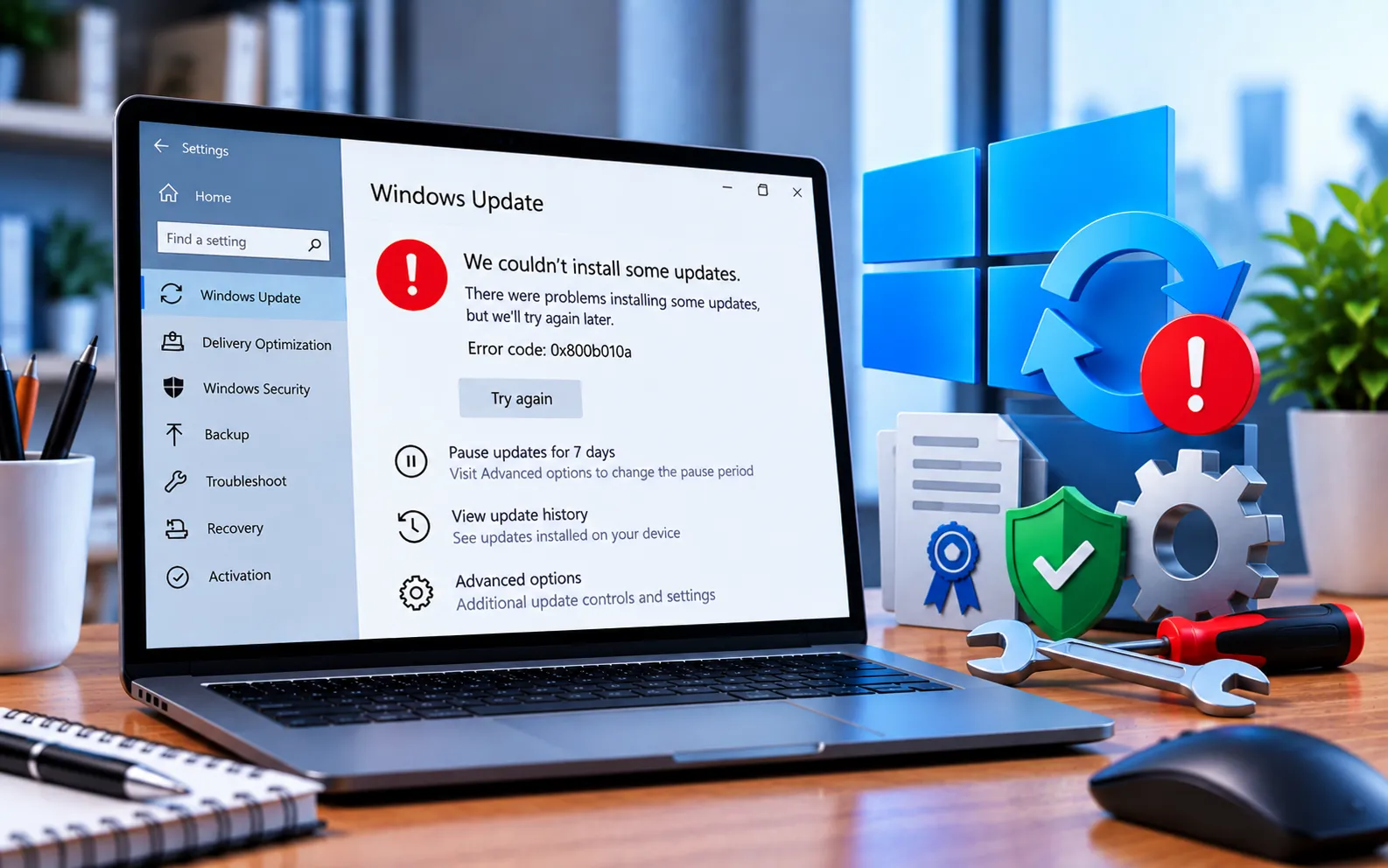
Windows Update Error Code 0x800B010A is fairly common on Windows 10 and 11, and can be caused by a corrupted driver, program, or system file. Malware infection can also trigger this error. For general update problems, see how to troubleshoot Windows updates.
Many users have reported this error specifically when trying to install .NET-related security updates. A similar certificate-related problem is covered in Windows update error codes 0x800B0100 and 0x800B0109. This guide explains the steps to fix it.
How to Fix Windows Update Error Code 0x800B010A
Work through these methods in order to resolve Error Code 0x800B010A.
Here’s how to fix it:
Run an SFC scan
Right-click Command Prompt and select “Run as administrator.” Type sfc /scannow and press Enter. Once the scan completes, restart your computer and check whether the issue is resolved.
Run a DISM scan
Right-click Command Prompt and select “Run as administrator.” Run each command below, pressing Enter after each:
DISM.exe /Online /Cleanup-image /ScanHealth
DISM.exe /Online /Cleanup-image /RestoreHealth
Type exit and press Enter to close the window once finished, then restart your computer. If updates still won’t install, read Windows 10 updates fail to install.
Repair .NET Framework
Download and run the official Microsoft .NET Framework Repair Tool. Accept the license terms, click Next, then click Next again at the “Recommended changes” screen, and let the tool complete the repair. If you see a .NET-related feature error, see Windows update error 0x800F081F.
Manually install the failed update
If the error persists, download the specific .NET version your failed update needs directly from Microsoft: .NET 6, .NET 5, or .NET 3.1, depending on which update failed, and install it manually. On Windows 11, you can also read how to fix a Windows 11 update that is stuck or not installing.
Reset Windows as a last resort
Back up your files first — resetting Windows will remove your files and settings during the process. If you’re dealing with a wider setup problem, see how to fix a Windows installation error before resetting.
Windows 10: Start → Settings → System → Recovery → Reset PC, then choose your preferred options.
Windows 11: Start → Settings → System → Recovery → Reset PC, then choose your preferred options.
Still Not Resolved?
If you’re still having trouble after these steps, you can browse more fixes on our Windows updates page. Our experts are here to assist you — Chat with a specialist — and they’ll give you the best results to fully resolve Windows Update Error Code 0x800B010A.
We are an independent technical support provider and are not affiliated with, endorsed by, or sponsored by Microsoft.
FAQ
What causes Windows Update Error Code 0x800B010A?
It’s usually caused by a corrupted driver, program, or system file — malware infection can also trigger this error, particularly when installing .NET-related updates.
Should I try SFC and DISM before repairing .NET Framework?
Yes. SFC and DISM fix underlying system file corruption first, which resolves many cases without needing to touch .NET Framework directly.
Will resetting Windows delete my files?
Yes, depending on the reset option chosen — back up your important files and settings before resetting, since this should be a last resort after other fixes.
How do I know which .NET version to download manually?
Check the exact KB number of the failed update to identify which .NET version it belongs to (6, 5, or 3.1), then download that specific version directly from Microsoft’s official site.
Tags: Error 0x800b010a, Error Code 0x800b010a, KB9199271, Windows Update Error 0x800b010a, Windows Update Error Code 0x800b010a
