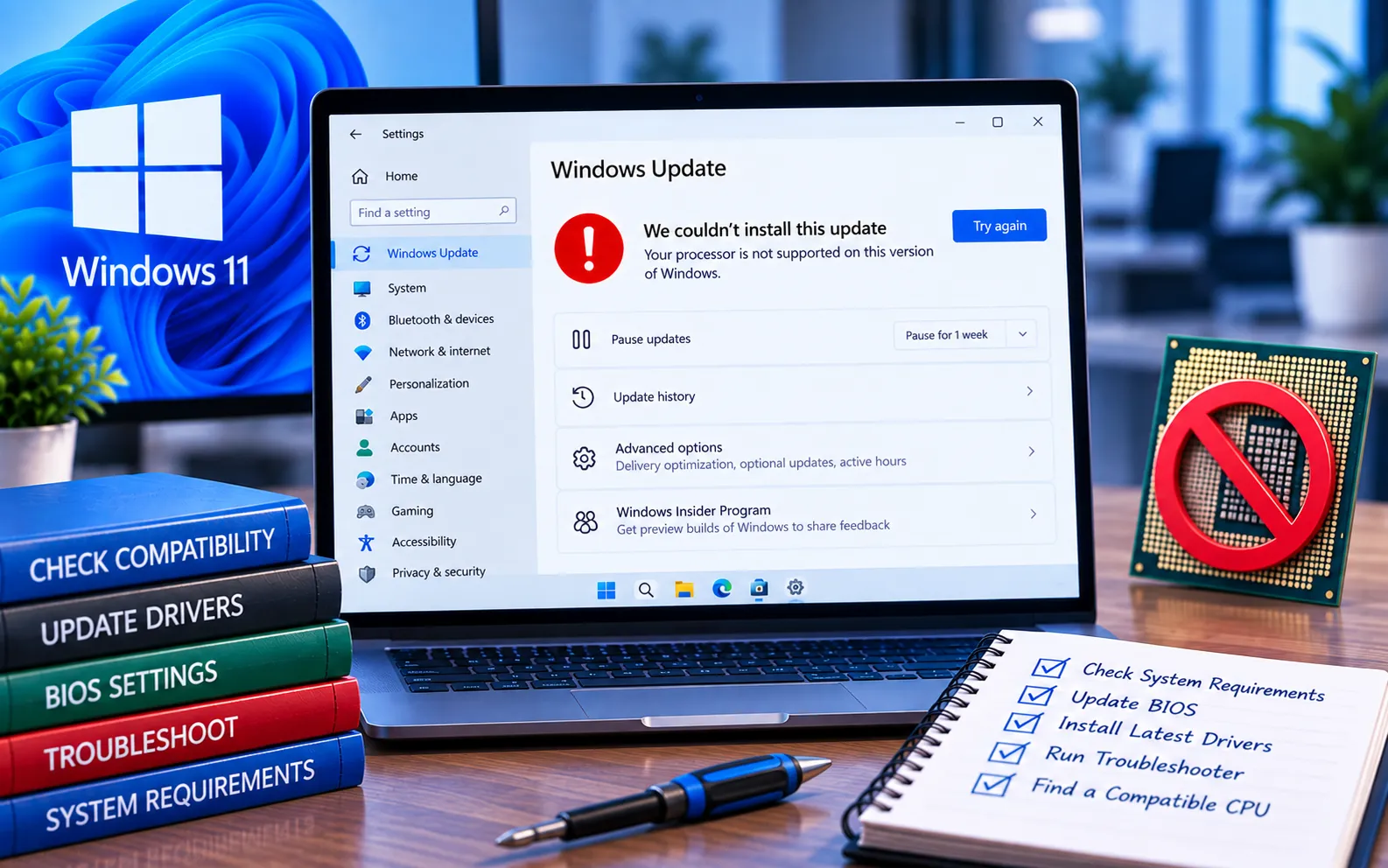
The Windows 11 Update “Processor Not Supported” message appears when your computer’s CPU doesn’t meet Microsoft’s supported processor requirements for Windows 11 — a compatible 64-bit processor with at least 1 GHz speed and two or more cores.
Before trying to bypass the compatibility check, confirm your processor is actually unsupported, since a computer can also fail the compatibility check because of TPM 2.0, Secure Boot, UEFI, RAM, or storage requirements.
Why Does Windows 11 Say “Processor Not Supported”?
The most common reason is that the installed CPU isn’t included in Microsoft’s supported processor list for the Windows 11 version you’re trying to install. Other requirements can also affect the upgrade: TPM 2.0 disabled or unavailable, Secure Boot disabled, an incompatible firmware configuration, insufficient RAM or storage, or hardware too old for official Windows 11 support. Microsoft recommends using PC Health Check to determine whether a computer is eligible.
Important: Microsoft does not recommend installing Windows 11 on hardware that doesn’t meet the minimum requirements — unsupported devices may experience compatibility problems and aren’t guaranteed to receive updates or Microsoft support.
Here’s how to check compatibility and your options:
Check your Windows 11 compatibility
Go to Settings → System → About and look for your processor model and system type. You can also run PC Health Check for the official compatibility check. If your processor is supported but Windows still reports a problem, check TPM and Secure Boot before assuming the CPU is the cause.
Check TPM 2.0 and Secure Boot
Press Win + R, type tpm.msc, press Enter, and check the Specification Version shows 2.0. Then press Win + R, type msinfo32, press Enter, and check whether “Secure Boot State” shows On. If either is disabled, check your manufacturer’s BIOS/UEFI instructions before attempting an unsupported installation.
If proceeding anyway: back up your registry first
This next section covers a registry workaround that is not an officially supported Windows 11 installation. Back up important files before continuing. Press Win + R, type regedit, press Enter, select File → Export, choose a safe location, and save a registry backup so you can restore it if something goes wrong.
Create the unsupported CPU registry value
In Registry Editor, navigate to HKEY_LOCAL_MACHINE\SYSTEM\Setup\MoSetup (create the MoSetup key under Setup if it doesn’t exist). Right-click inside the MoSetup folder, select New → DWORD (32-bit) Value, name it AllowUpgradesWithUnsupportedTPMOrCPU, double-click it, set Value data to 1, and select OK. This is commonly used to allow an upgrade on unsupported systems, but it doesn’t make the processor officially supported by Microsoft.
Download and mount the Windows 11 ISO
Use Microsoft’s official Windows 11 download page to get the installation media matching your system architecture and edition. Once downloaded, open File Explorer, right-click the ISO, select Mount, open the virtual DVD drive, and double-click setup.exe.
Start the Windows 11 upgrade
Follow the Setup prompts: review the license terms, choose to keep your personal files and apps for an in-place upgrade, continue with installation, and allow restarts when required. Don’t turn off the computer while Windows is installing.
Should You Bypass the Unsupported Processor Check?
For an important or business computer, officially supported hardware is the safer option. A registry workaround can help some older computers install Windows 11, but it doesn’t change the CPU’s official compatibility status — Microsoft states that unsupported devices are not recommended and may not receive updates or support. If your computer is several generations old, upgrading to supported hardware provides better reliability, security, and long-term compatibility. If your processor is supported but Windows Update still fails, the issue may be unrelated to CPU compatibility — see our guides to Windows Update Error Code 0x800F0900, Windows Update Error Code 0x8024402C, or Windows Update Error Code 0x80070070. Our experts are here to assist you — Chat with a specialist — for more technical support.
We are an independent technical support provider and are not affiliated with, endorsed by, or sponsored by Microsoft.
FAQ
Can I install Windows 11 with an unsupported processor?
It may be possible on some unsupported systems using an installation workaround, but Microsoft doesn’t recommend installing Windows 11 on hardware that fails the minimum requirements.
Does changing the registry make my processor supported?
No. The registry workaround can bypass an installation check, but it doesn’t make an unsupported processor officially supported by Microsoft.
Will Windows 11 receive updates on unsupported hardware?
Microsoft states that updates are not guaranteed for devices that don’t meet the minimum Windows 11 requirements.
Should I buy a new computer instead?
If your computer has an unsupported processor and also fails other Windows 11 requirements, replacing or upgrading the hardware is the safer long-term option.
Tags: error processor not supported, KB9199289, Update “error processor not supported”, Windows 11 Update, Windows 11 Update “error processor not supported
