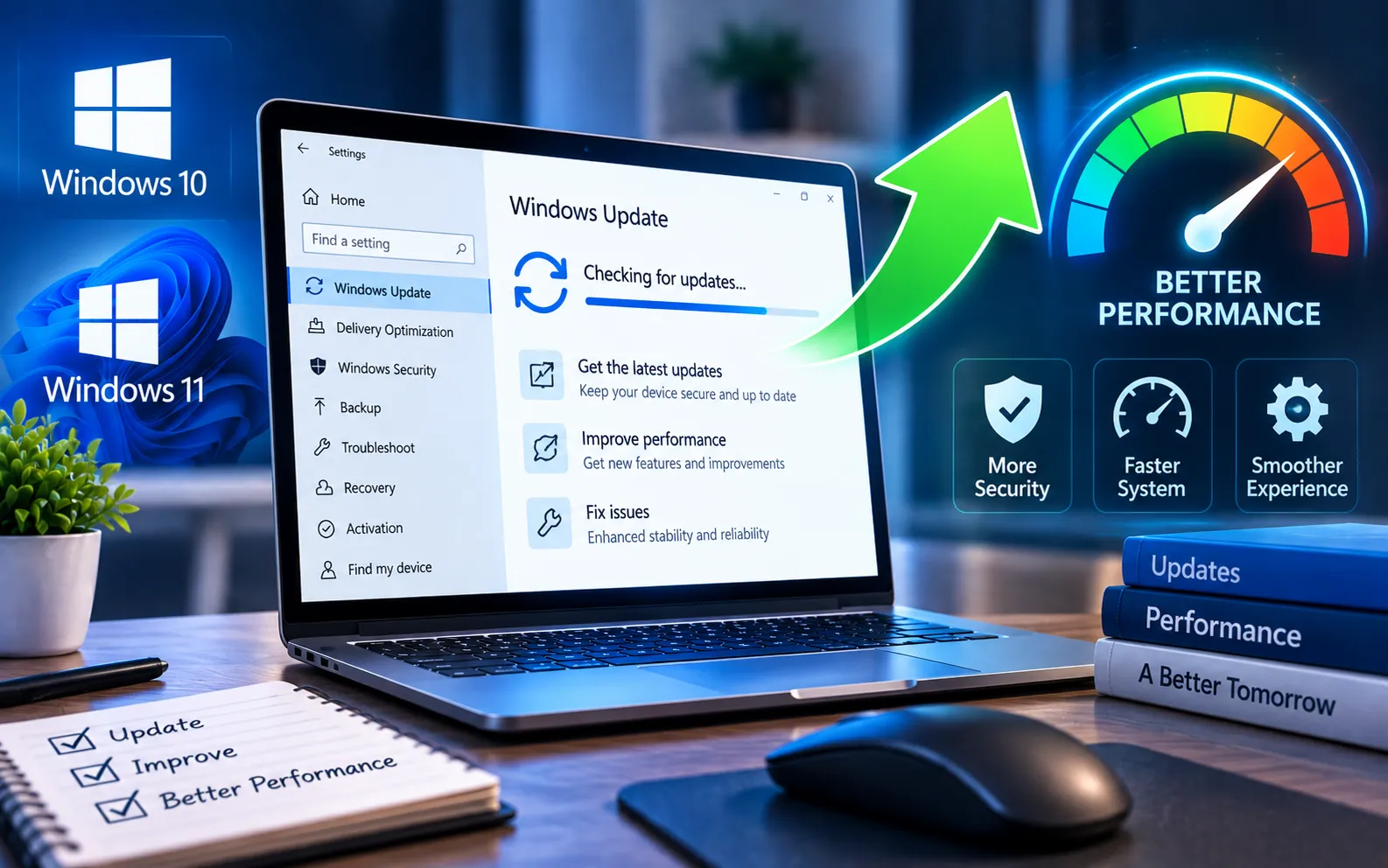
Windows Update is a built-in Microsoft service that keeps your computer current — delivering security patches, feature improvements, bug fixes, device drivers, and other system updates.
Before starting an update, connect your device to a reliable power source, since Windows may require a restart to complete the process afterward.
How to Check for Windows 10/11 Updates
The steps differ slightly between Windows 10 and Windows 11.
Here’s how to check for and install updates:
Windows 11: Check for updates
Open Start → Settings, choose Windows Update from the left-side menu, click “Check for updates,” and select “Download & install” if updates are available. Restart your computer if Windows asks you to.
Windows 10: Check for updates
Open Start → Settings → Update & Security → Windows Update, and select “Check for updates.” Install any available updates and restart the computer if required.
Prepare before installing
Connect your computer to power (especially important for laptops), save your work in case of an automatic restart, check your internet connection for a stable download, free up storage space for larger updates, close unnecessary applications, and back up important files as an extra precaution. If Windows reports insufficient storage during an update, see our guide to Windows Update Error Code 0x80070070.
Let the update complete all four stages
Windows scans Microsoft’s update service for applicable updates based on your version and installed components, downloads the required files (larger feature updates take longer than smaller patches), installs them (some while you continue working, others requiring a restart first), and finally restarts to replace system files and finish installing components that can’t update while running. Save your work before restarting to avoid losing unsaved changes.
Confirm the update completed
After the process finishes, return to the Windows Update settings page to confirm your system shows as up to date.
What If Windows Update Doesn’t Work?
An update can fail to download or install because of corrupted system files, insufficient storage, network problems, or Windows Update service issues. Start by restarting your computer and checking for updates again, then run the built-in Windows Update troubleshooter if the problem continues. Note the specific error code displayed on screen, since different errors have different causes and troubleshooting paths — see our guides to Windows Update Error Code 0x8024A206 for download-related problems, or Windows Update Error Code 0x8024402C for connection and service-related issues. Our experts are here to assist you — Chat with a specialist — for more technical support.
We are an independent technical support provider and are not affiliated with, endorsed by, or sponsored by Microsoft.
FAQ
Do Windows updates improve computer performance?
Some updates can improve system stability and resolve bugs affecting performance, though updates are primarily intended to provide security fixes, reliability improvements, and new features.
Do I need to restart after installing an update?
Some updates require a restart, while others don’t — Windows will normally notify you when a restart is necessary.
Why does Windows Update take so long?
Installation time depends on the update size, available storage, computer hardware, and internet connection — major feature updates generally take longer than smaller patches.
Can I check for updates manually?
Yes. Open your Windows Update settings and select “Check for updates” — Windows will then look for anything available.
Tags: Windows 10, Windows 10 update, Windows 10 Update improve performances, Windows 10/11 updates, Windows 10/11 Updates and improve performances, Windows 11, Windows 11 Update, windows 11 update improve performances, Windows 12, Windows Updates
