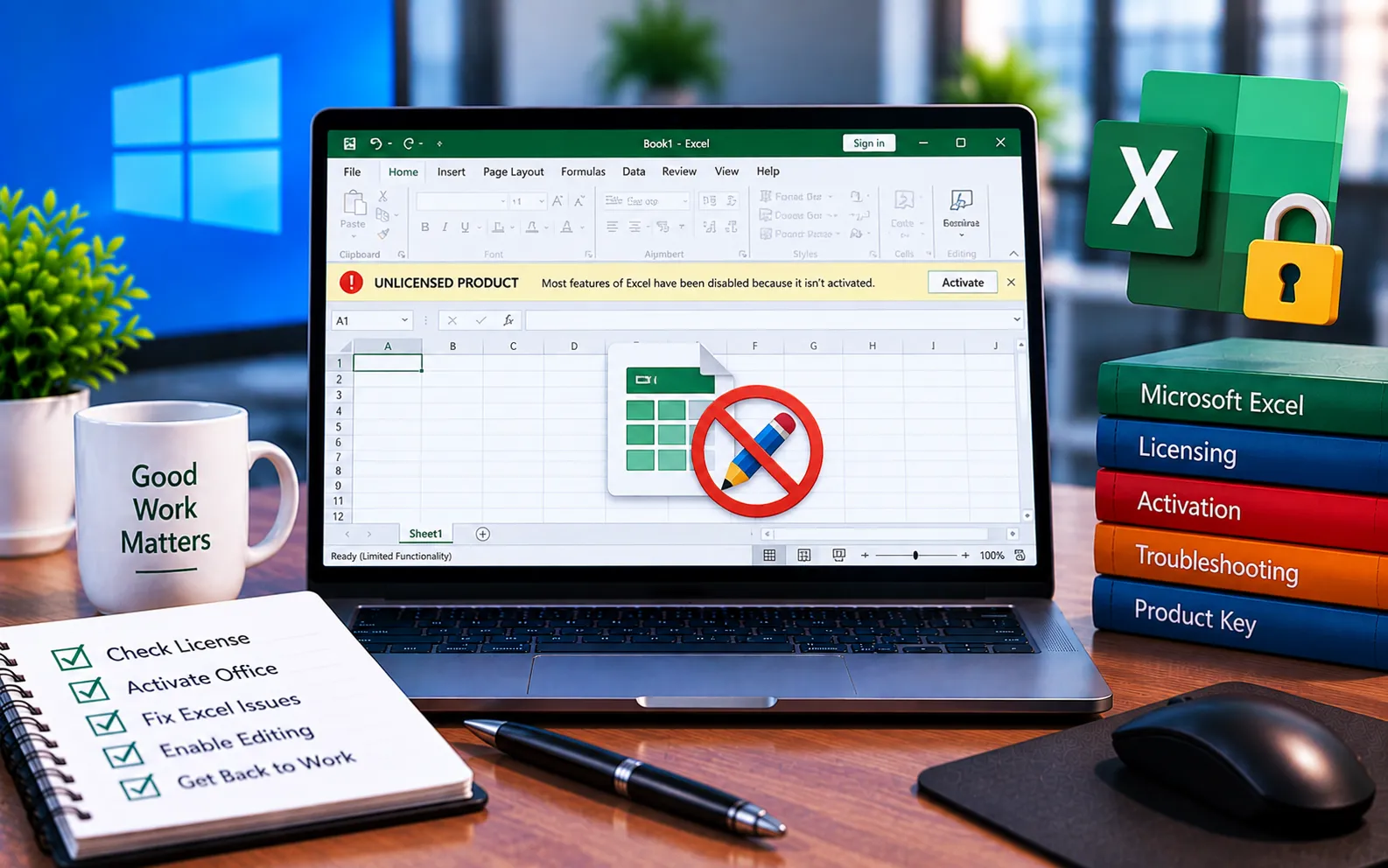
If Excel won’t let you edit a workbook and also shows an “Unlicensed Product” message, these are usually two connected symptoms of the same root cause: Office can’t verify your license, so it drops into a restricted, view-only state until activation is resolved.
This guide explains why this happens and the steps to get back to full editing.
Why Excel Shows Unlicensed and Won’t Let You Edit
When Office can’t confirm your license is active, it limits most apps — including Excel — to a read-only or restricted mode, since editing and saving are considered premium features tied to an active license. This can happen for several reasons:
Expired or unrenewed subscription — if you’re on Microsoft 365, a lapsed subscription immediately restricts editing across all Office apps.
Signed into the wrong Microsoft account — Excel checks the account you’re signed into against the one tied to your license; a mismatch shows as unlicensed even with a valid subscription elsewhere.
License installed on too many devices — a one-time purchase license used beyond its allowed device count can cause this on newer installations.
Corrupted activation data — leftover or damaged activation files from a previous Office installation can prevent Excel from properly verifying a valid license.
Network or server issues — Excel needs to periodically reconnect to Microsoft’s servers to reconfirm your license; a blocked or unstable connection can cause it to fall back into restricted mode.
Here’s how to fix it:
Check your subscription status
Sign in to your Microsoft account online and confirm your Office subscription is active and hasn’t lapsed. Renew it if needed, then reopen Excel.
Sign out and back in with the correct account
In Excel, go to File → Account, and check which Microsoft account is signed in. Sign out and sign back in with the account tied to your Office license.
Check your internet connection
Make sure you have a stable connection, since Excel needs to reach Microsoft’s servers to reconfirm your license. Reconnect and reopen Excel to see if editing mode is restored.
Repair your Office installation
Open Control Panel → Programs → Programs and Features, find Microsoft Office in the list, right-click it, select Change, and choose the Repair option. Start with Quick Repair, then Online Repair if the error continues.
Check your system date and time
Go to Settings → Time & Language, and turn on both “Set time automatically” and “Set time zone automatically.” An incorrect clock can interfere with license verification.
Clear leftover activation data if you reinstalled Office
If you previously had another Office installation on this device, use Microsoft’s Office Uninstall Support Tool to remove leftover activation files before reactivating with your current license.
Still Not Resolved?
If you’ve checked your subscription, signed into the correct account, verified your connection, and repaired Office — but Excel still shows unlicensed and read-only — the cause may need a closer look at your specific account and license setup. Our experts are here to assist you — Chat with a specialist — for more technical support.
We are an independent technical support provider and are not affiliated with, endorsed by, or sponsored by Microsoft.
FAQ
Why does Excel go into read-only mode when unlicensed?
Editing and saving are treated as licensed features — when Office can’t verify your license, it restricts these to protect against unauthorized use, which is why editing gets blocked alongside the unlicensed message.
Will I lose my data if Excel is stuck in read-only mode?
No. Your file and its data remain intact — you just can’t save changes until the licensing issue is resolved. Save a copy of any unsaved work elsewhere as a precaution while troubleshooting.
Can being signed into the wrong account cause this?
Yes. If you’re signed into Excel with a Microsoft account different from the one tied to your Office license, it will show as unlicensed even if your subscription elsewhere is active.
Does this happen to Word and PowerPoint too, or just Excel?
It can affect any Office app, since they all share the same underlying license verification — if Excel shows this, it’s worth checking Word and PowerPoint for the same issue.
Tags: Excel Unlicensed Issues, excel unlicensed product, excel unlicensed product cannot edit, excel unlicensed product solution, unlicensed excel, Unlicensed excel error message, Unlicensed excel program, unlicensed product excel
