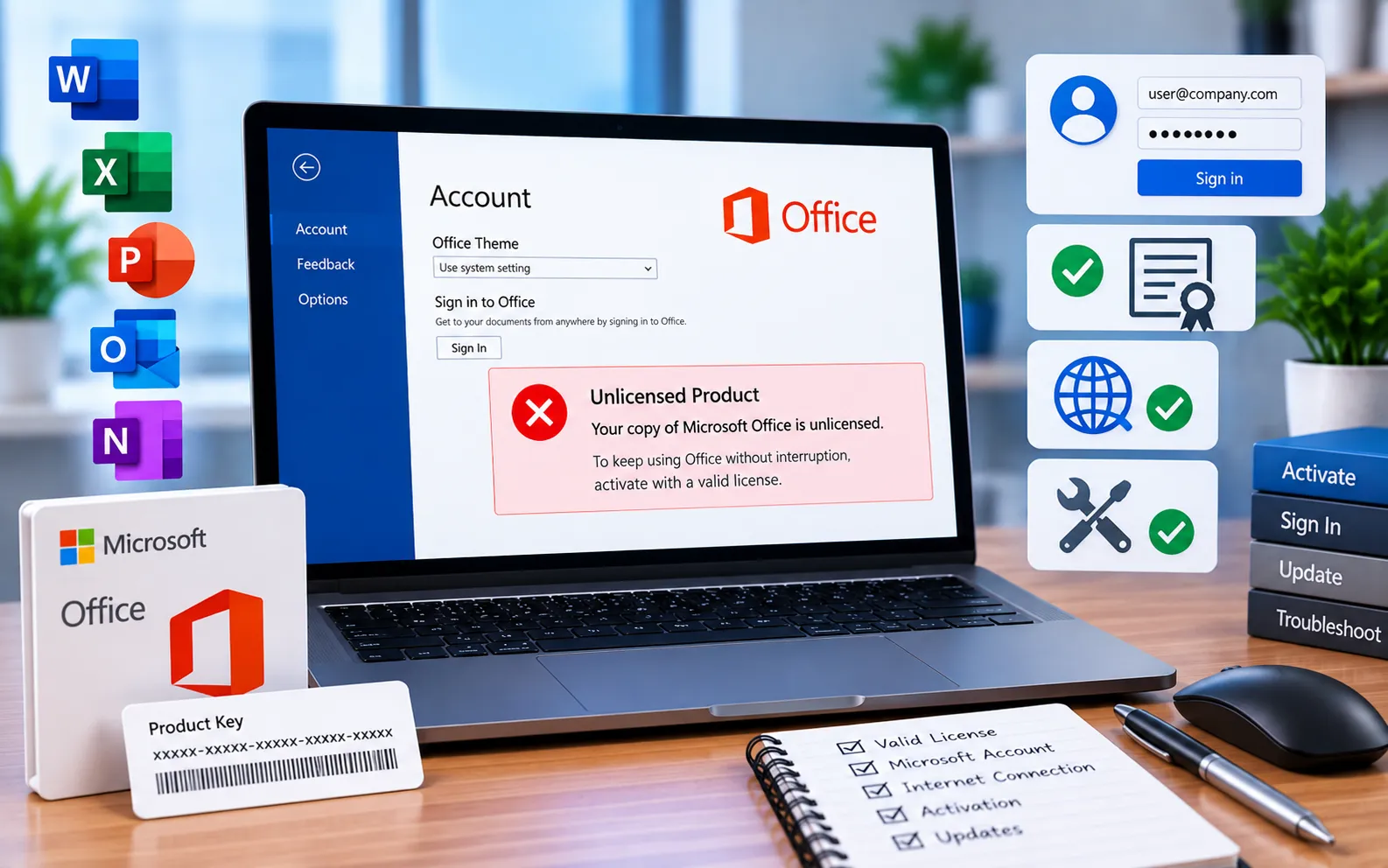
If Office activation fails, the title bar of your Office programs will show “Unlicensed Product” or “Non-commercial usage,” and most functionality gets blocked until the problem is resolved.
This guide covers a full activation reset — most useful for people who move between devices often on one license, or for businesses that frequently switch Office 365 tenants or use roaming credentials, since both can make this error more persistent.
Basic Checks Before a Full Reset
Before resetting activation entirely, check these first: sign in with the correct Office account, look for duplicate Office installations on your computer, confirm your subscription status is active, and try Office’s built-in activation troubleshooter. If none of these resolve it, a full activation reset — clearing the product key and related registry entries — usually does.
Here’s how to reset Office activation completely:
Close all Office applications
Make sure Word, Excel, Outlook, and any other Office apps are fully closed, with no related background processes still running.
Open an elevated Command Prompt
Press Win + R, type cmd, and press Ctrl + Shift + Enter to open Command Prompt as administrator. Select Yes when prompted by User Account Control.
Check your current license and remove the product key
Navigate to your Office install directory (typically C:\Program Files\Microsoft Office\OfficeXX) and run:
cscript ospp.vbs /dstatus
Note the last 5 characters of the product key shown in the output — you’ll need them next. Then run:
cscript ospp.vbs /unpkey:XXXXX
(replacing XXXXX with the 5 characters you noted) to remove that product key from the system.
Remove leftover Identity keys in the registry
Back up your registry first. Press Win + R, type regedit, and press Enter. Navigate to HKEY_CURRENT_USER\Software\Microsoft\Office\16.0\Common\Identity (adjust the version number to match your Office edition), right-click any Identity-related subkeys found there, and select Delete.
Clear saved Microsoft credentials
Press Win + R, type control.exe /name Microsoft.CredentialManager, and press Enter. Remove any Office or Microsoft-related credentials stored in the vault.
Restart and reactivate
Restart your computer, then open any Office application and sign in to reactivate your license from scratch.
Still Not Resolved?
If you’re still looking for a solution, our experts are here to assist you — Chat with a specialist — for more technical support.
We are an independent technical support provider and are not affiliated with, endorsed by, or sponsored by Microsoft.
FAQ
Why does moving between devices often cause “Unlicensed Product” errors?
Frequently switching devices on the same license, or organizations regularly changing Office 365 tenants, can leave stale activation data that conflicts with reactivation attempts.
What does ospp.vbs do?
It’s Microsoft’s official Office script for checking license status and managing product keys directly from the command line, useful for diagnosing and resetting activation.
Is it safe to delete registry Identity keys?
It’s a documented Microsoft troubleshooting step, but back up your registry first and only delete the specific Office Identity subkeys mentioned — not unrelated keys nearby.
Will clearing Credential Manager delete my saved passwords for other sites?
No, if you only remove the Microsoft or Office-related entries — other saved credentials for different services remain untouched.
Tags: Help with Re-installation and Re-activation of office, Reasons for Unlicensed Office, this product is unlicensed connect to your corporate., Unlicensed Product - Microsoft office 2019, unlicensed product microsoft office 2010, unlicensed product microsoft office 2016
