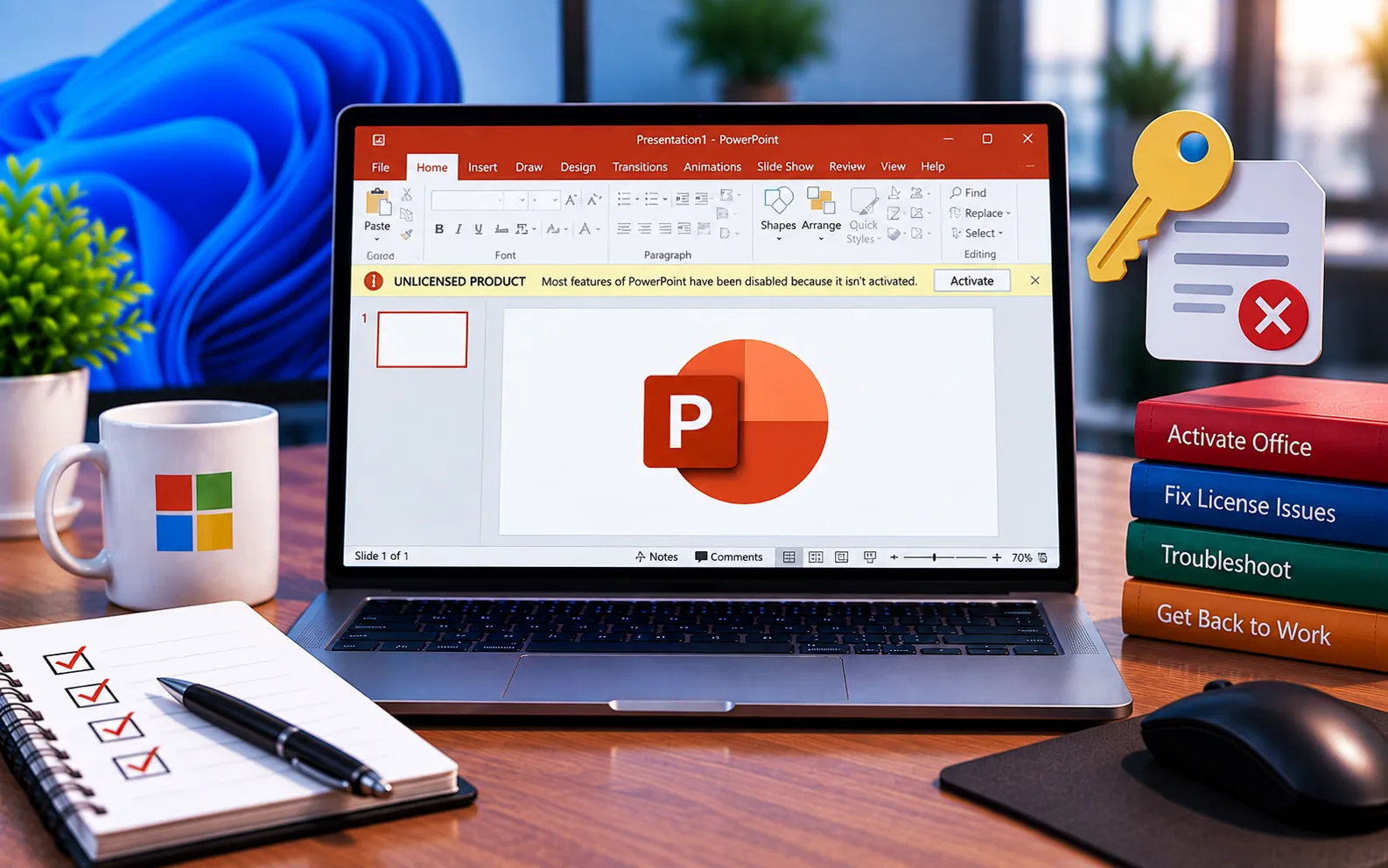
PowerPoint “Unlicensed Product” messages happen when Office fails to verify your license. For students or staff using a school- or university-issued license, this often happens when the institution’s license changes — in that case, your school or university IT department needs to be involved.
This guide explains what to check and the steps to fix it if you’re using a personal or retail license.
PowerPoint Unlicensed Product Issues
If your PowerPoint is for personal use, the license itself may need renewing, or it may be installed on more devices than your license allows. Both can trigger the unlicensed message across all your Office apps, not just PowerPoint.
Here’s how to check and fix it:
Check your Microsoft account and renewal status
If your PowerPoint license is personal, sign in to your Microsoft account online and confirm your subscription hasn’t expired and renewals are up to date.
Check the number of devices using your license
If you have a one-time purchase license, make sure it isn’t already activated on other computers beyond what your license permits — this can trigger unlicensed messages across all your Office apps on this device.
Check whether the issue is isolated to one file or PowerPoint only
Open a different PowerPoint file to rule out a single corrupted file as the cause. Also open Word or Excel — the unlicensed message doesn’t always appear on every Office app at once, so checking the others tells you whether the problem is with your whole Office license or something specific to PowerPoint.
Contact your school or university IT department if applicable
If this is a school- or university-issued volume license, your IT department manages activation and license changes on their end — they need to be the ones to resolve licensing issues tied to that account.
Use PowerPoint for the web as a temporary workaround
If you need to finish a presentation immediately while troubleshooting, use the free online version at office.com to continue working without interruption.
Still Not Resolved?
If you’re a retail user on a personal or home computer and still stuck, our technicians can cross-check your Office licensing, verify system files for inconsistencies, and restart the related Office services to resolve the unlicensed error. Our experts are here to assist you — Chat with a specialist — for more technical support.
We are an independent technical support provider and are not affiliated with, endorsed by, or sponsored by Microsoft.
FAQ
Why does PowerPoint show an unlicensed product message?
It’s usually caused by an expired subscription, a license installed on too many devices, or (for school/university users) a change to the institution’s license.
Does the unlicensed message always affect Word and Excel too?
Not always. Checking other Office apps helps determine whether the issue is with your whole Office license or something specific to PowerPoint or one file.
Who do I contact if my school license changed?
Your school or university IT department manages volume licenses and any changes to them — they’re the ones who can resolve this on their end.
How can I finish a presentation while troubleshooting the license?
Use PowerPoint for the web at office.com — it’s free and lets you continue working on your presentation without needing the licensed desktop app.
Tags: Outlook Unlicensed, outlook unlicensed product, PowerPoint, PowerPoint unlicensed product
