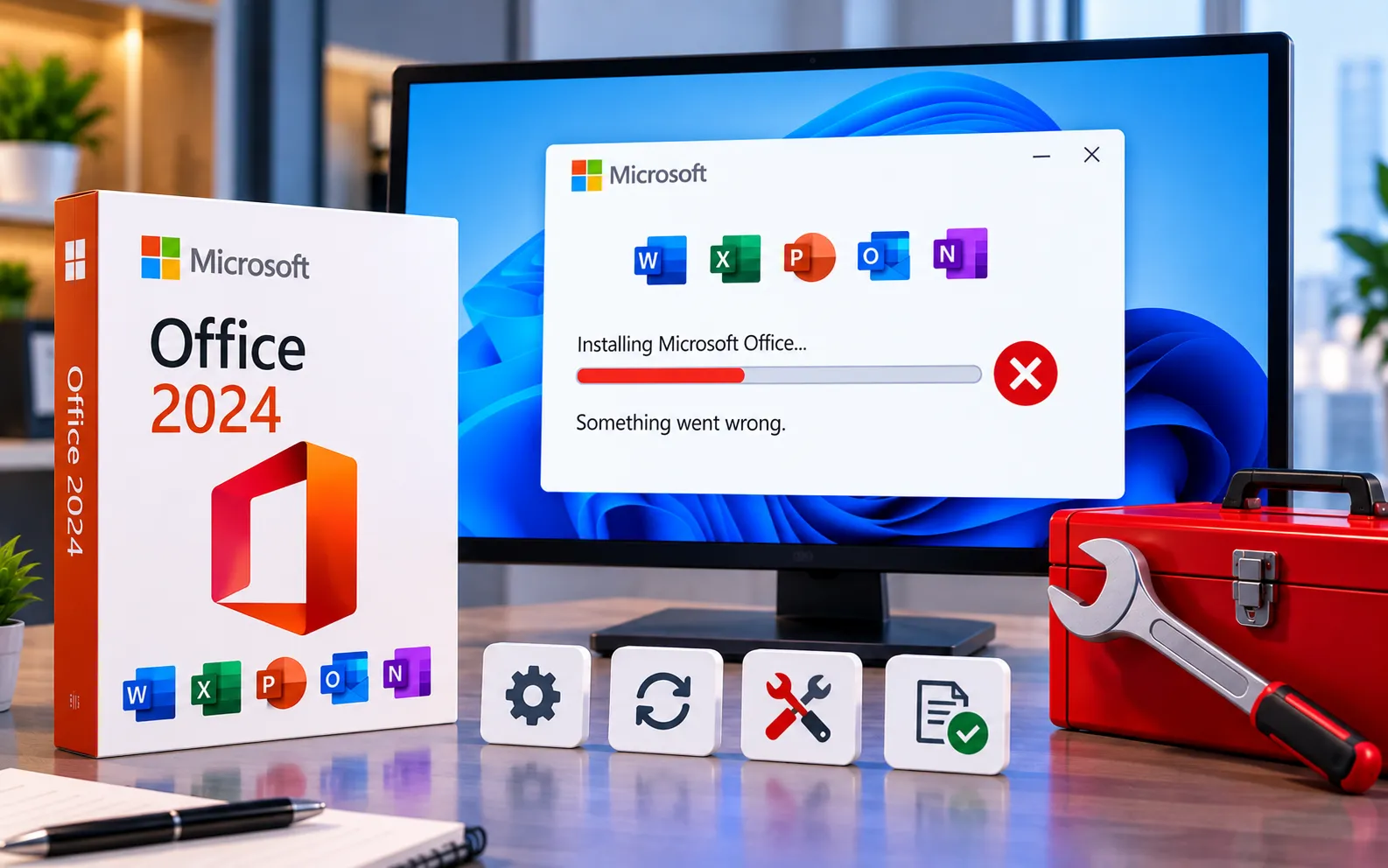
Microsoft Office 2024 installation can sometimes be tricky, but it’s straightforward once you follow the right procedure and know how to work around common hitches.
This guide walks through installing Office 2024 step by step, and covers the most common installation problems and their fixes.
Step-by-Step Guide to Installing Microsoft Office 2024
Follow these steps in order for a clean installation and activation.
Here’s how to install and activate Office 2024:
Uninstall previous versions
Before installing Office 2024, uninstall any previous versions of Microsoft Office. Go to Control Panel → Programs → Programs and Features, select any leftover Microsoft Office installations, and click Uninstall.
Clean up Office credentials
Type “credentials” in the Start menu search bar and launch Credential Manager. Head to the Windows Credentials tab, look for any entries containing “Office” or “Microsoft account Cached Credentials,” and delete them — this prevents old sign-in data from interfering with the new install.
Install Office 2024
Run the downloaded installer and follow the on-screen prompts. Once installation finishes, open any application, such as Word, and sign in with your Microsoft account.
Activate Office 2024
Open any Office application, go to File → Account, and click Activate Product. Enter your product key if you’re prompted for one.
Check for updates
Open any Office application and go to File → Account → Update Options → Update Now. This ensures you’re running the latest build right from the start.
Common Problems and Solutions
The installer downloads Microsoft 365 instead of Office 2024 — this usually happens because Microsoft 365 was previously installed on the device. Uninstall the existing Office applications and clear Office credentials as described above, then download and install Office 2024 again.
Office 2024 won’t activate — make sure you’re using the correct product key for your purchase. If you see a specific error message during activation, check Microsoft’s support page for activation troubleshooting related to that exact error.
Setup doesn’t prompt for a product key — visit the Office setup page directly for instructions on entering your product key to complete activation manually.
If you run into any other specific error messages or issues, don’t hesitate to reach out — our experts are here to assist you. Chat with a specialist for instant solutions and support.
We are an independent technical support provider and are not affiliated with, endorsed by, or sponsored by Microsoft.
FAQ
Why does Office 2024 download as Microsoft 365 instead?
This typically happens when Microsoft 365 was previously installed on the device — uninstalling it and clearing Office credentials before reinstalling usually resolves it.
Do I need to uninstall old Office versions before installing 2024?
Yes. Leftover installations and cached credentials are a common cause of installation and activation conflicts, so removing them first leads to a cleaner install.
What if setup doesn’t ask for a product key?
Visit the Office setup page directly, where you can enter your product key manually to complete activation if the installer skipped that step.
Will clearing Office credentials delete my files?
No. Clearing credentials in Credential Manager only removes cached sign-in data — your documents, settings, and installed applications are not affected.
Tags: cannot install Office 2024, fix Office 2024 installation, Microsoft Office 2024, Office 2024 installation error, Office 2024 support., Office 2024 troubleshooting, Office activation issues, Office installation failed, uninstall previous Office versions, update Microsoft Office 2024
