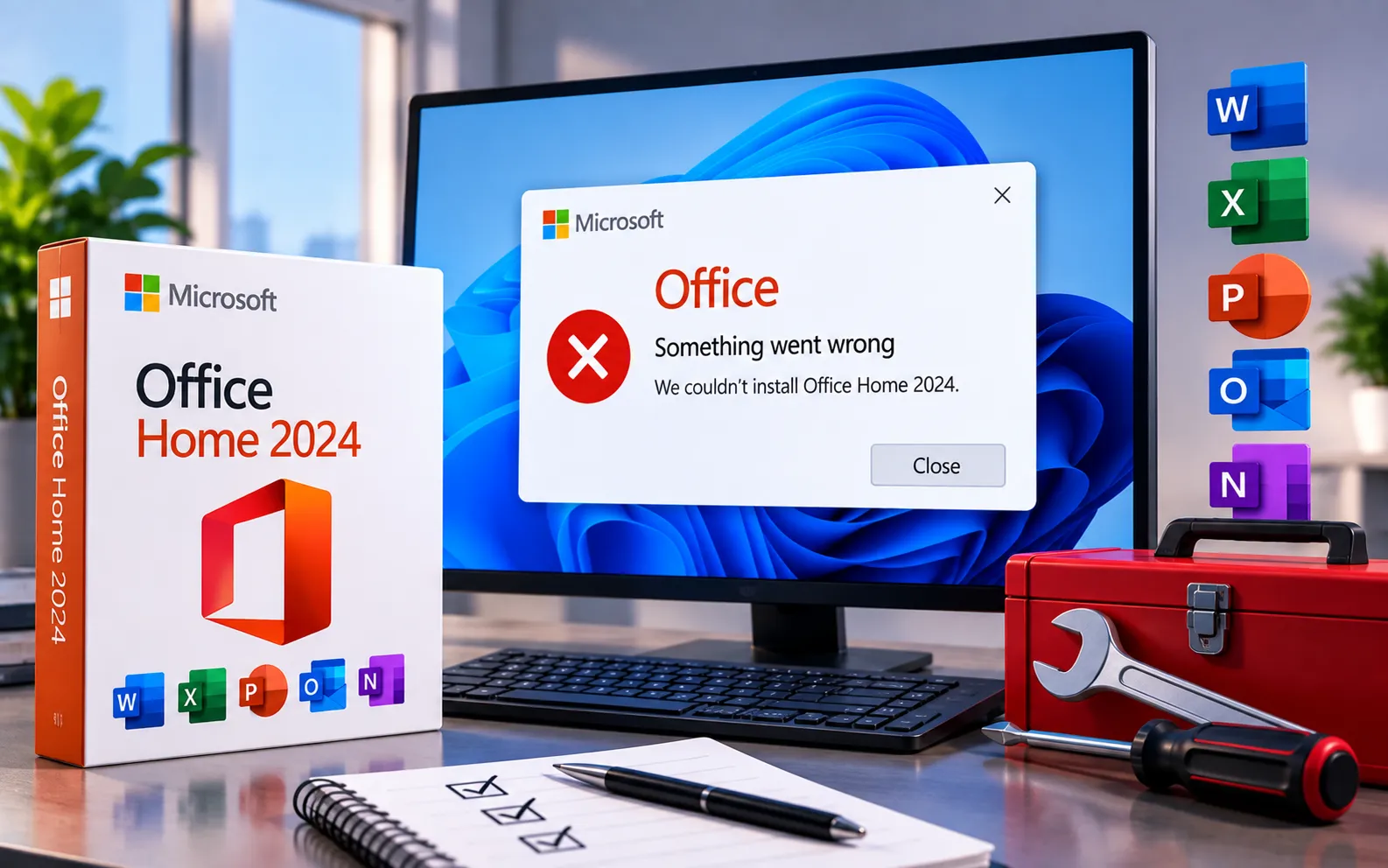
Have you recently purchased Office Home 2024 and run into installation issues? You’re not the only one — many other users have experienced similar problems, most commonly the purchase downloading as Microsoft 365 instead of the one-time Office Home 2024 install, followed by frustrating activation errors.
This guide covers the most common Office Home 2024 installation problems and the exact steps to fix them.
Common Office Home 2024 Installation Problems
The most frequently reported issue is that Office Home 2024 — listed as a one-time purchase — downloads as Microsoft 365 instead when accessed through the Services and Subscriptions page. This mismatch then causes activation problems and installation errors, since the downloaded installer doesn’t match the license type actually purchased.
Here’s how to fix Office Home 2024 installation problems:
Uninstall previous Office versions
Go to Control Panel → Programs → Programs and Features. Look for any previous Microsoft Office installations, select the one you want to remove, and click Uninstall. Restart your computer once the uninstall finishes.
Clear Office credentials
Type “credentials” in the Start menu search bar to open Credential Manager, and make sure the Windows Credentials tab is selected. Search for any entries with “Office” or “Microsoft account Cached Credentials” in the name and delete them — this clears stale sign-in data that can cause the wrong product to download.
Download the correct offline installer
Go back to your Microsoft account’s Services and Subscriptions page and choose the offline installer option matching your Office Home 2024 one-time purchase, rather than the default online installer, which is more likely to redirect to Microsoft 365.
Activate Office Home 2024
Launch any Office application, go to File → Account → Activate Product, and enter your product key if prompted. This step confirms the installation is tied to your correct one-time purchase license.
Check for updates
Open any Office application, go to File → Account → Update Options → Update Now. This ensures you’re running the latest build and any known activation-related fixes are applied.
Need Further Assistance?
If you’ve uninstalled previous versions, cleared credentials, downloaded the correct installer, and activated — but the issue continues — the cause may need a closer look at your specific account setup. Our experts are here to assist you — Chat with a specialist — and they’ll help resolve any issues you may have.
We are an independent technical support provider and are not affiliated with, endorsed by, or sponsored by Microsoft.
FAQ
Why does Office Home 2024 download as Microsoft 365 instead?
This usually happens when the installer is fetched from the default Services and Subscriptions page, which can default to the subscription version — choosing the correct offline installer for your one-time purchase avoids this.
Will clearing Office credentials delete my documents?
No. Clearing credentials in Credential Manager only removes cached sign-in data — it does not delete any saved documents, files, or settings.
Do I need a product key to activate Office Home 2024?
You may be prompted for one during File → Account → Activate Product, depending on how your purchase was redeemed — if you don’t have one on hand, check your original purchase confirmation email.
Should I uninstall Microsoft 365 before installing Office Home 2024?
Yes. Having both installed at once is a common cause of activation conflicts — uninstalling previous Office versions first, then reinstalling the correct one, resolves most of these issues.
Tags: cannot install Office Home 2024, downloaded Office 365 instead, fix Office Home 2024, Microsoft Office one-time purchase issue, Office 2024 activation issue, Office Home 2024 installation error, Office product key error, resolve Office 2024 installation problem., troubleshoot Office activation, update Office Home 2024
