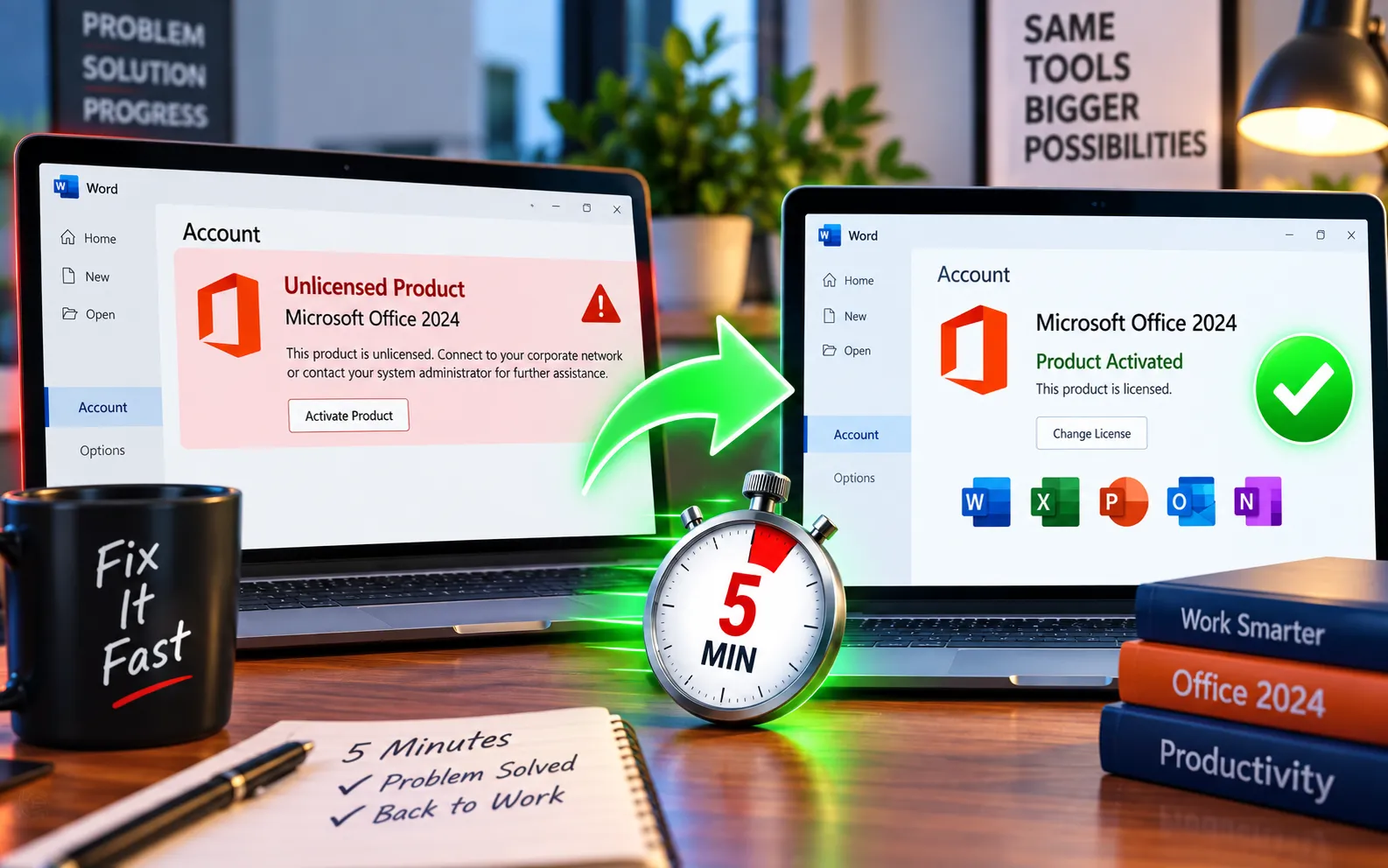
Receive step-by-step help for Microsoft Office 2024 activation errors, covering installation conflicts, account mismatches, and troubleshooting for Word, Excel, and PowerPoint.
Why This Happens
When Office 2024 shows “Unlicensed Product” or “Activation Required,” it means the app couldn’t verify the license tied to your installation. This is usually caused by leftover files from an older Office version, being signed into the wrong Microsoft account, or corrupted activation data left behind on the computer — not a fake or invalid product key.
You may notice repeated activation prompts, Office asking you to sign in again, limited editing features, or documents opening in read-only mode. This can affect Word, Excel, PowerPoint, Outlook, or several Office apps at once, and often shows up right after upgrading from an older Office version.
Here’s how to fix it — try these first, they’re free and take about 15–20 minutes:
Check your Microsoft account
Open Word, Excel, or PowerPoint → File → Account. Confirm you’re signed in with the same Microsoft account used to purchase or redeem Office 2024. Sign out and back in if you’re unsure — if you have several Microsoft accounts, this step matters most.
Confirm your product key and license
If you purchased Office 2024 with a product key, verify it matches the correct Office product. Avoid entering multiple different keys if you’re unsure which license you own — confirm your purchase details first.
Remove older Office versions
Go to Control Panel → Programs → Programs and Features, find any older Microsoft Office installations (2019, 2021, Microsoft 365) that you no longer need, uninstall them, and restart your computer.
Reinstall Office 2024
If the installation looks damaged or incomplete, reinstall Office 2024 using the legitimate installation method tied to your purchase. During installation, sign in with the Microsoft account connected to your Office license, then check the activation status once it’s done.
Check your system date and time
An incorrect system clock can cause Office to fail license verification. Set your date/time to sync automatically under Settings → Time & Language.
If the Error Persists
If you’ve checked your account, confirmed your license, removed older Office versions, and reinstalled Office — but “Unlicensed Product” still appears — don’t keep reinstalling repeatedly. The cause is likely activation data stored on your computer that needs a structured troubleshooting process rather than guesswork. Our support team can take a look and resolve it directly — See pricing / Book a session — typically resolved in one session.
We are an independent technical support provider and are not affiliated with, endorsed by, or sponsored by Microsoft.
FAQ
Does “Unlicensed Product” mean my Office 2024 is pirated?
No. In most cases it’s an account, sync, or activation conflict — genuine, paid copies of Office show this error too, especially right after upgrading from an older version.
Will I lose my documents if I reinstall Office?
No. Reinstalling Office does not delete your saved documents — only the Office application files are reinstalled.
Why does this happen right after upgrading to Office 2024?
Leftover files or activation data from your previous Office version (2019, 2021, or Microsoft 365) can conflict with the new installation until they’re fully removed and the computer is restarted.
How long does fixing this usually take?
Most cases are resolved within the 5 steps above in under 20 minutes. If the error persists after that, it usually needs a closer look at your specific account and activation setup.
