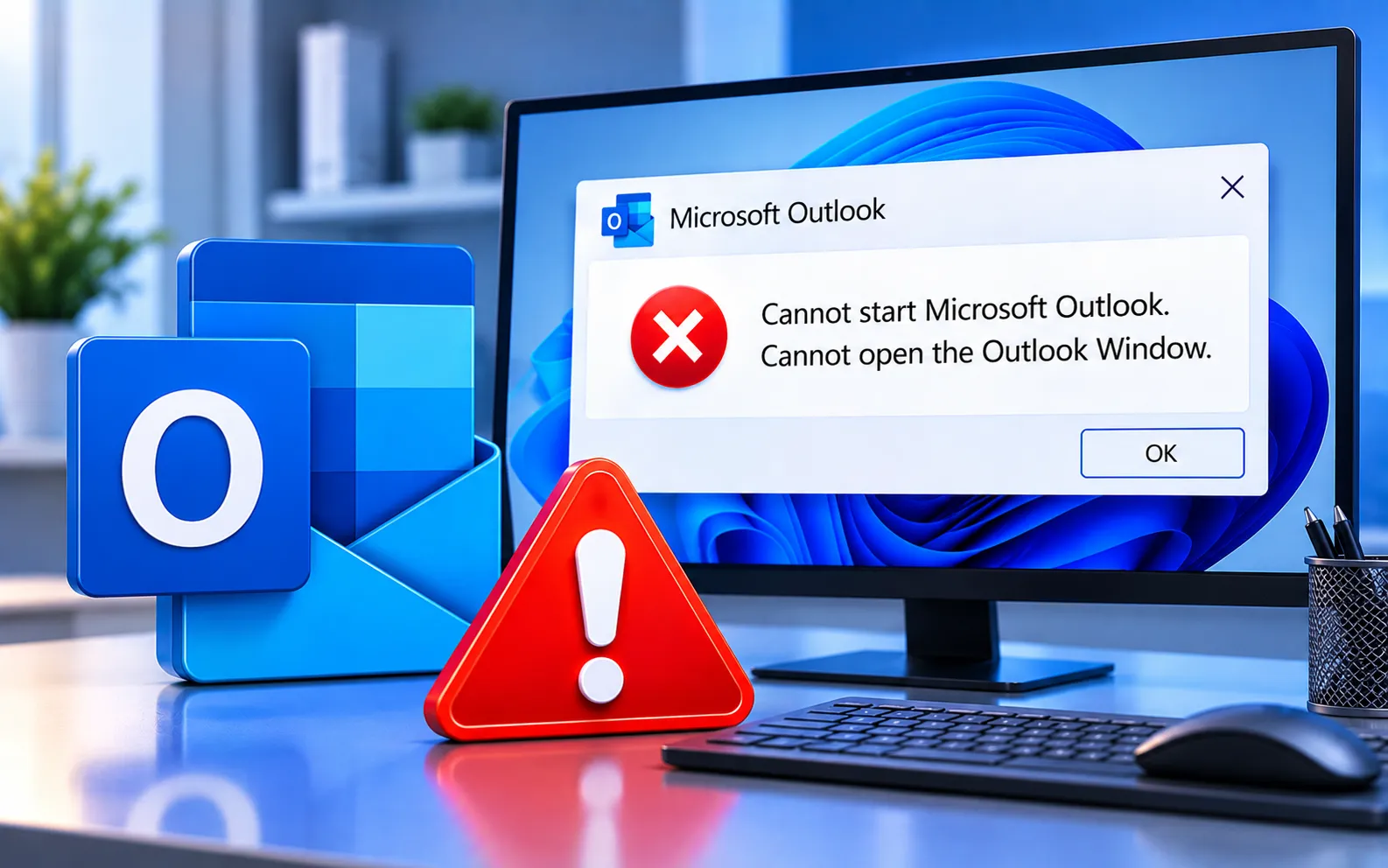
The “Cannot Start Microsoft Outlook. Cannot Open the Outlook Window” error appears when Outlook fails to launch properly. In many cases, the problem is related to a damaged Outlook profile, corrupted data file, Navigation Pane settings, or a problem with the Office installation.
Start with the simpler solutions below and move to more advanced steps if the problem continues.
What Causes the “Cannot Start Microsoft Outlook” Error?
Several issues can prevent Outlook from opening correctly, including a corrupted or damaged Outlook data file, a damaged Outlook profile, incorrect Navigation Pane settings, a data file stored on an unavailable network location, a damaged Office installation, or a conflict with add-ins or security software.
Here’s how to fix it, in order:
Reset the Outlook Navigation Pane
A corrupted Navigation Pane configuration can prevent Outlook from starting. Close Outlook completely, press Win + R, type outlook.exe /resetnavpane, and press Enter. If Outlook opens normally, this was likely the cause.
Repair the Outlook data file
A damaged PST or OST file can prevent Outlook from opening. Search Windows File Explorer for SCANPST.EXE (its exact location varies by Office version), close Outlook, open the tool, click Browse, select your data file, click Start to scan it, and select Repair if errors are found. Back up important PST files before repairing them, then reopen Outlook.
Create a new Outlook profile
Close Outlook, open Control Panel, search for Mail, open Mail (Microsoft Outlook), select Show Profiles, click Add, name the new profile, follow the prompts to add your email account, select it as the profile Outlook uses on startup, and check whether the problem is resolved. If Outlook works with the new profile, the original one was likely damaged.
Check the Outlook data file location
Outlook can fail to start if its data file sits somewhere Windows can’t access — for example, on a disconnected external drive or an unavailable network location. Confirm the drive is connected, the network is active if applicable, and your account still has permission to access the file.
Start Outlook in Safe Mode
Close Outlook, press Win + R, type outlook.exe /safe, and press Enter. If Outlook opens in Safe Mode but fails normally, an add-in is likely responsible. Open Outlook’s add-in settings, disable recently installed or unnecessary add-ins, and restart Outlook normally to check whether it opens correctly. If it still fails to start, see our guide to “We’re sorry, but Outlook has run into an error” for additional troubleshooting.
Repair Microsoft 365 or Office
A damaged Office installation can cause Outlook to malfunction. Open Settings → Apps → Installed apps, find Microsoft 365 or your Office version, select the three-dot menu, choose Modify, and try Quick Repair first — Online Repair if that doesn’t help (it needs an internet connection and takes longer). If the installation continues causing problems, see our guide to Office Installation Error Code 1603. Restart your computer after the repair and try Outlook again.
Check for Windows and Office updates
Outdated components can contribute to application problems. Open Settings → Windows Update, install any available updates, restart your computer, and try launching Outlook again.
What If Outlook Still Doesn’t Open?
If none of the solutions above work, the problem may involve a more serious Office installation issue or a damaged Windows environment — see Office Error Code 0-1005 for another useful reference. At this stage, consider removing and reinstalling Microsoft 365 or Office, after confirming your account details and backing up important Outlook data. If the problem started right after installing an add-in, security application, or major Windows update, that recent change is worth reconsidering. Our experts are here to assist you — Chat with a specialist — for more technical support.
We are an independent technical support provider and are not affiliated with, endorsed by, or sponsored by Microsoft.
FAQ
Why does Outlook say “Cannot Open the Outlook Window”?
It can occur because of a corrupted Outlook profile, a damaged data file, Navigation Pane configuration, an unavailable data-file location, or a damaged Office installation.
How do I reset Outlook’s Navigation Pane?
Close Outlook, press Win + R, enter outlook.exe /resetnavpane, and press Enter — Outlook will then attempt to start with the Navigation Pane settings reset.
Can a corrupted PST file prevent Outlook from opening?
Yes. A damaged PST file can interfere with Outlook startup. The Inbox Repair Tool, SCANPST.EXE, can scan the file and repair certain types of corruption.
What should I do if Outlook works in Safe Mode?
If Outlook opens in Safe Mode but fails normally, an add-in is likely causing the problem. Disable recently installed or unnecessary add-ins, then restart Outlook normally to check if it opens correctly.
Tags: Cannot start Microsoft Outlook. Cannot open the Outlook Window, Outlook data file is corrupted or damaged, The data file is stored on a network drive that isn't available, The Outlook installation is damaged or corrupted, The Outlook profile is loose
