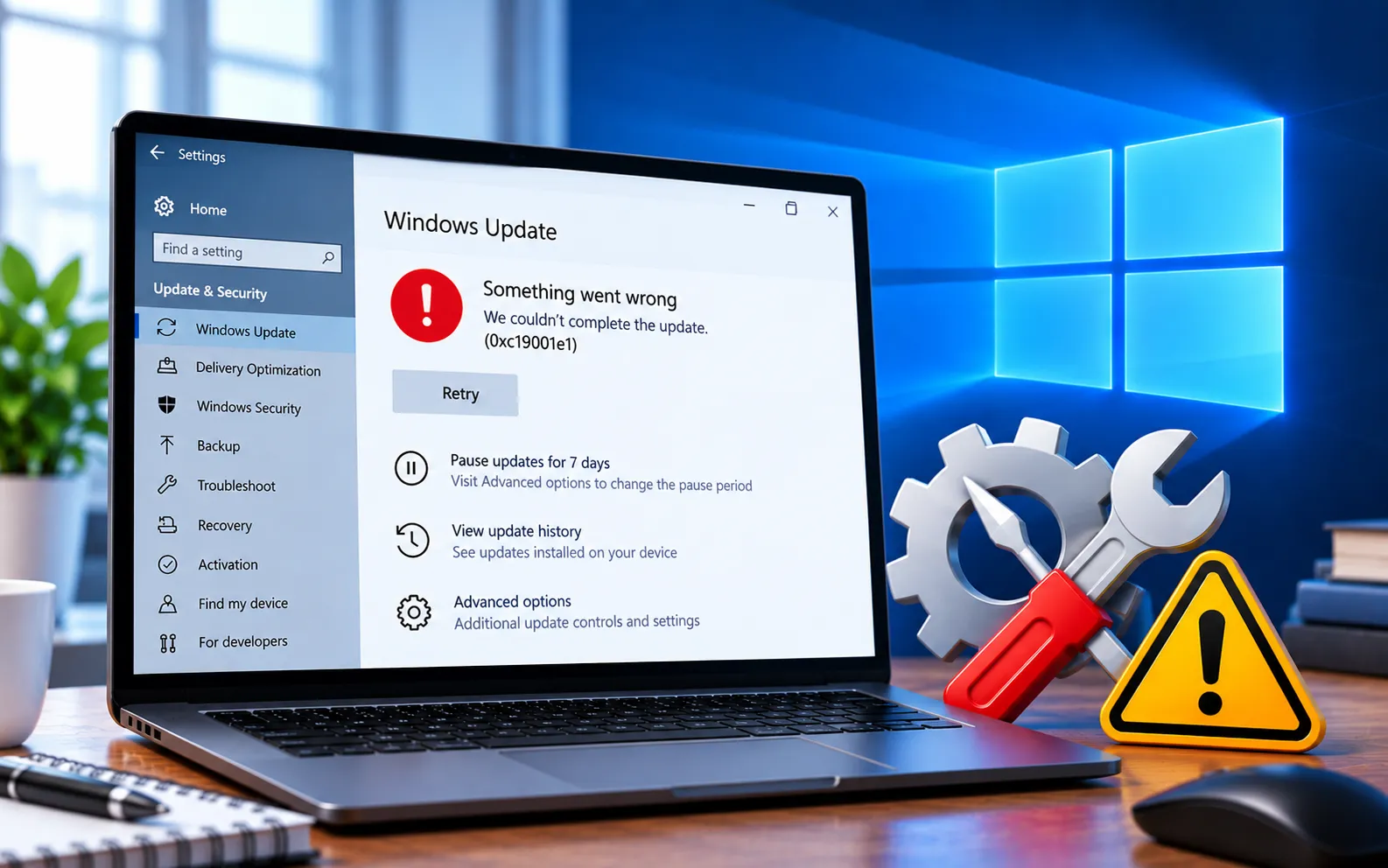
Windows Update Error Code 0xC19001E1 can appear when Windows fails to complete an update or upgrade, whether while preparing, downloading, or installing it.
Corrupted system files, damaged Windows Update components, insufficient disk space, or third-party software interference can prevent the update from completing successfully. This guide focuses on the underlying causes and fixes.
What Causes Windows Update Error Code 0xC19001E1?
Common causes include corrupted or missing system files, damaged Windows Update components, incomplete downloads, insufficient free space on the system drive, third-party applications or security software, problems with update services, incorrect system configuration, or leftover files from a previous failed update. Start with the basic methods and move to advanced ones if needed.
Here’s how to fix Error Code 0xC19001E1:
Run the Windows Update Troubleshooter
Windows 11: Settings → System → Troubleshoot → Other troubleshooters → Windows Update → Run.
Windows 10: Settings → Update & Security → Troubleshoot → Additional troubleshooters → Windows Update → Run the troubleshooter.
Restart your computer and check for updates afterward.
Make sure you have enough free space
Go to Settings → System → Storage, review the available space on your system drive, and remove unnecessary files or applications if it’s nearly full. For low-storage failures specifically, see our guide to Windows Update Error Code 0x80070070.
Repair corrupted system files
Open Command Prompt as administrator and run DISM.exe /Online /Cleanup-Image /RestoreHealth. Once complete, run sfc /scannow and let it reach 100%. If corrupted files were repaired, restart and try the update again. If update files are also reported missing, see our guide to Windows Update Error Code 80073712.
Restart Windows Update services
Open Command Prompt as administrator and run:
net stop wuauserv
net stop bits
net stop cryptSvc
net stop msiserver
Then start them again:
net start msiserver
net start cryptSvc
net start bits
net start wuauserv
Restart your computer and check for updates.
Reset the Windows Update cache
Stop the services above, rename the cache folders:
ren %windir%\SoftwareDistribution SoftwareDistribution.old
ren %windir%\System32\catroot2 catroot2.old
Restart the services and your computer — Windows will create fresh cache folders when needed.
Disconnect VPN and check your network
Disconnect from any VPN temporarily and try again. Also check Settings → Network & internet → Proxy, and disable a manual proxy if you don’t intentionally use one. Restart and try the update. For broader connection problems, see our guide to Windows Update Error Code 0x8024402C.
Perform a clean boot
Press Win + R, type msconfig, press Enter. Go to Services, check “Hide all Microsoft services,” click “Disable all.” Go to Startup, open Task Manager, disable unnecessary items, restart, and try the update. If it works, re-enable services gradually to identify the conflict, then restore your normal settings.
Temporarily remove unnecessary third-party software
If the problem started after installing a new antivirus, VPN, or system utility, consider temporarily uninstalling it and trying the update again. Don’t permanently disable security protection — restore any temporary changes after testing.
Install the update again
Go to Settings → Windows Update → Check for updates (or Settings → Update & Security → Windows Update on Windows 10). If a specific KB keeps failing, note its number and check the Microsoft Update Catalog for a standalone package.
Use Windows Recovery or an in-place repair
Check Settings → System → Recovery for “Fix problems using Windows Update” on supported Windows 11 systems. An in-place repair installation using official media is another option — back up important files first. A full “Reset this PC” should be a last resort.
Still Not Resolved?
Start with the troubleshooter and check your free space, then run DISM and SFC. If the error remains, restart update services, reset the cache, check your network, and try a clean boot. Our experts are here to assist you — Chat with a specialist — for more technical support.
We are an independent technical support provider and are not affiliated with, endorsed by, or sponsored by Microsoft.
FAQ
What does Windows Update Error Code 0xC19001E1 mean?
It can appear when Windows can’t complete an update or upgrade — corrupted system files, damaged update components, storage limitations, or software conflicts can contribute.
Can low disk space cause this error?
Yes. Insufficient storage can prevent Windows from downloading, extracting, or installing update files — freeing up space on the system drive is a good first check.
Can third-party software cause this error?
Yes. Security software, VPN applications, and system utilities can sometimes interfere with Windows Update or feature upgrades.
Should I reset Windows if this error continues?
No, not as a first step. Try repairing system files, resetting update components, checking storage, and a clean boot before considering a reset.
Tags: 0xc19001e1, 0xc19001e1 error, 0xc19001e1 windows 10 update, 0xc19001e1 windows 10 update 20h2, 0xc19001e1 windows 10 update 21h2, Error 0xc19001e1, Error Code 0xc19001e1, KB9199277, Windows 10 20H2 Update Error Code 0xc19001e1, Windows Update Error code 0xc19001e1
