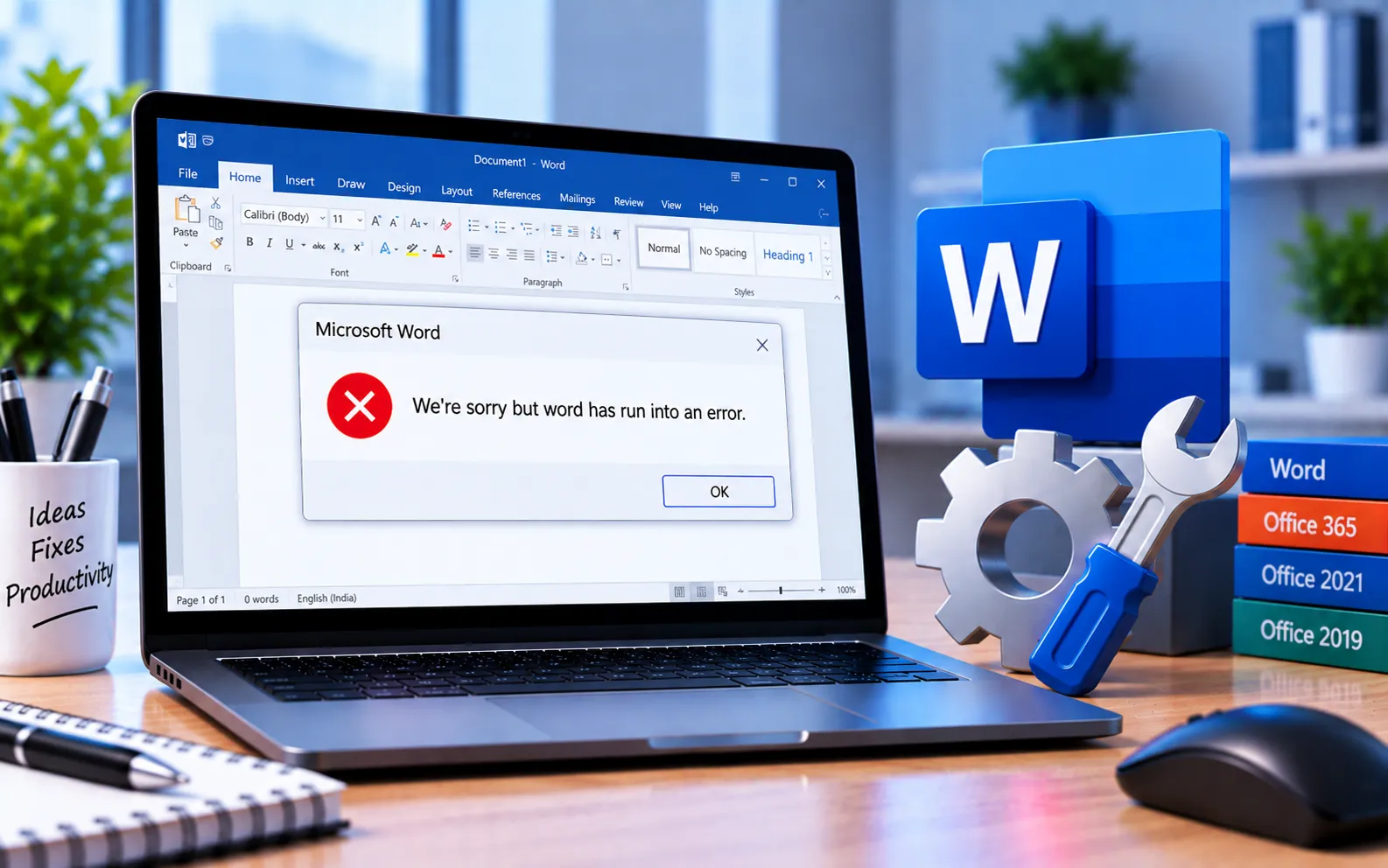
Many users encounter this message when trying to access Word, Excel, Outlook, or PowerPoint on Windows 10 or 11: “We’re sorry, but [app] has run into an error that is preventing it from working correctly. Would you like us to repair it now?”
Clicking “Repair Now” doesn’t always resolve it. This guide covers the other fixes worth trying.
How to Fix “We’re Sorry, But [App] Has Run Into an Error”
Work through these methods in order to resolve the error, whether it’s showing in Word, Excel, Outlook, or PowerPoint.
Here’s how to fix it:
Open the Office app with admin rights
Search for the affected app (Word, Excel, etc.) in the Windows taskbar, right-click the search result, and select “Run as administrator.” Follow the same steps for Excel, Outlook, or PowerPoint if the error appears there too.
Repair your Office installation
Go to Start → Settings → Apps, right-click Microsoft 365 or your Office version, select Modify, choose Quick Repair when prompted, and click Repair. Restart your PC and check whether the issue is resolved.
Check for Windows updates
Go to Start → Settings → Windows Update, click “Check for updates,” and install anything available. Restart your computer once updates finish, then check whether the Office apps open normally.
Clear related registry entries (advanced)
Corrupted Office experiment or feature-flag registry entries can occasionally cause this error. This step involves editing the Windows registry, which is highly sensitive — back up your registry first, and it’s best done with a technician present if you’re not comfortable identifying and removing the specific Office-related keys involved.
Uninstall and reinstall Office
Download the Microsoft Support and Recovery Assistant tool from Microsoft’s official site, run it, click Install for the recovery tool, agree to the terms, and let it complete its troubleshooting. Select the checkbox for the Office product you want to remove, click Next, then reinstall Office from office.com/myaccount by logging in and clicking Install under your Office product.
Still Not Resolved?
If you’re still having trouble after following these steps, our experts are here to assist you — Chat with a specialist — and they’ll give you the best solutions to fully resolve this error.
We are an independent technical support provider and are not affiliated with, endorsed by, or sponsored by Microsoft.
FAQ
Why doesn’t clicking “Repair Now” fix this error?
The built-in repair prompt doesn’t always resolve deeper causes like corrupted registry entries or a failed Windows update — running a full Quick Repair through Settings → Apps is more thorough.
Should I run Office as administrator to fix this?
Yes, it’s worth trying first — some errors occur because the app needs elevated permissions to complete a repair or write to a protected location.
Is it safe to edit the registry to fix this error?
Only with caution — back up the registry first, and get expert guidance if you’re not confident identifying the correct Office-related keys, since incorrect changes elsewhere can cause other problems.
Will I lose my documents if I uninstall and reinstall Office?
No. Uninstalling Office only removes the application itself — your saved documents remain untouched as long as they’re stored outside the Office program folder.
Tags: but Word has run into an error, KB63363905, We’re sorry but Word/Excel/Outlook/PowerPoint has run into an error, We’re sorry something went wrong
