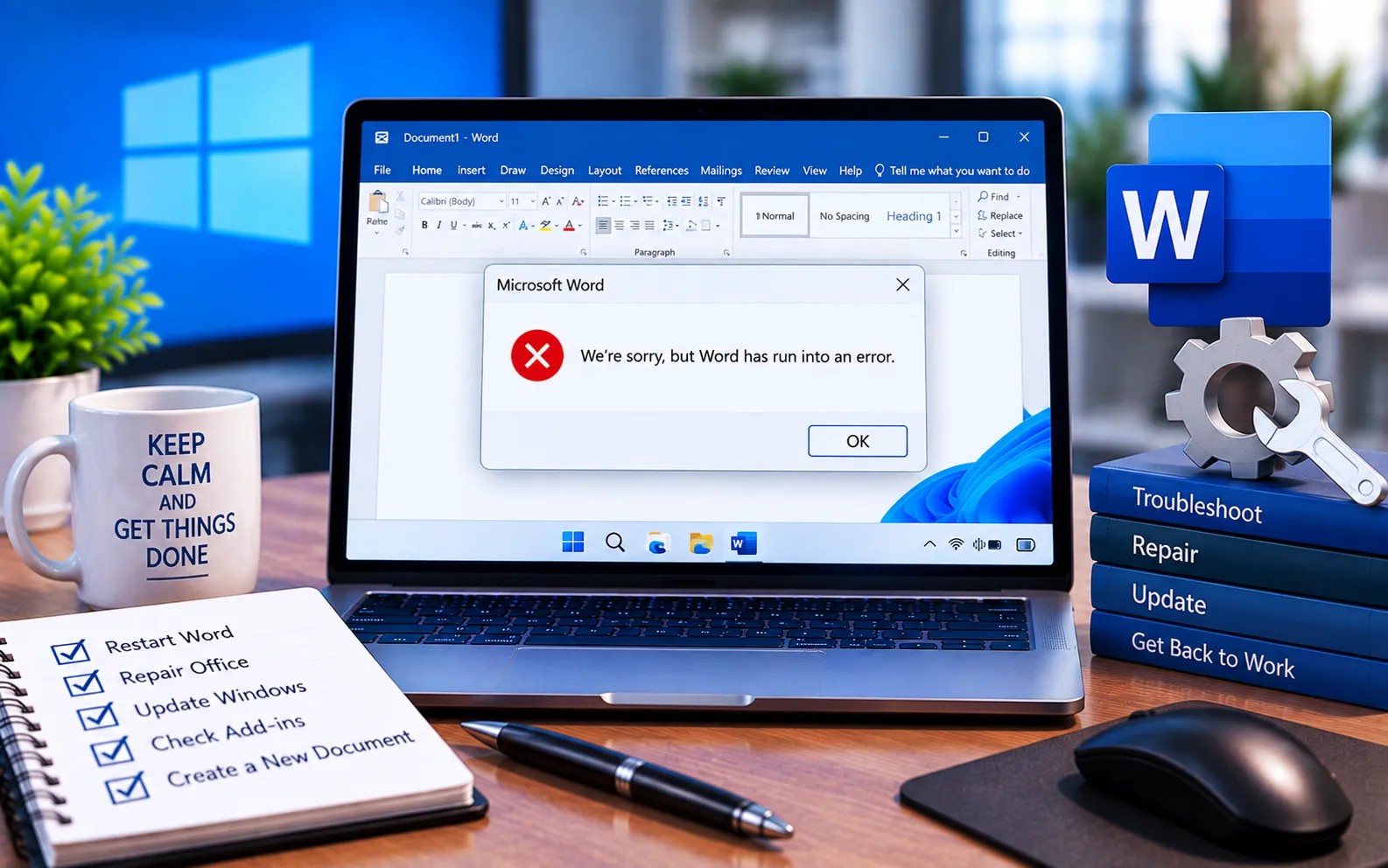
“We’re sorry, but Word has run into an error that is preventing it from working correctly. Word will need to be closed as a result. Would you like us to repair it now?” is a common message in Word 2016, 2019, and 2021, and it’s worth fixing quickly since it stops Word from opening at all.
Most people start by clicking Repair — if that didn’t resolve it, this guide covers the fixes to try next.
How to Fix “Word Has Run Into an Error”
Work through these steps in order — most people won’t need to go past the second one.
Here’s how to fix it:
Repair your Office installation
Open Apps in Windows 10/11 (or Programs & Features in Windows 7), select the correct Microsoft Office product, and click Modify. Note whether your installation is Click-to-Run or MSI-based, since this determines whether you see Online Repair or the standard Repair option — choose the one available and follow the on-screen instructions.
End the WINWORD process and reopen Word
If Word is stuck or the error keeps looping, open Task Manager (Ctrl + Shift + Esc), find WINWORD.EXE under Processes, and click End Task. Reopen Word normally afterward — this clears a stuck process without needing a reinstall.
Uninstall and reinstall Word
If repair doesn’t resolve the error, note your Word version and build, then uninstall it through Control Panel → Programs and Features, and reinstall it from your official Microsoft account or installation source.
Check for Windows and Office updates
Install any available Windows and Office updates for your version — though occasionally a specific update can cause its own conflicts, so if the error started right after an update, that’s worth investigating too.
Still Not Resolved?
A single problematic Word document — especially one with custom VBA code — can also cause this error and crash the whole application, even though it seems unrelated to your other files. If none of the steps above work, check Windows Event Viewer for diagnostic details and share them with a technician. Our experts are here to assist you — Chat with a specialist — for more technical support.
We are an independent technical support provider and are not affiliated with, endorsed by, or sponsored by Microsoft.
FAQ
What should I do if Word’s Repair option doesn’t fix the error?
Try ending the WINWORD process in Task Manager and reopening Word, or uninstalling and reinstalling it if the error persists after that.
Can one bad document cause this error for all Word files?
Yes. A single document — especially one with custom VBA macros — can crash Word entirely, even though the problem seems to affect the whole application rather than just that file.
Should I edit the registry to fix this error?
Only with a thorough understanding of the registry editor — incorrect changes can make Windows unusable, so this should be a last resort with expert guidance.
Where can I find diagnostic information about the crash?
Check Windows Event Viewer for logs around the time Word crashed — this information helps a technician pinpoint the exact cause faster.
Tags: but Word has run into an error, We’re sorry something went wrong
