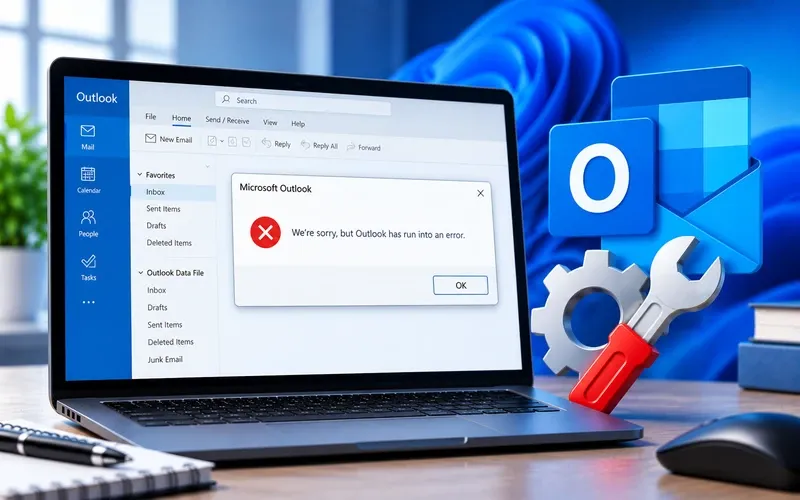
Seeing “We’re sorry, but Outlook has run into an error” after a Windows update can prevent Outlook from opening normally, and the problem may affect other Office apps too, including Word, Excel, and PowerPoint.
An Office application can stop responding because of a problematic add-in, damaged Office files, compatibility settings, an incomplete update, or a conflict with another program. This guide starts with Safe Mode and works through the solutions.
Which Microsoft Office Apps Can Be Affected?
Although commonly reported with Outlook, similar messages can appear in Word, Excel, and PowerPoint too. If several Office applications stopped working after the same Windows update, the problem may involve the Office installation rather than one app alone.
Here’s how to fix it:
Start Outlook in Safe Mode
Press Win + R, type outlook /safe, and press Enter. Select your profile if prompted and check whether Outlook opens successfully. If it works, an add-in or custom setting is likely the cause. You can test the same way with excel /safe or winword /safe.
Disable Outlook add-ins
If Outlook opens in Safe Mode, go to File → Options → Add-ins, set Manage to “COM Add-ins” at the bottom, click Go, uncheck the add-in you want to disable, click OK, close Outlook, and start it normally. If it works, re-enable add-ins one at a time to find the culprit. The same approach works for Word and Excel. If Excel has a separate startup issue, see our guide to Excel Not Working.
Check compatibility mode
Locate the app’s executable (for Outlook, typically C:\Program Files\Microsoft Office\root\Office16\OUTLOOK.EXE or the (x86) equivalent). Right-click it, select Properties → Compatibility tab, and clear “Run this program in compatibility mode for” if enabled, and “Run this program as an administrator” if not specifically needed. Click Apply, OK, and restart the app.
Repair Microsoft Office
Go to Settings → Apps → Installed apps, find your Office installation, select Modify, and choose Quick Repair. If that doesn’t help, try Online Repair (needs an internet connection, more thorough). Restart Windows and reopen Outlook.
Install pending Windows and Office updates
Go to Settings → Windows Update → Check for updates and install anything available. Then open a working Office app and go to File → Account → Update Options → Update Now for Office updates.
Create a new Outlook profile
If Outlook opens but crashes while loading your profile, it may be damaged. Close Outlook, open Control Panel → Mail (Microsoft Outlook) → Show Profiles → Add, create a new profile, add your email account, select it as default, and start Outlook. Don’t delete your original profile until you’ve confirmed your data is accessible in the new one.
Check Windows system files
If multiple apps started crashing after a Windows update, open Command Prompt as administrator and run DISM.exe /Online /Cleanup-Image /RestoreHealth, then sfc /scannow. Restart Windows after both complete and test Outlook again.
Perform a clean boot
Press Win + R, type msconfig, press Enter. Go to Services, check “Hide all Microsoft services,” click “Disable all.” Go to Startup, open Task Manager, disable unnecessary items, restart, and test Outlook. Re-enable items gradually to find the conflict, then restore your normal configuration.
Repair or reinstall Microsoft Office
If nothing else works, start with Online Repair. A full reinstall should only be a last resort — have your Microsoft account credentials and product information ready first. If a separate installation error appears, see our guide to Office Installation Error Code 1603. Restart Windows and test Outlook after reinstalling.
Still Not Resolved?
Start Outlook in Safe Mode to check for add-in conflicts, disable extensions, check compatibility settings, and repair Office. Install pending updates, test a new profile, and run DISM/SFC if multiple apps are affected. Our experts are here to assist you — Chat with a specialist — for more technical support.
We are an independent technical support provider and are not affiliated with, endorsed by, or sponsored by Microsoft.
FAQ
Why does Outlook say “We’re sorry, but Outlook has run into an error”?
It can appear because of damaged Office files, problematic add-ins, compatibility settings, a corrupted profile, or conflicts between Windows and Office components.
Can a Windows update cause Outlook to stop working?
Yes, it can expose compatibility or configuration problems with installed applications — checking Office updates, add-ins, and compatibility settings is a good starting point.
Why does Outlook work in Safe Mode but not normally?
This usually points to an add-in or customized configuration — disable add-ins individually and restart Outlook normally to identify the problem.
Should I reinstall Office immediately?
No. Try Safe Mode, disabling add-ins, checking compatibility settings, repairing Office, and testing a new profile first — reinstallation should be a later step.
Tags: but Excel has run into an error, but Outlook has run into an error, but PowerPoint has run into an error, but Word has run into an erro, KB63363902, MS office 365/2021/2019, MS Office Installation, Outlook has run into an error, We’re sorry something went wrong
