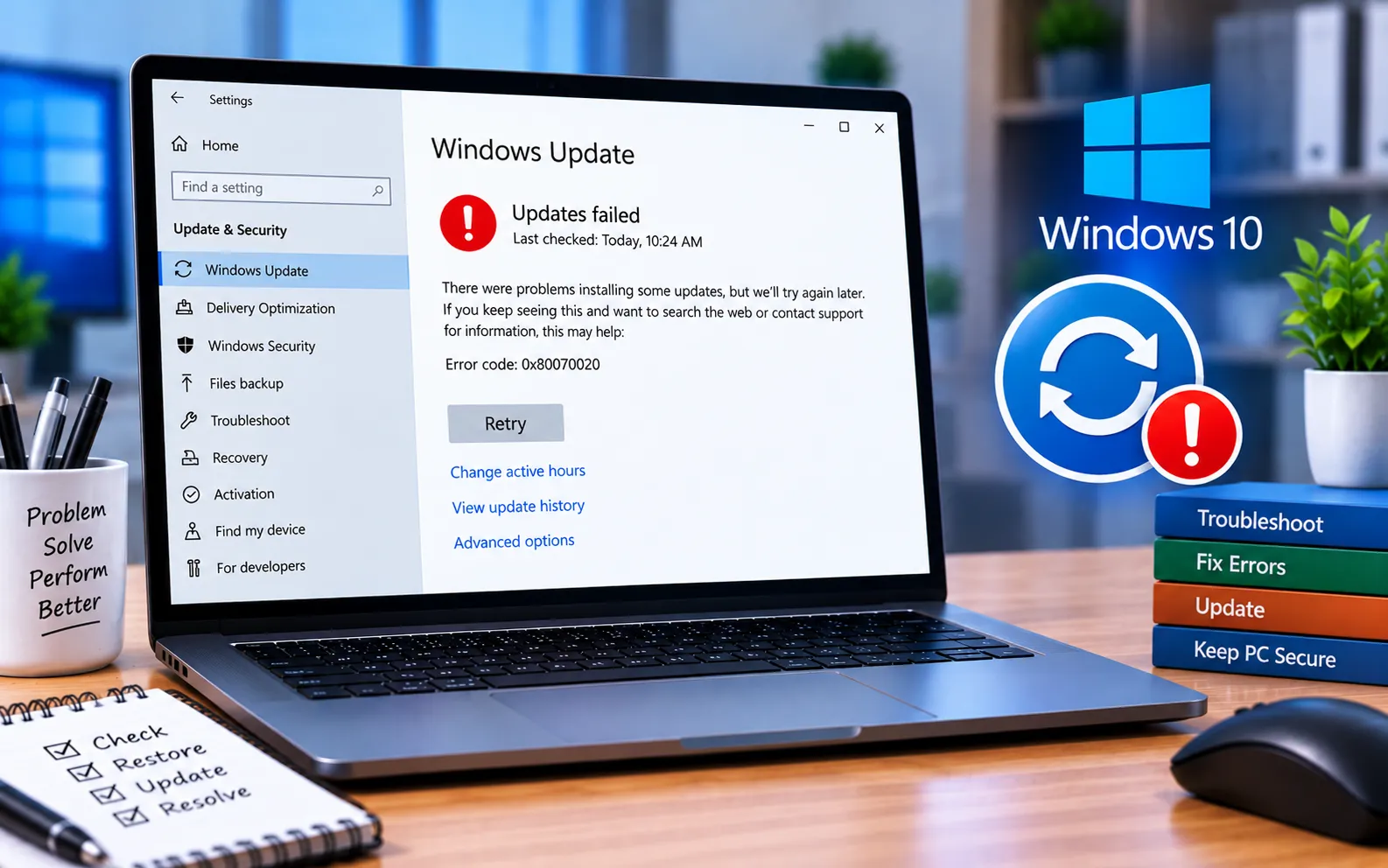
Windows 10 Update failures can show up in a few different ways, often with messages like “Your Windows 10 Update was unsuccessful,” “Changes are being undone. Don’t switch your computer off,” or “Configuring Windows 10 updates failed. Changing the things back.” This can appear on a blue screen and sometimes doesn’t show until minutes or even hours after the update attempt.
This guide explains the causes and the steps to fix it.
Reasons for Windows 10 Update Errors
The most common causes include multiple upgrades queued at once, insufficient storage space, corrupted update files, hardware conflicts, and driver conflicts.
Here’s how to fix it — try these in order, and stop once one works:
Restart and try the update again
In many cases, simply restarting your computer and reinstalling the update resolves the issue. This is especially common when multiple updates are queued and one fails during the initial pass — restarting and retrying usually fixes it. You may need to repeat this if your installation is significantly out of date.
Disconnect external devices
If restarting doesn’t help, you may have a hardware or driver conflict. Disconnect cameras, microphones, scanners, and other peripherals before restarting, keeping only your keyboard and mouse connected, then run Windows Update again.
Check your free disk space
Insufficient disk space is one of the most common causes of failed updates. Delete unnecessary files or connect an external drive to free up room, then retry the update.
Run the Windows Update Troubleshooter
Type “troubleshoot” into the taskbar search, select Troubleshoot settings, select Windows Update, click “Run the troubleshooter,” and follow the on-screen instructions.
Manually delete update files
If the troubleshooter doesn’t clear stuck or damaged downloads, restart your computer in Safe Mode, open File Explorer and navigate to C:\Windows, find the SoftwareDistribution folder, delete it, and run Windows Update again after restarting normally.
Repair your Windows 10 installation
If none of the above resolves it, System File Checker alone won’t fix a deeper installation problem — you’ll need to reset or reinstall Windows while keeping your files. This is a significant step, only one step short of a full reinstall. Back up your files and settings first, and be sure to select “Keep My Files” during the repair process.
Still Not Resolved?
If you’re still having trouble after these steps, our experts are here to assist you — Chat with a specialist — for more technical support.
We are an independent technical support provider and are not affiliated with, endorsed by, or sponsored by Microsoft.
FAQ
Why does Windows 10 show “Changes are being undone” after a failed update?
Windows automatically rolls back changes when an update fails to install correctly, to protect your system from being left in a broken state.
Can disconnected peripherals cause update failures?
Yes. Certain connected devices can cause hardware or driver conflicts during the update process — disconnecting non-essential devices before updating helps rule this out.
Will deleting the SoftwareDistribution folder delete my files?
No. This folder only holds temporary update data — deleting it doesn’t affect your personal documents or installed applications.
Will I lose my files if I reset Windows 10 to fix this?
Not if you select “Keep My Files” during the reset process — but back up your important files and settings first as a precaution, since this is a significant system change.
Tags: how to fix windows 10 update error, windows 10 update fix tool, windows 10 update not downloading, windows 10 update problems 2020., windows 10 update troubleshooter, windows 10 updates wont install
