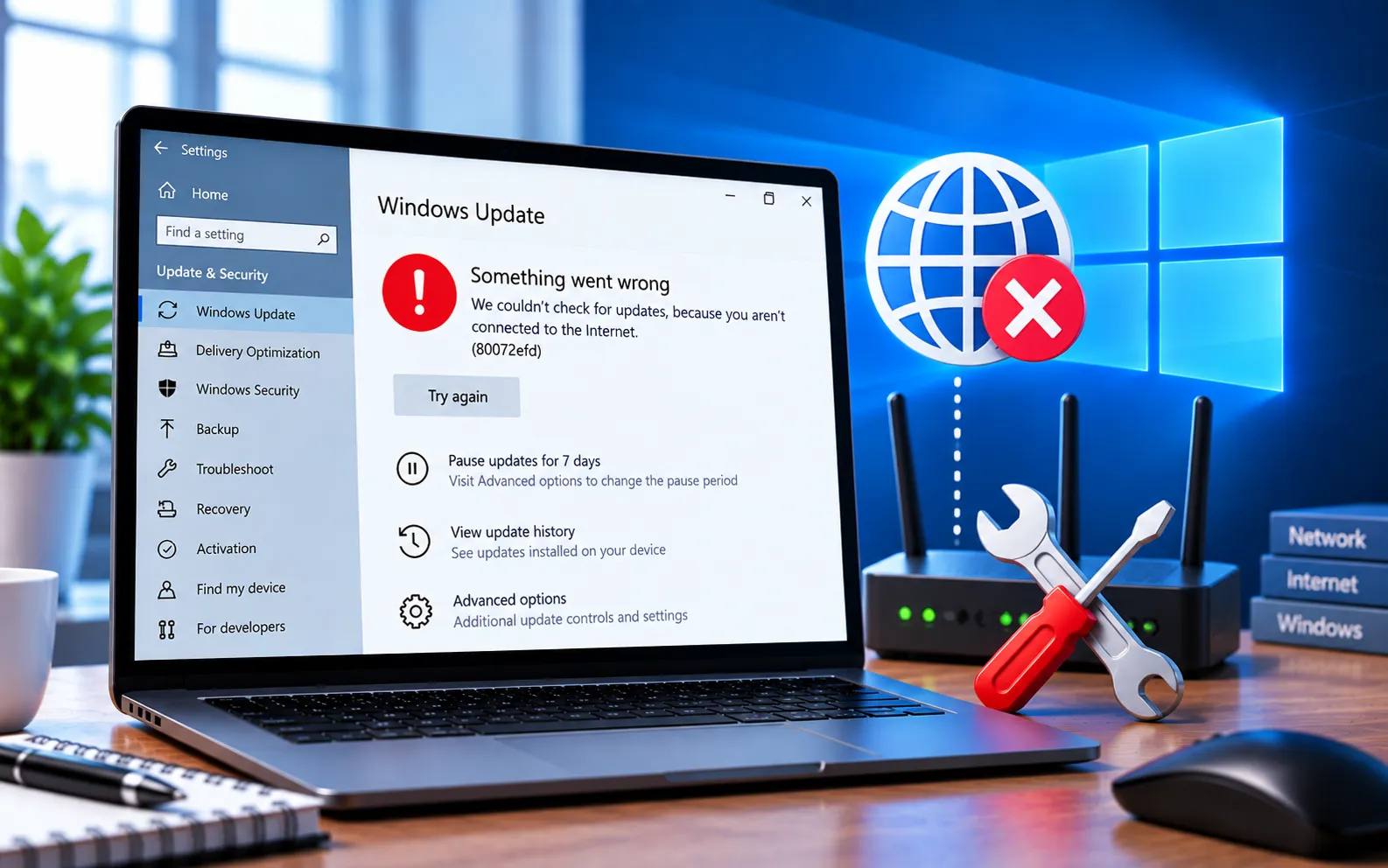
Windows Update Error Code 80072EFD generally points to a connection problem between your computer and Microsoft’s update servers, preventing Windows from checking for or downloading updates on either Windows 10 or 11.
This error can be triggered by network connectivity issues, firewall or proxy settings, security software interference, DNS problems, or incorrect system date and time. This guide covers the troubleshooting methods in order.
What Causes Windows Update Error Code 80072EFD?
Common causes include an unstable or interrupted internet connection, incorrect proxy configuration, firewall settings blocking Windows Update, third-party antivirus interference, DNS resolution problems, or an incorrect system clock affecting secure server communication. Since this error is connection-related, start by checking your network setup.
Here’s how to fix Error Code 80072EFD:
Check your internet connection
Restart your router, confirm other websites load normally, try a different network if possible, and temporarily disconnect from any VPN. A stable connection is essential for Windows to reach its update servers.
Check your system date and time
Go to Settings → Time & Language, and turn on both “Set time automatically” and “Set time zone automatically.” An incorrect clock can interfere with the secure connection Windows Update needs to establish with Microsoft’s servers.
Check your proxy settings
Go to Settings → Network & Internet → Proxy, and turn off “Use a proxy server” if you don’t intentionally use one. If your organization requires a proxy, confirm the settings are correct with your IT administrator before disabling it.
Temporarily check third-party firewall or antivirus software
If you use non-Microsoft security software, temporarily disable it and try the update again, then re-enable it right after testing. Don’t leave your system unprotected for longer than necessary.
Run the Windows Update Troubleshooter
Windows 11: Settings → System → Troubleshoot → Other troubleshooters → Windows Update → Run.
Windows 10: Settings → Update & Security → Troubleshoot → Additional troubleshooters → Windows Update → Run the troubleshooter.
Restart your computer and check for updates afterward.
Flush and reset your DNS
Open Command Prompt as administrator and run ipconfig /flushdns. This clears cached DNS data that could be preventing Windows from resolving Microsoft’s update server addresses correctly.
Restart Windows Update services
Open Command Prompt as administrator and run:
net stop wuauserv
net stop bits
net stop cryptSvc
Then start them again:
net start cryptSvc
net start bits
net start wuauserv
Restart your computer and check for updates.
Reset the Windows Update cache
Stop the services above again, then rename the cache folders:
ren %windir%\SoftwareDistribution SoftwareDistribution.old
ren %windir%\System32\catroot2 catroot2.old
Restart the services and your computer — Windows will recreate these folders as needed. For a related issue involving missing or corrupted update files, see our guide to Windows Update Error Code 80073712.
Still Not Resolved?
Start by checking your internet connection, system clock, and proxy settings, then run the troubleshooter and flush your DNS. If the error continues, restart the update services and reset the cache. Our experts are here to assist you — Chat with a specialist — for more technical support.
We are an independent technical support provider and are not affiliated with, endorsed by, or sponsored by Microsoft.
FAQ
What does Windows Update Error Code 80072EFD mean?
It generally indicates a connection failure between your computer and Microsoft’s update servers, often caused by network, proxy, firewall, or DNS issues.
Can an incorrect system clock cause this error?
Yes. Windows Update relies on a secure connection that checks your system’s date and time — an incorrect clock can cause this connection to fail.
What does flushing DNS do?
It clears cached DNS records on your computer, forcing it to look up Microsoft’s update server addresses fresh — this resolves cases where stale or incorrect DNS data is blocking the connection.
Can firewall software cause this error?
Yes. A firewall or antivirus program can block the connection Windows Update needs — temporarily disabling it helps confirm whether it’s the cause.
