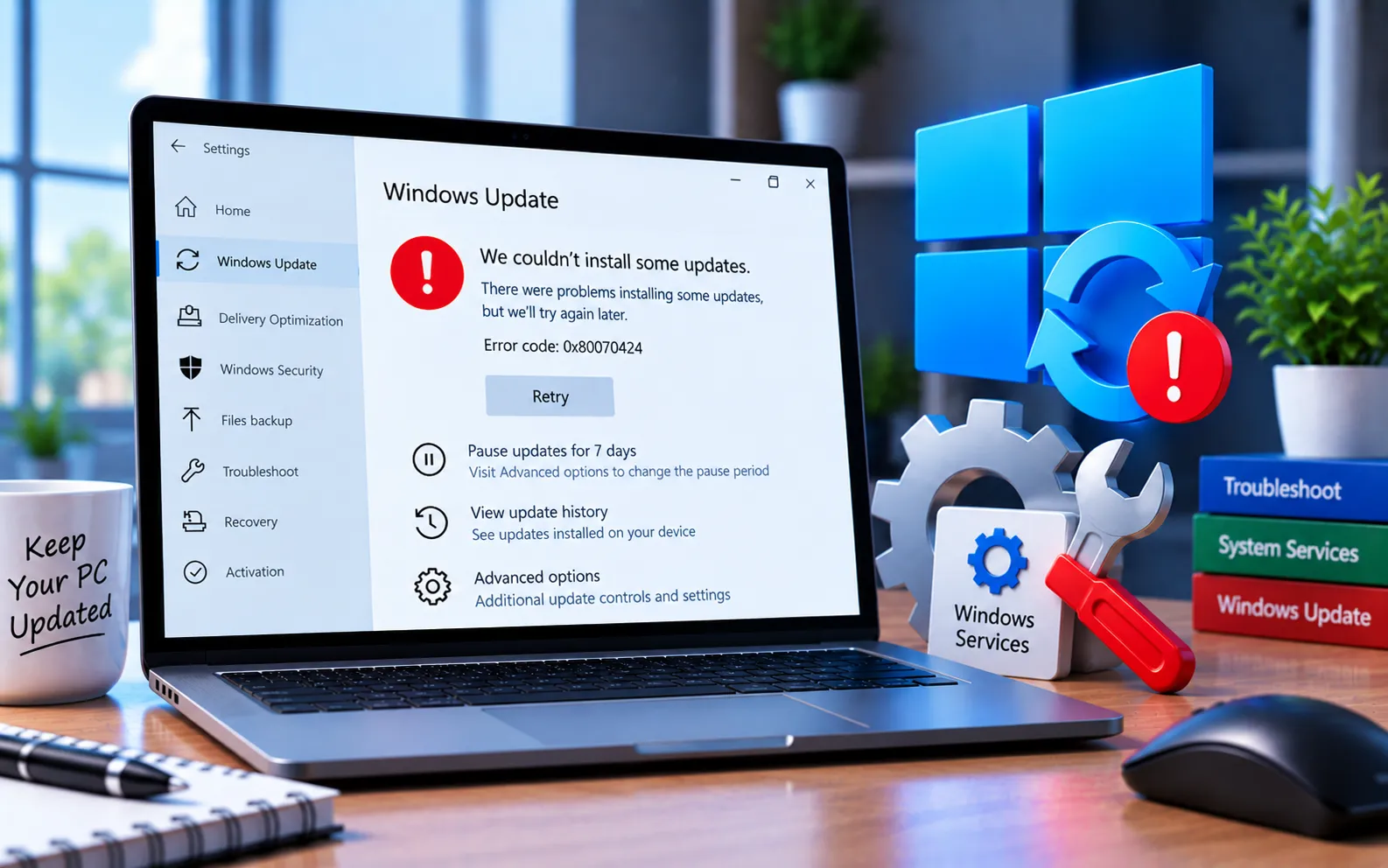
Windows Update Error Code 0x80070424 frequently appears when a required system file isn’t properly registered, preventing your system from updating. It typically occurs while updating through Windows Update Standalone Installer (Wusa.exe) or the Windows Update section in Settings. If updates also fail with connection problems, see Windows Update Error 0x8024402C.
This guide explains the steps to fix it.
How to Fix Windows Update Error Code 0x80070424
Work through these methods in order to resolve Error Code 0x80070424.
Here’s how to fix it:
Run an SFC scan
Type “cmd” in the Windows Start menu search, right-click Command Prompt, and select “Run as administrator.” In the window that opens, type sfc /scannow and press Enter. The scan may take a few minutes to complete. If Windows still reports missing or corrupted update files afterwards, read Windows Update Error Code 80073712.
Delete temporary files
A corrupted temporary file can cause this error. Press Win + R, type temp, and press Enter. Press Ctrl + A to select all items in the folder, then delete them. Alternatively, use the Windows Disk Cleanup tool: press Win + R, type cleanmgr.exe, press Enter, select the drive you want to clean, click OK, and choose the file types to remove. If a corrupted or invalid data error appears, see Windows Update Error Code 0x8007000D.
Re-register system files
Press Win + R to open Run, and enter each of the following commands separately:
regsvr32 Qmgr.dll /s
regsvr32 Qmgrprxy.dll /s
Restart your device after entering both commands, then try the update again. If the update now fails with a certificate or trust error, see Windows Update Error Code 0x800B010A.
Enable the Windows Update service
Press Win + R, type services.msc, and press Enter. Find the Windows Update service, double-click it, and make sure the Startup type is set to Automatic and the service is running. If it’s not running, click Start, then click Apply. On Windows 11, you can also read how to fix Windows 11 update error 0x80070002.
Reset Windows as a last resort
Back up your files first — resetting Windows will remove your files and settings during the process. If a file cannot be read during the process, see Windows Update Error Code 0x8007025D.
Windows 10: Start → Settings → System → Recovery → Reset PC, then choose your preferred options.
Windows 11: Start → Settings → System → Recovery → Reset PC, then choose your preferred options.
Still Not Resolved?
If you’re still having trouble after these steps, the update may be failing for a different reason, such as Windows Update Error Code 0x8024A206. Our experts are here to assist you — Chat with a specialist — and they’ll give you the best results to fully resolve Windows Update Error Code 0x80070424.
We are an independent technical support provider and are not affiliated with, endorsed by, or sponsored by Microsoft.
FAQ
What causes Windows Update Error Code 0x80070424?
It’s usually caused by a required system file not being properly registered, or the Windows Update service being stopped or misconfigured.
What do the regsvr32 commands do?
They re-register Qmgr.dll and Qmgrprxy.dll, two system files Windows Update relies on — re-registering them resolves cases where these files became unregistered.
Is it safe to delete everything in the Temp folder?
Yes. The Temp folder only holds temporary system and application data — deleting its contents is safe, and any file currently in use will simply be skipped.
Will resetting Windows delete my files?
Yes, depending on the reset option chosen — back up your important files and settings first, since this should be a last resort after other fixes.
