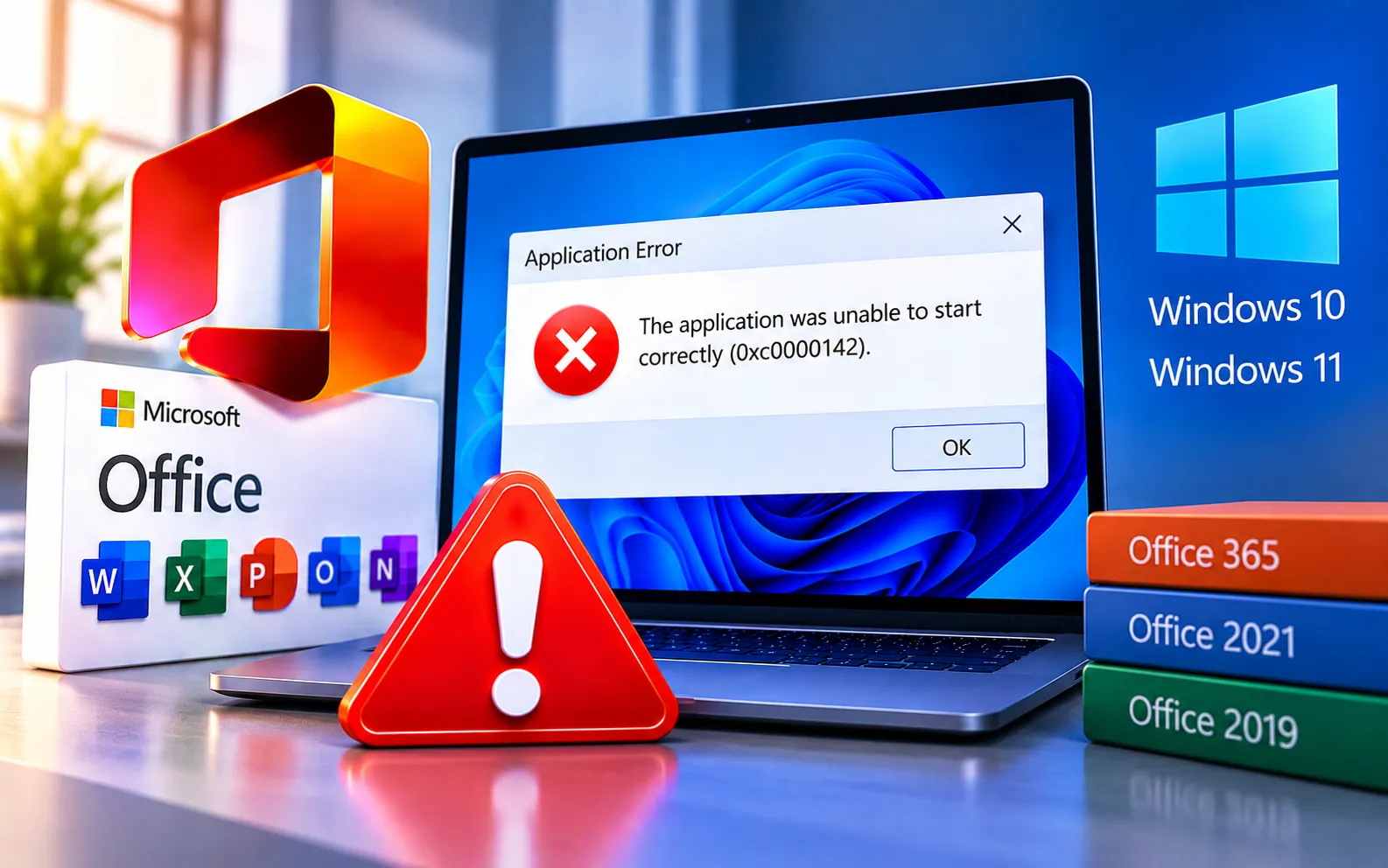
Error 0xc0000142 can appear when trying to open Microsoft Office applications on Windows 10 or 11. Programs like Word, Excel, Outlook, and other Office apps may fail to start after a Windows or Office update, showing the message: “The application was unable to start correctly (0xc0000142). Click OK to close the application.”
This guide explains the causes and the steps to fix it.
What Causes Error 0xc0000142?
Common causes include corrupted Windows system files, damaged Microsoft Office installation files, a recent Windows or Office update, conflicting background services, third-party antivirus interference, incorrect application configuration, or incomplete Office updates or installation files. If the problem started right after an update, checking your recently installed updates is a good place to begin.
Here’s how to fix Error 0xc0000142:
Restart your computer
A simple restart can clear temporary Windows and Office processes that may be preventing the application from opening. Save your work, restart, and try opening the affected app once Windows starts again.
Run System File Checker
Right-click the Start button, select Terminal (Admin), and run sfc /scannow. Wait until the scan reaches 100% — don’t close the Terminal window while it’s running. Restart your computer once it finishes and try opening the affected application again.
Run DISM
If SFC can’t repair all damaged files, open Terminal (Admin) and run DISM.exe /Online /Cleanup-image /RestoreHealth. This may take several minutes depending on your system. Restart Windows once it completes and check whether the application starts normally. For another guide focused on corrupted system files, see Windows Update Error Code 0x800F0900.
Remove a recently installed Windows or Office update
Note when the problem started and check your update history before removing anything.
Windows 11: Settings → Windows Update → Update history → Uninstall updates, find the recent update, and click Uninstall if available.
Windows 10: Settings → Update & Security → Windows Update → View update history → Uninstall updates, select the recent update, and click Uninstall.
Restart your computer and test the affected application afterward.
Repair Microsoft Office
If only Office applications are affected, the installation may be damaged. Go to Settings → Apps → Installed apps, find Microsoft 365 or your Office installation, click the three-dot menu, select Modify, and choose Quick Repair. If that doesn’t resolve it, return to the same screen and try Online Repair, which needs an internet connection but performs a more thorough repair. If repair doesn’t complete successfully, see Office Installation Error Code 1603 for additional troubleshooting.
Check Microsoft Office updates
Open an Office application that still works, such as Excel or PowerPoint, and go to File → Account → Update Options → Update Now. Let Office download and install any available updates, then restart your computer and test the affected application again.
Temporarily check antivirus interference
If you recently installed or updated a security application, check whether it’s blocking the affected Office program. Windows Security also provides real-time protection controls — avoid leaving protection disabled longer than necessary, and check its settings for application or Office restrictions if disabling it temporarily resolves the issue.
Perform a clean Office reinstallation
If Office still won’t start after repair, make sure you know your Microsoft account or product key before removing anything, since you’ll need it to reactivate. Remove the existing Office installation through Windows Settings, restart your computer, then reinstall the correct Office version. A clean installation can replace damaged files that a standard repair might not fix.
What If Error 0xc0000142 Still Appears?
Check whether the problem affects one application or every Office application. If only one program fails, the issue may be specific to that app. If Word, Excel, Outlook, and other Office programs all fail, the problem more likely relates to the Office installation or Windows environment. If installation or startup problems continue, see Office Error Code 0-1005. Our experts are here to assist you — Chat with a specialist — for more technical support.
We are an independent technical support provider and are not affiliated with, endorsed by, or sponsored by Microsoft.
FAQ
What does Error 0xc0000142 mean?
It indicates an application couldn’t start correctly, which on Windows can happen because of damaged system files, application files, updates, or configuration problems.
Why does 0xc0000142 appear after a Windows update?
A Windows update can change system components used by applications — if the update is incomplete or conflicts with an existing Office installation, an application may fail to start.
Can SFC fix Error 0xc0000142?
Yes, when damaged Windows system files are contributing to the problem — run sfc /scannow from an administrator Terminal and restart your computer once the scan finishes.
Should I reinstall Office immediately?
No. Start with SFC, DISM, update checks, and the built-in Office repair options — reinstall Office only if those solutions fail.
Tags: Aplication Error code 0xc0000142, application software error 0xc0000142, error 0xc0000142, update Aplication Error code 0xc0000142, Windows 10 update Error code 0-0xc0000142, Windows 10/11 update Aplication Error code 0xc0000142, Windows 10/11 update Error code 0xc0000142, Windows 11 update Error code 0xc0000142
