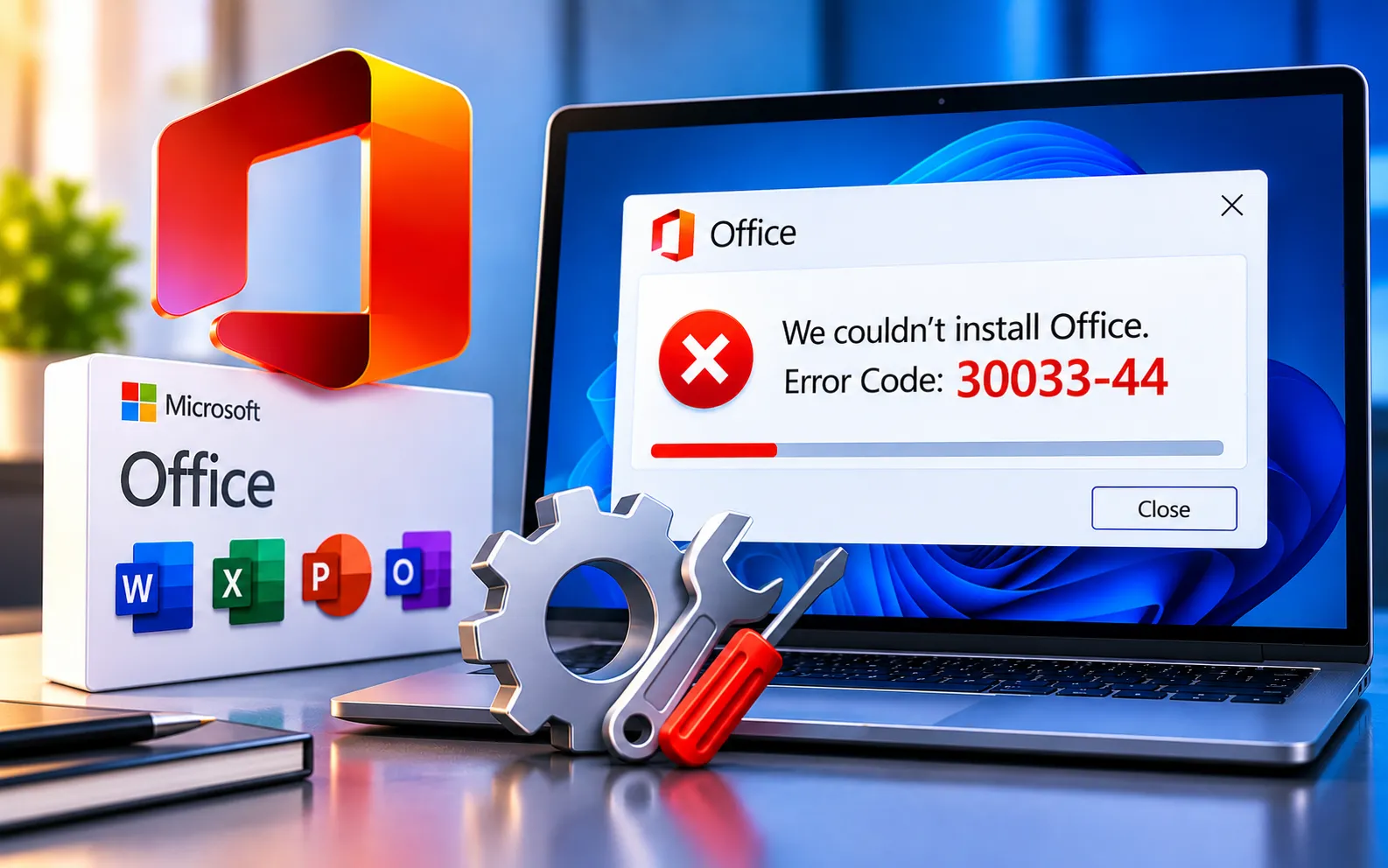
Error codes can be frustrating, especially when they disrupt your workflow. One such code that users often encounter is 30033-44, common during Office suite installation.
This guide covers the causes of this error and step-by-step solutions to get your Office suite up and running smoothly.
What Is Error Code 30033-44?
Error Code 30033-44 typically occurs during the installation or update of Microsoft Office, indicating something prevented the process from completing successfully. It can show up as a sudden halt in installation progress or a pop-up message displaying the error code.
Internet connectivity issues — a poor or unstable connection can disrupt the download and installation process.
Corrupted Office installation files — corrupted or incomplete installation files can cause errors during setup.
Conflicts with antivirus or firewall settings — security software can interfere with the installation process and trigger this error.
Previous incomplete installations — if a previous Office installation didn’t complete successfully, it can conflict with subsequent installation attempts.
Insufficient disk space — a lack of free storage can hinder the installation process and lead to this error.
Here’s how to fix Error Code 30033-44:
Check your internet connection
Make sure your internet connection is stable. Restarting your router or switching to a different network often resolves connectivity-related installation issues.
Disable antivirus and firewall
Temporarily disable your antivirus and firewall before installing, and re-enable them once the process is complete.
Clear temporary files
Delete temporary files on your system using the Disk Cleanup tool (Windows) or an equivalent utility, to eliminate any corrupted installation files.
Run the Office Repair Tool
Microsoft’s built-in repair tool for Office applications fixes many common issues. Open Control Panel → Programs and Features, locate Microsoft Office, select Change, and choose the repair option.
Use the Office Uninstall Support Tool
This tool removes remnants of previous installations that might be causing conflicts. Download and run it to clean up your system before reinstalling.
Install Office in Safe Mode
Boot your computer into Safe Mode and attempt the installation. Safe Mode disables unnecessary background processes, which can allow for a smoother install.
Free up disk space
Make sure you have enough free space on your device. Delete unnecessary files or move them to external storage to make room for the Office installation.
Check system requirements
Confirm your computer meets the system requirements for the version of Office you’re installing — inadequate hardware specifications can cause installation failures.
Still Not Resolved?
If you’re still unable to resolve Error Code 30033-44 after trying all these steps, we recommend chatting with our experts — they’ll help you resolve this issue. Our experts are here to assist you — Chat with a specialist — for more technical support.
We are an independent technical support provider and are not affiliated with, endorsed by, or sponsored by Microsoft.
FAQ
What causes Office Error Code 30033-44?
It’s usually caused by internet connectivity issues, corrupted installation files, antivirus interference, leftover files from a previous incomplete installation, or insufficient disk space.
What does the Office Uninstall Support Tool do?
It fully removes Office from your computer, including leftover files a standard uninstall might miss, giving you a clean slate before reinstalling.
Why would installing Office in Safe Mode help?
<p
Tags: 30033-44, error 30033-44, error code 30033-44, microsoft error 30033-44, microsoft error code 30033-44, Microsoft Office Error Code 30033-44, office 30033-44, office error 30033-44, office error code 30033-44, office install error 30033-44
