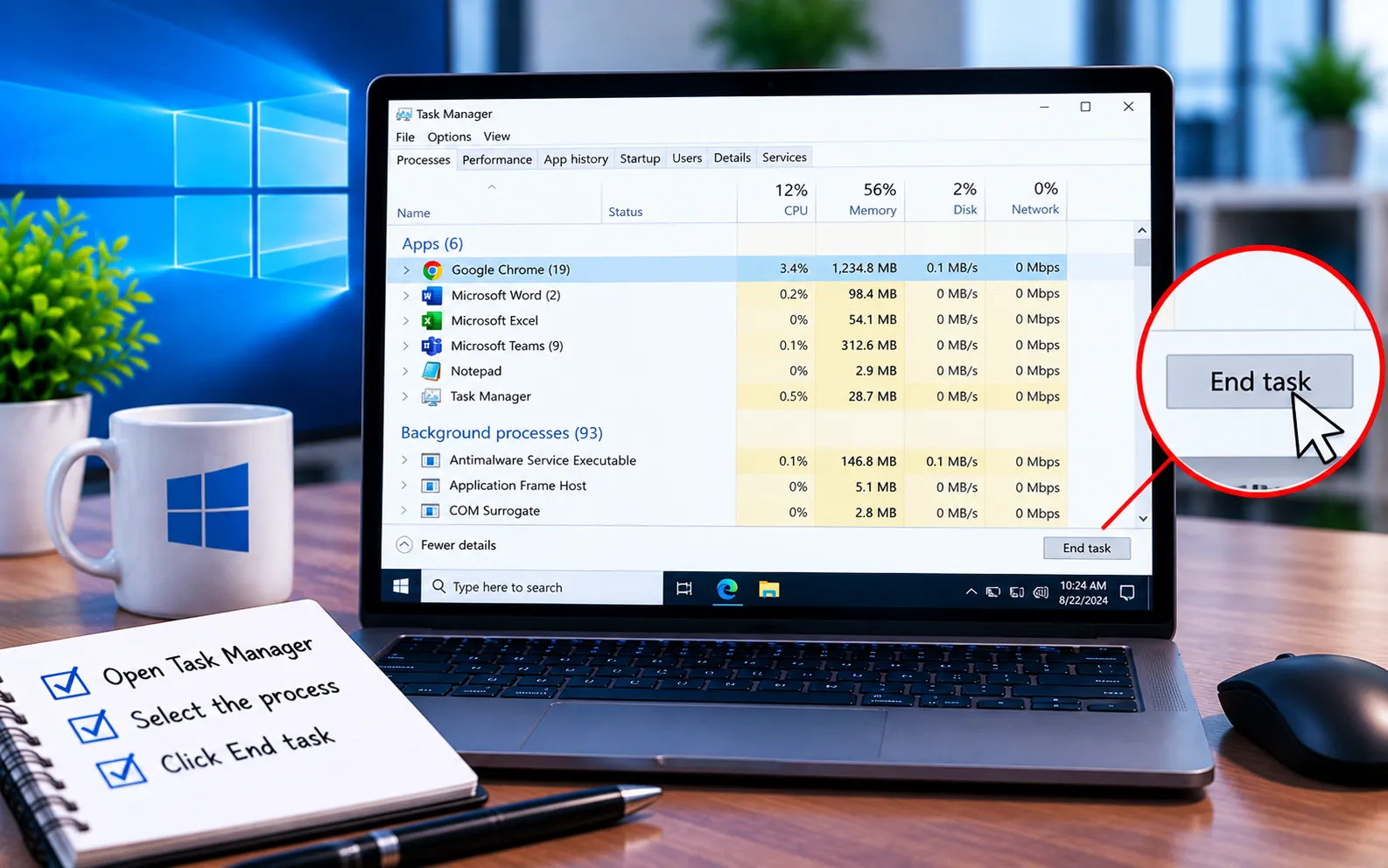
Task Manager is the most reliable tool for ending “non-responding” applications on Windows. When an app stops opening normally, or you double-click it and it doesn’t respond, it can eventually show “Not Responding” at the top of its window.
Task Manager also uses different colors to highlight processes using significant system resources, making it easier to spot what’s causing the slowdown. This guide explains how to use it to end a stuck process.
How to End a Process with Task Manager on Windows 10/11
A good technician doesn’t jump straight to uninstalling and reinstalling when an Office program stops responding — they use Task Manager first to end the stuck task, then troubleshoot from there. This is often the fastest fix, and re-opening the program afterward usually works without issue.
Here’s how to end a non-responding process:
Open Task Manager
Press Ctrl + Alt + Delete and select Task Manager, or press Win + X and choose Task Manager directly.
Go to the Processes tab
Click the Processes tab to see the full list of running applications and background processes, sorted by resource usage.
Select and end the stuck process
Click the process you want to end — it will often be labeled “Not Responding.” Either click “End task” at the bottom of the window, or right-click the process and select “End task” from the menu.
Reopen the application
Once the process has closed, reopen the program normally — it usually starts fresh without the issue that caused it to freeze.
Still Not Resolved?
If you have urgent work in Outlook and it’s not responding, ending its process through Task Manager and restarting it is a quick, temporary way to get back into your mail. If you still need assistance, our experts are here to help — Chat with a specialist — and they’ll help resolve your issue.
We are an independent technical support provider and are not affiliated with, endorsed by, or sponsored by Microsoft.
FAQ
Will I lose unsaved work if I end a task in Task Manager?
Yes, unsaved changes in the document you were working on will likely be lost. Some Office apps have AutoRecover, which may restore part of your work the next time you open them, but it’s not guaranteed.
Should I uninstall and reinstall a program that keeps freezing?
Not as a first step. Ending the stuck task through Task Manager and reopening the program resolves most cases without needing a full reinstall.
What do the colors in Task Manager mean?
Task Manager highlights processes using significant CPU, memory, or disk resources in different shades, making it easier to spot what might be causing a slowdown or freeze.
Is ending Outlook’s task in Task Manager safe?
Yes, it’s a safe temporary fix when Outlook stops responding — just be aware any unsent or unsaved email drafts may not be recovered when you reopen it.
