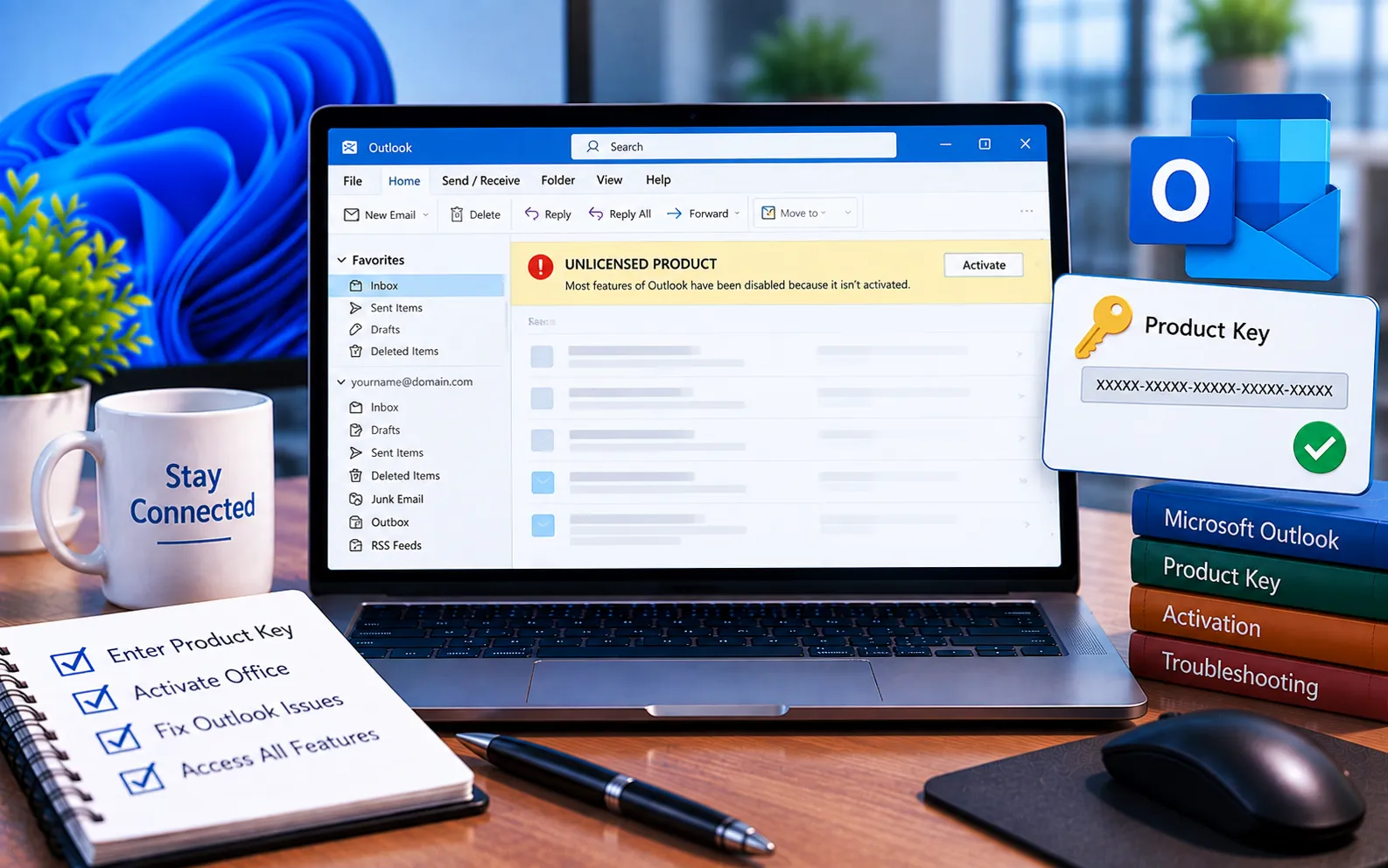
It can be confusing to see “Unlicensed Product” in Office when you’re certain your product key is correct and your purchase was genuine. This mismatch usually isn’t about the key itself being wrong — it’s almost always something happening behind the scenes during activation.
This guide explains the real causes behind this issue and the steps to fix it.
Why “Unlicensed Product” Appears Even With the Right Key
Activation didn’t fully complete — entering a valid key doesn’t always mean activation finished successfully. A dropped internet connection during setup can leave Office in a state where it has the key but hasn’t confirmed it with Microsoft’s servers.
Signed into the wrong Microsoft account — your product key is tied to a specific Microsoft account. If you’re signed into Office with a different account than the one used to redeem the key, Office won’t recognize the license even though the key itself is valid.
Leftover activation data from a previous installation — old activation files from a prior Office install (even a different version) can conflict with a new, correctly licensed installation.
Incorrect system date and time — Office checks your system clock as part of license verification. An incorrect date or time can cause activation to fail even with a genuine key.
Server-side delays — occasionally, Microsoft’s activation servers take time to sync a recent purchase or renewal, so a very recently purchased key may briefly show as unlicensed before it activates.
Here’s how to fix it:
Confirm you’re signed into the correct Microsoft account
Open any Office app, go to File → Account, and check which Microsoft account is signed in. Sign out and back in with the account you used to purchase or redeem your product key.
Re-enter your product key
Go to File → Account → Activate Product, and enter your key again carefully, checking for any mistyped characters. This confirms activation completes fully this time.
Check your system date and time
Go to Settings → Time & Language, and turn on both “Set time automatically” and “Set time zone automatically.” Restart your computer and try activating again.
Check your internet connection
Make sure you have a stable connection, since activation needs to communicate with Microsoft’s servers to complete. Try activating again once you’ve confirmed your connection is solid.
Clear leftover activation data from a previous installation
If you previously had Office installed on this device, use Microsoft’s Office Uninstall Support Tool to remove any leftover files and activation data before reinstalling with your current key.
Wait and retry if you just purchased the key
If you redeemed your key very recently, give it some time — occasionally Microsoft’s servers need a short while to fully register a new purchase before activation completes.
Still Not Resolved?
If you’ve confirmed your account, re-entered your key, checked your system clock, and cleared old activation data — but the error persists — the cause may need a closer look at your specific license and account setup. Our experts are here to assist you — Chat with a specialist — for more technical support.
We are an independent technical support provider and are not affiliated with, endorsed by, or sponsored by Microsoft.
FAQ
Why does Office say “Unlicensed Product” if my key is correct?
It’s usually not the key itself — being signed into the wrong Microsoft account, an incomplete activation, an incorrect system clock, or leftover data from a previous install are the more common causes.
Can a wrong Microsoft account cause this even with the right key?
Yes. Your key is tied to the specific Microsoft account you used to redeem it — signing into Office with a different account will show as unlicensed regardless of the key’s validity.
How long does a newly purchased key take to activate?
Usually it’s immediate, but occasionally Microsoft’s servers take a short time to sync a very recent purchase — waiting a bit and retrying often resolves it.
Can an incorrect system clock really block activation?
Yes. Office checks your system date and time as part of verifying your license with Microsoft’s servers, so an incorrect clock can cause activation to fail even with a genuine key.
Tags: Excel Unlicensed Issues, microsoft chat support, office 365 unlicensed product windows 7, office unlicensed, Outlook Unlicensed, word unlicensed
