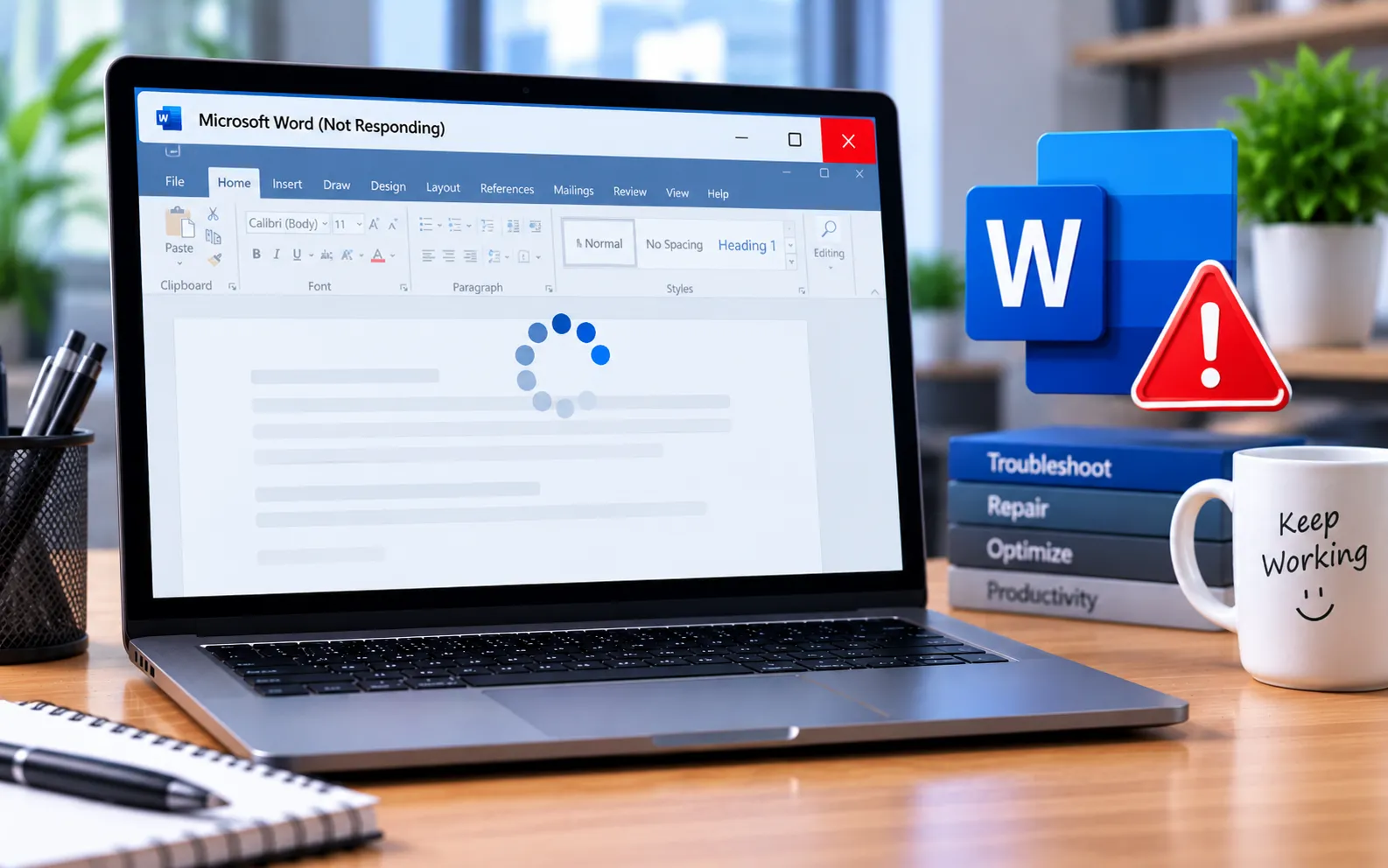
An error message or a full freeze of the Word interface are common symptoms of “Microsoft Word is not responding.” If you encounter this, either close the software or wait for it to react.
This guide explains the causes and the steps to fix it.
Causes of “Microsoft Word Isn’t Responding” Messages
Server timeout — an inability to open, save, or view a document stored on a remote server can cause Word to freeze.
Corrupted software file — a damaged installation or application file can cause instability.
An incompatible add-in — a third-party add-in that conflicts with Word can cause it to stop responding.
Here’s how to fix “Word Not Responding”:
Restart your computer
Sometimes all it takes is a simple restart. If this doesn’t resolve it, disabling add-ins or repairing Word are the next options to try.
Disable add-ins and start Word in Safe Mode
Hold Ctrl while clicking the Word shortcut, and select Yes when prompted to open in Safe Mode. Go to File → Options → Add-ins, find the Manage dropdown, click Go, uncheck all add-ins, and click OK. Try opening Word normally afterward.
Repair the specific document
Open Word (in Safe Mode if regular mode doesn’t work), select Open → Browse, find the problematic document, and instead of clicking Open directly, click the arrow next to it and select “Open and Repair.” Word will attempt to fix the document as it opens.
Temporarily turn off antivirus software
Antivirus software can sometimes conflict with Word. Temporarily disable it and check whether the issue is resolved. If Word still doesn’t respond, the antivirus likely isn’t the cause — re-enable it and continue troubleshooting.
Still Not Resolved?
If none of the above resolves it, uninstall and reinstall Word completely, using Windows Settings or the Microsoft Office Uninstall Support Tool to remove it fully first. Our experts are here to assist you — Chat with a specialist — for more technical support.
We are an independent technical support provider and are not affiliated with, endorsed by, or sponsored by Microsoft.
FAQ
What causes “Word is not responding”?
It’s usually caused by a server timeout when accessing a remote document, a corrupted software file, or an incompatible add-in.
How do I know if an add-in is causing the freeze?
Open Word in Safe Mode (hold Ctrl while launching), disable all add-ins through File → Options → Add-ins, then restart Word normally — if it works, re-enable add-ins one at a time to find the culprit.
What does “Open and Repair” do?
It attempts to fix a corrupted document as Word opens it, which can resolve freezing caused by a damaged file rather than an issue with Word itself.
Can antivirus software cause Word to freeze?
Yes. Some antivirus programs conflict with Word — temporarily disabling it helps confirm whether it’s the cause.
Tags: how to fix word not responding, how to fix word not responding without losing data, microsoft word keeps freezing and not responding, microsoft word not responding every few minutes, word not responding how long to wait, word not responding mac., word not responding when printing, word not responding windows 10
