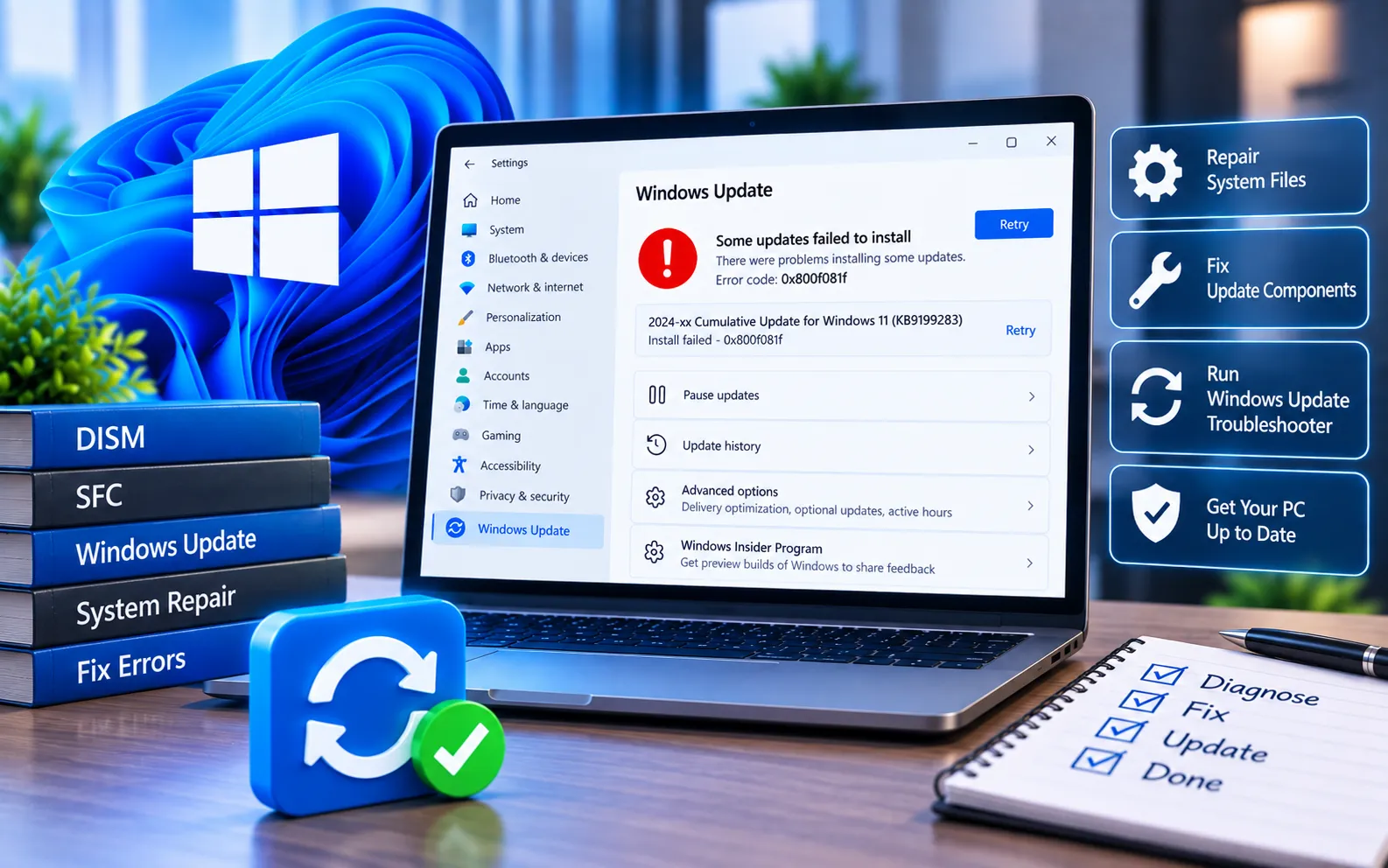
Windows Update Error Code 0x800F081F can appear when Windows can’t find or install the files required for an update or feature. The problem is often related to missing source files, corrupted system components, or issues with the .NET Framework.
You may see a message stating that Windows couldn’t install some updates and will try again later. This guide explains how to fix it on Windows 10 and 11.
What Causes Windows Update Error Code 0x800F081F?
Common causes include missing or corrupted Windows system files, problems with Windows Update components, missing source files required by Windows, issues with the .NET Framework, an interrupted or incomplete update, or corrupted Windows component-store files. If Windows can’t access the files needed to complete an update, installation stops and displays this error.
Here’s how to fix Error Code 0x800F081F:
Run the Windows Update Troubleshooter
Windows 11: Settings → System → Troubleshoot → Other troubleshooters → Windows Update → Run.
Windows 10: Settings → Update & Security → Troubleshoot → Additional troubleshooters → Windows Update → Run the troubleshooter.
Restart your computer once it finishes and check Windows Update again.
Run System File Checker
Open Command Prompt as administrator and run sfc /scannow. Wait for the scan to complete and restart your computer. If it reports corrupted files it couldn’t repair, continue with DISM. For a related issue involving missing or corrupted update files, see our guide to Windows Update Error Code 80073712.
Run the DISM tool
Open Command Prompt as administrator and run DISM.exe /Online /Cleanup-Image /ScanHealth. Once that finishes, run DISM.exe /Online /Cleanup-Image /RestoreHealth — the second command may take some time. Restart your PC and try Windows Update again.
Repair .NET Framework components
Open Control Panel → Programs → Programs and Features → Turn Windows features on or off. Look for “.NET Framework 3.5” and enable it if not already selected, click OK, and follow the instructions. Restart Windows once the feature installation finishes.
Reset Windows Update components
Open Command Prompt as administrator and run:
net stop bits
net stop wuauserv
net stop appidsvc
net stop cryptsvc
ren %systemroot%\SoftwareDistribution SoftwareDistribution.bak
ren %systemroot%\System32\catroot2 catroot2.bak
net start bits
net start wuauserv
net start appidsvc
net start cryptsvc
Restart your computer, then check for updates. If Windows Update is failing to download updates rather than failing during installation, see our guide to Windows Update Error Code 0x8024A206.
Check Windows Update registry settings
Create a backup or restore point before modifying the registry. Press Win + R, type regedit, and press Enter. Navigate to HKEY_LOCAL_MACHINE\SOFTWARE\Microsoft\Windows\WindowsUpdate and look for WUServer and WIStatusServer values. If these were added by an old update-management configuration and are no longer needed, they may need to be removed — but don’t delete registry values if your PC is managed by an organization or connected to a workplace update server.
Try Windows Update again
Windows 11: Settings → Windows Update.
Windows 10: Settings → Update & Security → Windows Update.
Click “Check for updates” and allow Windows to download and install what’s available. If the same error appears, note whether it happens while downloading, installing, or applying a specific update — that detail helps identify the underlying problem.
Still Not Resolved?
Windows Update Error Code 0x800F081F can prevent updates from installing successfully due to corrupted system files, Windows Update components, missing source files, or .NET Framework issues. Resetting Windows should be a last resort — try the troubleshooting, SFC, DISM, .NET Framework, and update component repairs first. Our experts are here to assist you — Chat with a specialist — for more technical support.
We are an independent technical support provider and are not affiliated with, endorsed by, or sponsored by Microsoft.
FAQ
What does Windows Update Error Code 0x800F081F mean?
It generally indicates Windows can’t find the source files required to complete an installation or update.
Can SFC fix error 0x800F081F?
SFC can repair corrupted protected system files. If it doesn’t resolve the problem, running DISM can repair the Windows component store.
Does .NET Framework cause error 0x800F081F?
Problems with required .NET Framework components or missing source files can contribute to this error, especially when Windows is installing a feature or update that depends on them.
Should I reset Windows to fix error 0x800F081F?
No, resetting Windows should be a last resort — try the troubleshooting, SFC, DISM, .NET Framework, and Windows Update component repairs first.
Tags: Error Code 0x800f081f, KB9199283, Windows 11 Update error 0x800f081f, Windows 11 Update error code 0x800f081f
