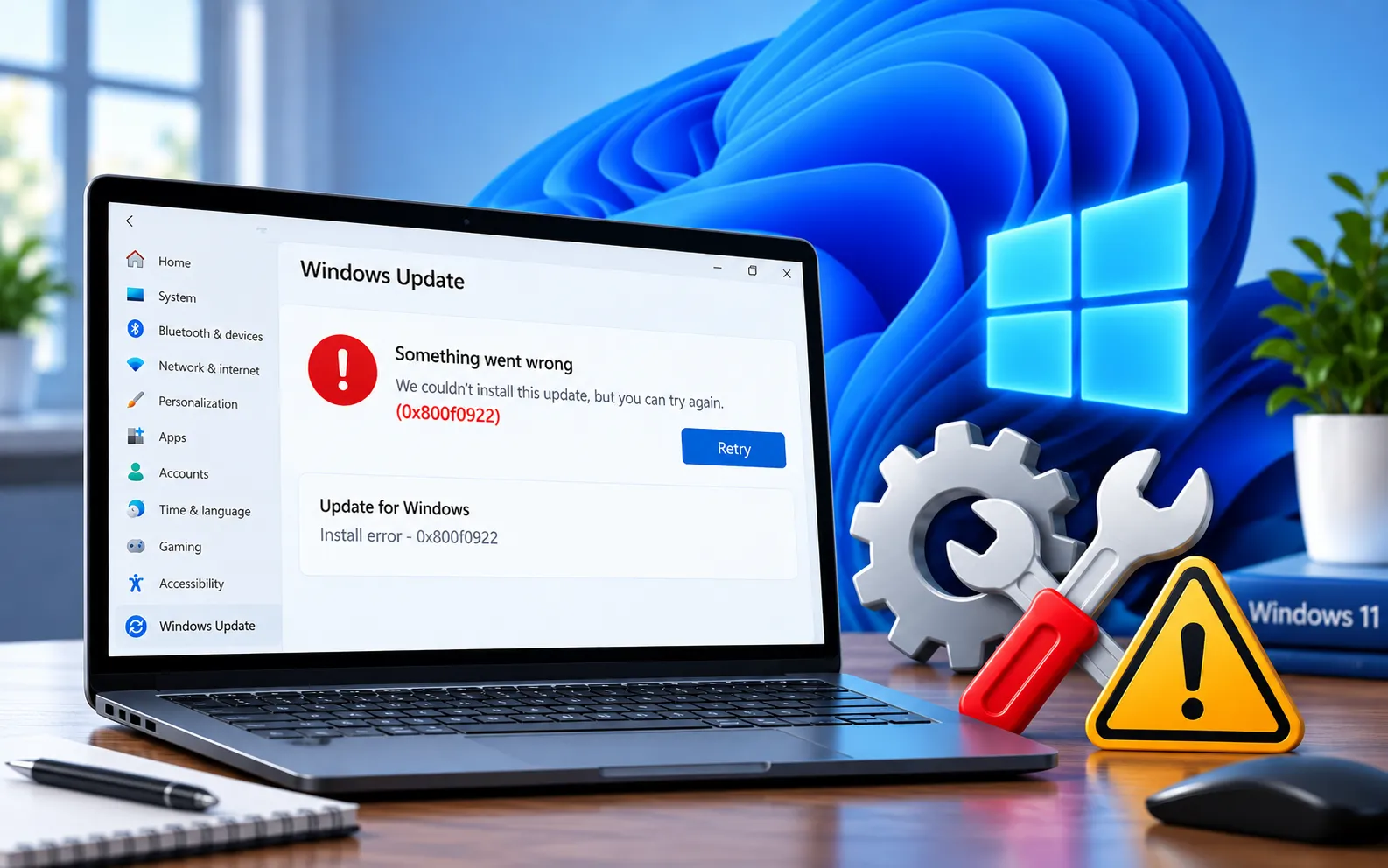
Windows 11 Update Error Code 0x800F0922 can appear when Windows fails to complete an update installation. In many cases, the update begins normally but fails near the end, and Windows then undoes the changes and restores the previous state.
This error can occur because of corrupted system files, Windows Update component problems, .NET Framework issues, network connectivity problems, or insufficient space in the system-reserved partition. This guide starts with the simplest fixes and works through more advanced options.
What Causes Windows 11 Update Error Code 0x800F0922?
Common causes include corrupted or missing system files, damaged Windows Update components, problems with .NET Framework, unstable internet connectivity, VPN or proxy configuration issues, insufficient space in the system-reserved partition, a failed or incomplete update, or third-party software interference. Start with the simpler troubleshooting methods first.
Here’s how to fix Error Code 0x800F0922:
Run the Windows Update Troubleshooter
Open Settings → System → Troubleshoot → Other troubleshooters, find Windows Update, select Run, and follow the on-screen instructions. Restart your computer, then check Settings → Windows Update → Check for updates.
Repair system files with DISM and SFC
Open Command Prompt as administrator and run DISM /Online /Cleanup-Image /RestoreHealth. Don’t close the window while it’s running. Once complete, run sfc /scannow and wait for it to finish. Restart your PC and check Windows Update again. For update failures caused by damaged Windows components, see our guide to Windows Update Error Code 0x800F0900.
Check .NET Framework components
Press Win + R, type optionalfeatures, and press Enter. Look for the .NET Framework options and confirm the required components are enabled, then select OK and restart. Avoid disabling .NET Framework components just to troubleshoot, since Windows and other applications may depend on them.
Check your internet connection
Restart your router, temporarily disconnect from any VPN, check whether other websites load normally, try another network if possible, and remove unnecessary proxy settings. Restart your computer before trying the update again. If the issue seems proxy or connection related, see our guide to Windows Update Error Code 0x8024402C.
Reset Windows Update components
Open Command Prompt as administrator and run:
net stop wuauserv
net stop bits
net stop cryptsvc
Open File Explorer, navigate to C:\Windows\SoftwareDistribution, and delete the contents of that folder. Then run:
net start wuauserv
net start bits
net start cryptsvc
Restart your PC and check for updates — Windows will recreate the required cache.
Check available storage
Open Settings → System → Storage, review the available space on your system drive, remove unnecessary temporary files, and empty the Recycle Bin if needed. Restart your PC and try the update again. For storage-related update errors specifically, see our guide to Windows Update Error Code 0x80070070.
Temporarily remove conflicting software
If you recently installed software before the error appeared, consider temporarily removing or disabling it. You can also perform a clean boot: press Win + R, type msconfig, go to the Services tab, check “Hide all Microsoft services,” click “Disable all,” go to Startup, open Task Manager, disable unnecessary items, close it, click OK, and restart. Try the update after restarting, then restore your normal startup configuration afterward.
Try Windows Update again
Open Settings → Windows Update → Check for updates, download what’s available, allow Windows to restart if required, and wait for installation to finish. Don’t turn off your computer while it’s installing.
Use Windows 11 recovery options
If the update continues to fail, check Settings → System → Recovery for “Fix problems using Windows Update.” If available, select “Reinstall now” and follow the instructions — this reinstalls the current Windows version while repairing system components, and is a useful alternative to a full clean install. Availability varies by Windows 11 version and device.
Still Not Resolved?
Start with the Windows Update troubleshooter, then repair system files, check .NET Framework, verify your connection, reset the update cache, and confirm storage. If the error continues, use Windows 11’s recovery options or consider an in-place repair installation. Our experts are here to assist you — Chat with a specialist — for more technical support.
We are an independent technical support provider and are not affiliated with, endorsed by, or sponsored by Microsoft.
FAQ
What does Windows Update Error Code 0x800F0922 mean?
It indicates Windows couldn’t complete an update installation — the cause can involve update components, system files, .NET Framework, connectivity, or system-reserved space.
Can .NET Framework cause this error?
Yes. Problems with required .NET Framework components can contribute to update failures — checking Windows optional features and confirming they’re enabled is worth doing.
Why does Windows undo changes after this error?
Windows automatically rolls back an unsuccessful update to return the system to its previous working state when the installation can’t complete.
Should I disable Windows Security to fix this error?
No, not as a first-line solution. If third-party security software is suspected, troubleshoot it separately and keep your computer protected throughout.
Tags: Error 0x800F0922, Error Code 0x800F0922, KB9199286, Windows 11 Error Code 0x800f0922, Windows update Error 0x800f0922, Windows update Error code 0x800f0922
