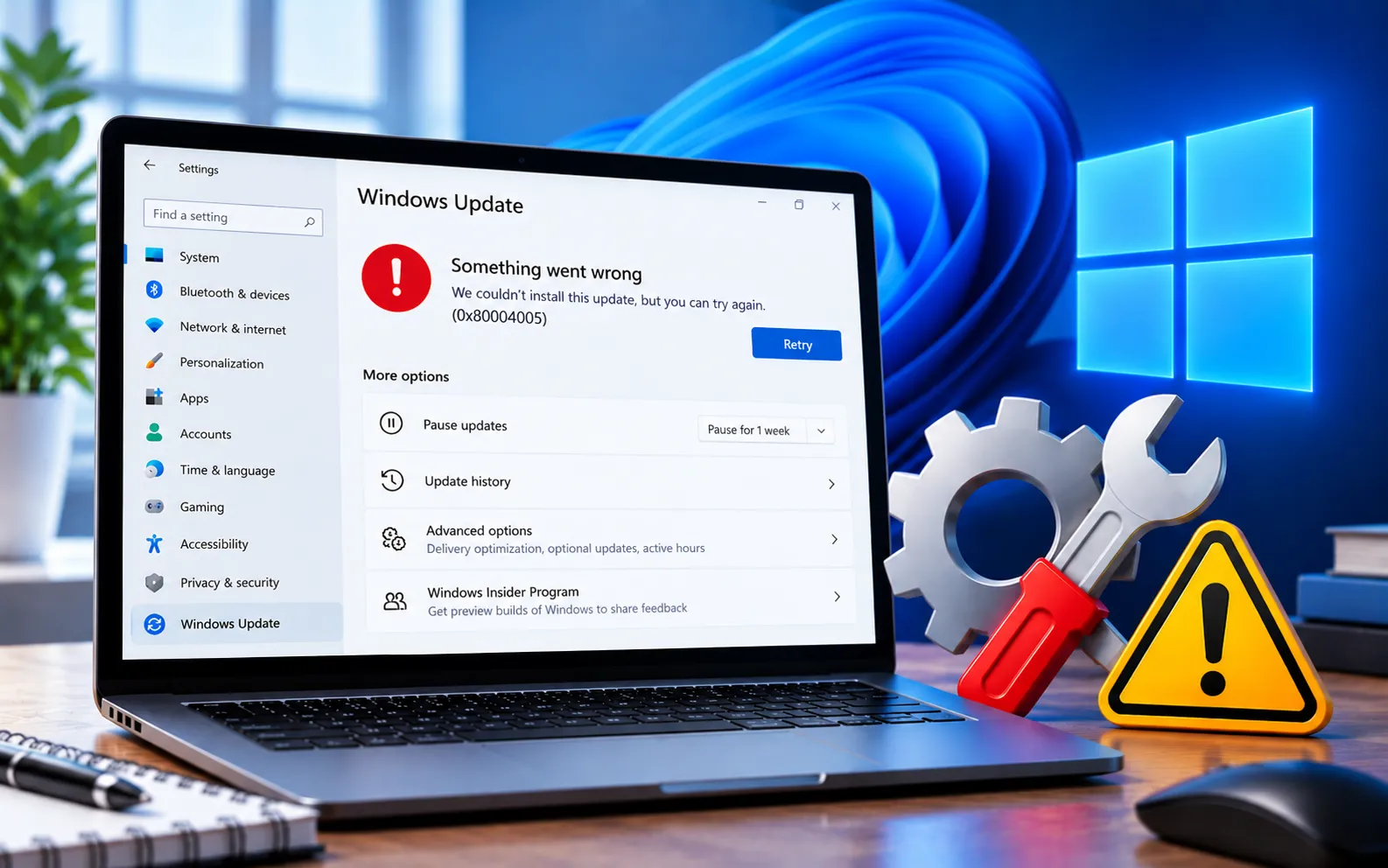
Windows Update Error Code 0x80004005 is a general-purpose error that can appear when Windows fails to complete an update, whether while checking for, downloading, or installing it, on either Windows 10 or 11.
Because it’s a generic failure code, it can be triggered by several underlying issues — corrupted system files, damaged Windows Update components, network problems, third-party software conflicts, or insufficient disk space. This guide covers the troubleshooting methods in order.
What Causes Windows Update Error Code 0x80004005?
Common causes include corrupted or missing system files, damaged Windows Update components, an unstable internet connection, incomplete or corrupted update downloads, third-party antivirus or firewall interference, insufficient free storage, or problems with Windows Update services. Because the code itself is generic, working through the checks below one at a time helps identify the specific cause on your system.
Here’s how to fix Error Code 0x80004005:
Run the Windows Update Troubleshooter
Windows 11: Settings → System → Troubleshoot → Other troubleshooters → Windows Update → Run.
Windows 10: Settings → Update & Security → Troubleshoot → Additional troubleshooters → Windows Update → Run the troubleshooter.
Restart your computer once it finishes, then check for updates again.
Check your internet connection
Restart your router, temporarily disconnect from any VPN, try a different network if available, and confirm other websites load normally. For an update-server connectivity error specifically, see our guide to Windows Update Error Code 0x8024402C.
Repair system files with DISM and SFC
Open Command Prompt as administrator and run DISM.exe /Online /Cleanup-Image /RestoreHealth. Once it completes, run sfc /scannow and let it reach 100%. Restart your computer and check for updates. If update files are also reported as missing or corrupted, see our guide to Windows Update Error Code 80073712.
Restart Windows Update services
Open Command Prompt as administrator and run:
net stop wuauserv
net stop bits
net stop cryptSvc
net stop msiserver
Then start them again:
net start msiserver
net start cryptSvc
net start bits
net start wuauserv
Restart your computer and check for updates.
Reset the Windows Update cache
Stop the services above, then rename the cache folders:
ren %windir%\SoftwareDistribution SoftwareDistribution.old
ren %windir%\System32\catroot2 catroot2.old
Restart the services and your computer — Windows will create fresh folders as needed.
Check available storage
Go to Settings → System → Storage, check your system drive’s available space, and remove unnecessary files if it’s nearly full. For storage-related failures specifically, see our guide to Windows Update Error Code 0x80070070.
Temporarily check third-party antivirus software
If you use non-Microsoft security software, temporarily disable it and try the update again, then re-enable it right after testing — don’t leave your system unprotected for longer than necessary.
Perform a clean boot
Press Win + R, type msconfig, press Enter. Go to the Services tab, check “Hide all Microsoft services,” click “Disable all.” Go to Startup, open Task Manager, disable unnecessary items, restart, and try the update. If it works, re-enable services gradually to find the conflict, then restore your normal configuration.
Install the update manually if it keeps failing
Go to Settings → Windows Update → Update history to find the KB number of the failed update, search for it on the Microsoft Update Catalog, and download and install the matching package directly.
Still Not Resolved?
Start with the troubleshooter and connection check, then repair system files with DISM and SFC. If the error continues, restart the update services, reset the cache, and check your available storage. Our experts are here to assist you — Chat with a specialist — for more technical support.
We are an independent technical support provider and are not affiliated with, endorsed by, or sponsored by Microsoft.
FAQ
What does Windows Update Error Code 0x80004005 mean?
It’s a generic Windows error indicating an unspecified failure — during Windows Update, it can point to corrupted files, network issues, or damaged update components.
Why is this error harder to diagnose than others?
Because it’s a generic code rather than one tied to a specific cause, it requires working through several possible checks — connectivity, system files, services, and storage — rather than a single targeted fix.
Will resetting Windows Update components delete my files?
No. The commands only rename or clear the update cache folders — your personal files, documents, and installed applications are not affected.
Can I install the failed update manually?
Yes. Find the failed update’s KB number in Update history, then search for and download the matching package from the Microsoft Update Catalog.
Tags: error code 0x80004005, KB9199229, Windows 10/11 Error Code 0x80004005, Windows 10/11 Update Error Code 0x80004005, Windows Update Error 0x80004005, Windows Update Error Code 0x80004005
