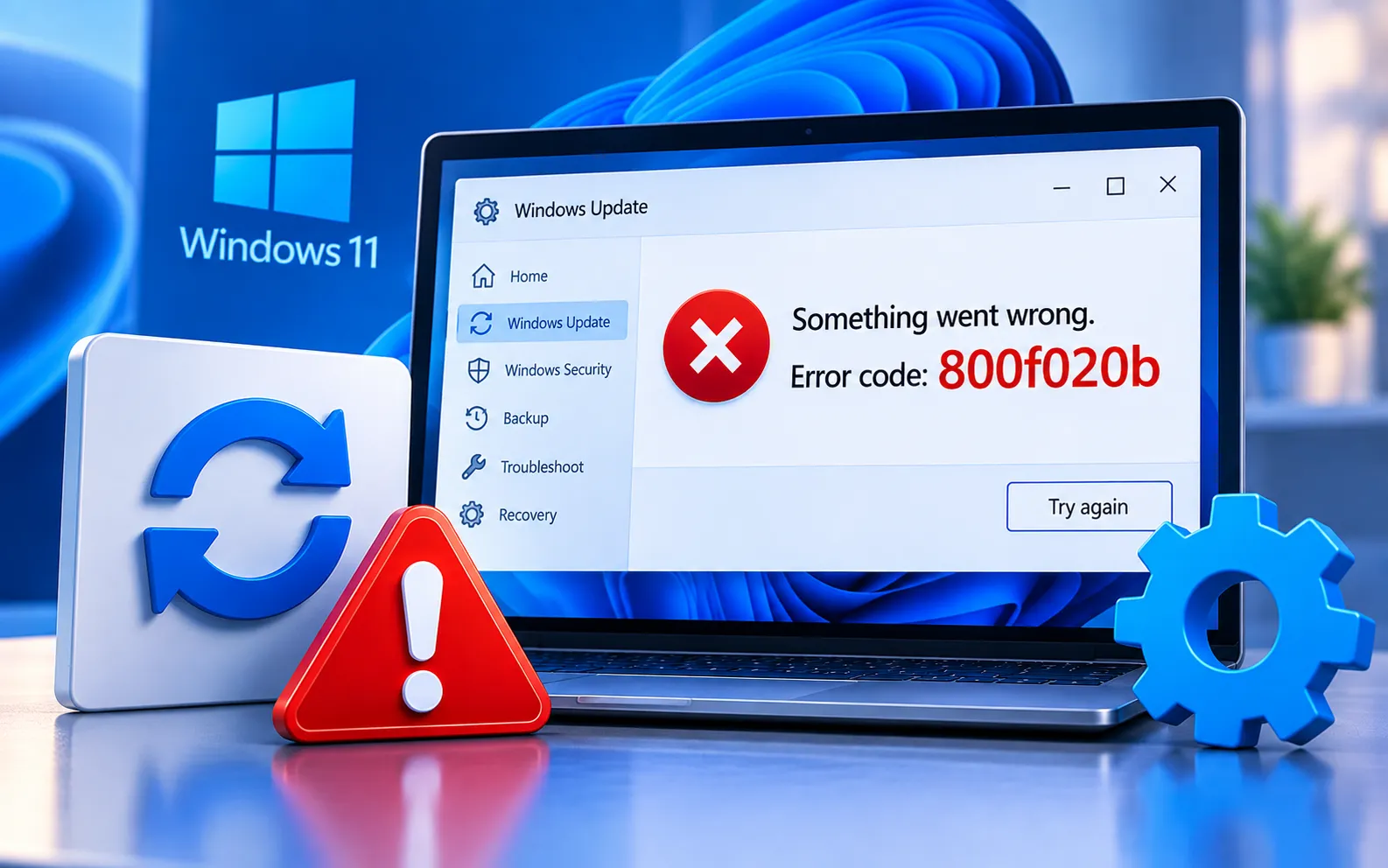
Windows Update Error Code 800F020B can occur when Windows encounters a problem while installing an update. The issue may be related to Windows Update components, network connectivity, or software that interferes with the update process.
This guide explains the possible causes and the troubleshooting steps that can help you resolve the problem.
Understanding Error Code 800F020B
Error Code 800F020B often occurs during the Windows Update process and typically indicates a problem with Windows Update components, preventing the system from installing the latest updates successfully.
Corrupted Windows Update components — over time, these components can become corrupted, leading to this error.
Third-party software interference — some antivirus or security software can interfere with the update process, triggering this error.
Network issues — poor internet connectivity or network interruptions can disrupt the update process.
Here’s how to fix Error Code 800F020B:
Run the Windows Update Troubleshooter
Run the Windows Update Troubleshooter first to check for common problems preventing updates from installing. Press Win + I to open Settings, go to Update & Security → Troubleshoot, and run the Windows Update Troubleshooter to automatically detect and fix issues.
Reset Windows Update components
If the problem persists, resetting the Windows Update components may help resolve corrupted update data. Open Command Prompt as administrator and run each command below one at a time:
net stop wuauserv
net stop cryptSvc
net stop bits
net stop msiserver
ren C:\Windows\SoftwareDistribution SoftwareDistribution.old
ren C:\Windows\System32\catroot2 catroot2.old
net start wuauserv
net start cryptSvc
net start bits
net start msiserver
Temporarily disable third-party security software
Temporarily disable your antivirus or security software, then attempt to run Windows Update again. If it succeeds, consider updating or reinstalling that security software afterward.
Check network connectivity
Check your Windows Update connection if network problems seem to be blocking the update. Make sure you have a stable connection, consider using wired Ethernet instead of Wi-Fi, and check for any network restrictions that might be blocking Windows Update.
Manually install the update
Visit the official Microsoft Update Catalog website, search for the specific update you need, and download and install it manually.
Still Not Resolved?
If you’re still unable to resolve Error Code 800F020B after trying all five steps, we recommend chatting with our experts — they’ll help you resolve this issue. Our experts are here to assist you — Chat with a specialist — for more technical support.
We are an independent technical support provider and are not affiliated with, endorsed by, or sponsored by Microsoft.
FAQ
What causes Windows Update Error Code 800F020B?
It’s usually caused by corrupted Windows Update components, third-party antivirus software interfering with the process, or an unstable network connection.
Will resetting Windows Update components delete my files?
No. The commands only rename the update cache folders — your personal files, documents, and installed applications are not affected.
Can antivirus software cause this error?
Yes. Some third-party antivirus or security software can conflict with Windows Update — temporarily disabling it helps confirm whether it’s the cause.
Should I use Wi-Fi or a wired connection when installing updates?
A wired Ethernet connection is more reliable for large downloads like updates, and helps rule out Wi-Fi instability as a cause of this error.
Tags: 800f020b, 800f020b update, 800f020b windows 7 update, code 800f020b, error 800f020b, error code 800f020b, Windows Error Code 800f020b, windows update 800f020b, windows update error 800f020b, Windows Update Error Code 800f020b
