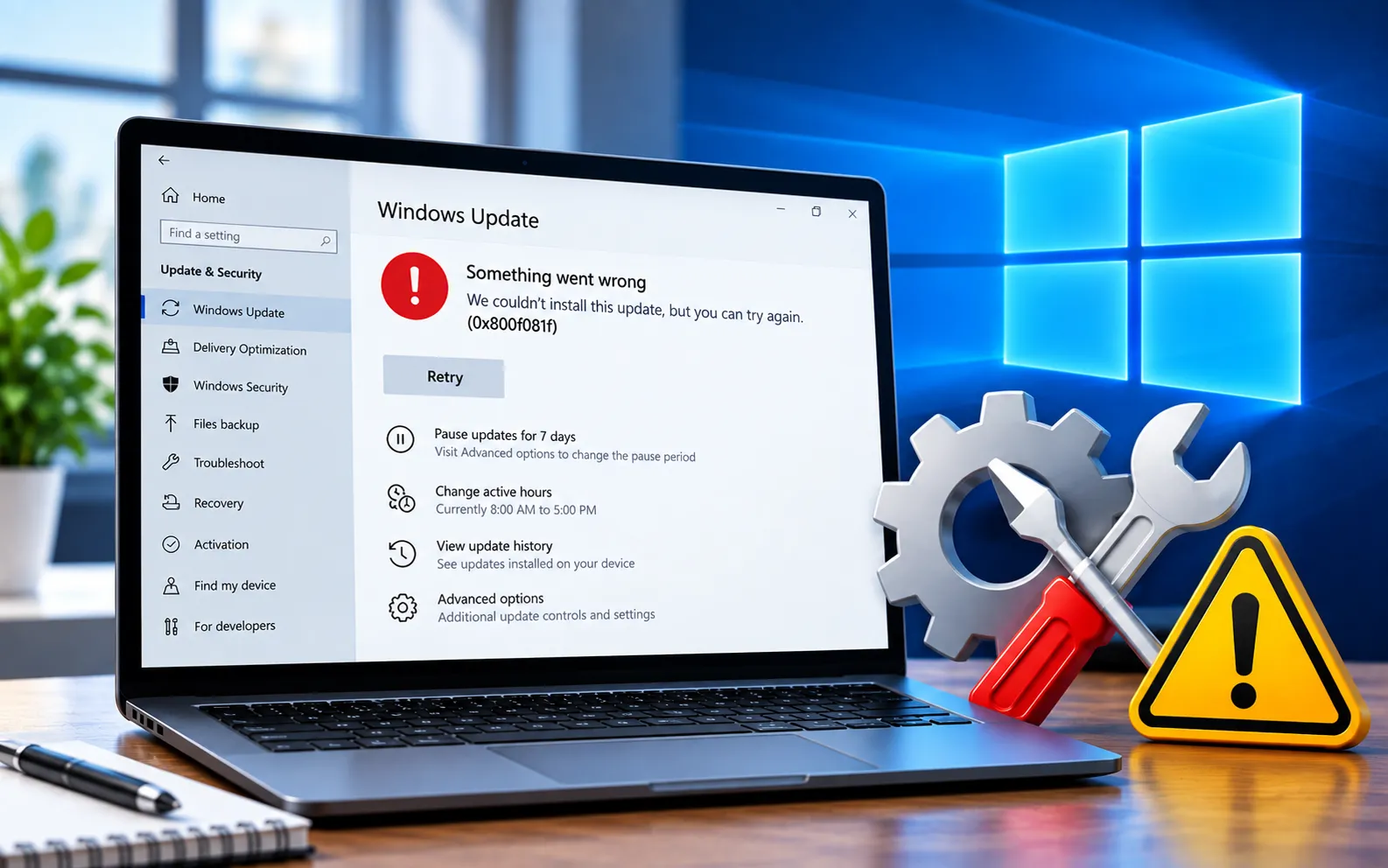
Windows Update Error Code 0x800F081F usually appears when Windows can’t find the files required to complete an update or repair a Windows component, on either Windows 10 or 11. Microsoft identifies this as a missing source-file error.
Corrupted Windows component files, incomplete update downloads, or problems with the Windows component store can prevent an update from installing successfully. This guide explains the steps to fix it without resetting your PC.
What Causes Windows Update Error Code 0x800F081F?
Common causes include corrupted or missing system files, damaged component-store files, incomplete update downloads, problems with Windows Update components, insufficient storage, network or update service problems, or software interfering with the update process. Repairing system files first, then resetting Windows Update if necessary, is the most effective approach.
Here’s how to fix Error Code 0x800F081F:
Run the Windows Update Troubleshooter
Windows 11: Settings → System → Troubleshoot → Other troubleshooters → Windows Update → Run.
Windows 10: Settings → Update & Security → Troubleshoot → Additional troubleshooters → Windows Update → Run the troubleshooter.
Restart your PC once it finishes, then check for updates again.
Repair Windows with DISM
Microsoft recommends running DISM before SFC when repairing corrupted system files. Open Command Prompt as administrator and run DISM.exe /Online /Cleanup-Image /RestoreHealth. This can take several minutes — wait for it to complete, then restart your computer. If you also see missing or corrupted update files, see our guide to Windows Update Error Code 80073712.
Run System File Checker
Open Command Prompt as administrator and run sfc /scannow. Wait until it reaches 100% — don’t close the window while it’s running. If it reports finding and repairing corrupted files, restart and try the update again. If it can’t fix some files, run DISM again and review the results before retrying.
Reset Windows Update components
If DISM and SFC don’t resolve it, corrupted update cache files may be the cause. Open Command Prompt as administrator and run:
net stop wuauserv
net stop bits
net stop cryptSvc
net stop msiserver
ren %windir%\SoftwareDistribution SoftwareDistribution.old
ren %windir%\System32\catroot2 catroot2.old
net start msiserver
net start cryptSvc
net start bits
net start wuauserv
Restart your computer and check for updates.
Check your internet connection
Windows may need to contact Microsoft’s servers to download missing repair files. Make sure your connection is stable, temporarily disconnect from any VPN, and check whether firewall or security software is blocking Windows Update. For connection-related problems specifically, see our guide to Windows Update Error Code 0x8024402C.
Check your free storage
Open Settings → System → Storage and review available space on your system drive. Remove unnecessary files or applications if it’s nearly full. For storage-related update errors specifically, see our guide to Windows Update Error Code 0x80070070.
Install the update again
Go to Settings → Windows Update → Check for updates, let Windows download and install what’s available, and restart when prompted. If the same update fails repeatedly, note its KB number and search for it in the Microsoft Update Catalog to check for a compatible standalone package.
Use Windows Recovery or an in-place repair
If the error continues, the Windows installation may need deeper repair. Check Settings → System → Recovery for “Fix problems using Windows Update,” and select “Reinstall now” if available. Alternatively, Microsoft specifically recommends an in-place repair using official Windows installation media for this error when source files can’t be found. Back up important files before performing a repair installation.
Still Not Resolved?
Windows Update Error Code 0x800F081F is commonly related to missing or corrupted component files. Start with the troubleshooter, then run DISM and SFC. If the problem continues, reset the update components and check your connection and storage before considering a repair installation. Our experts are here to assist you — Chat with a specialist — for more technical support.
We are an independent technical support provider and are not affiliated with, endorsed by, or sponsored by Microsoft.
FAQ
What does Windows Update Error Code 0x800F081F mean?
It generally means Windows can’t find the source files required to complete a repair or update operation, commonly associated with component-store corruption or missing files.
Can SFC fix this error?
It can, but it’s generally better to run DISM first, since DISM repairs the underlying Windows component store that SFC relies on for some repairs.
Why does DISM show this same error code?
DISM can display 0x800F081F when it can’t find the source files needed for the repair — in that case, you may need to provide a valid repair source, like compatible Windows installation media.
Is it safe to reset Windows because of this error?
A full PC reset shouldn’t be the first solution — try the troubleshooter, DISM, SFC, and Windows Update component reset first, and consider recovery or an in-place repair only if those don’t work.
Tags: Error 0x800f081f, Error Code 0x800f081f, KB9199272, Windows Update Error 0x800f081f, Windows Update Error Code 0x800f081f
