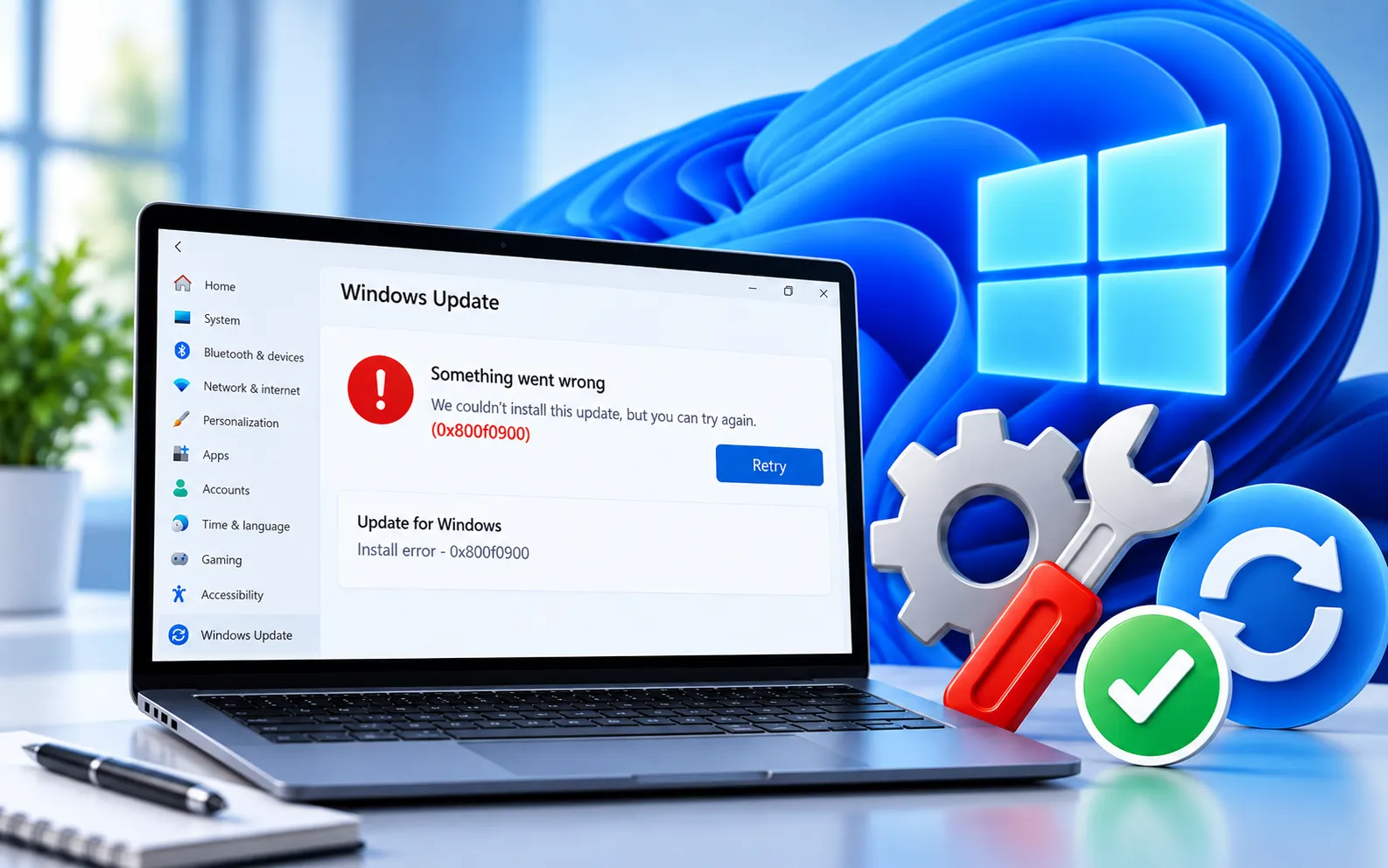
Windows 11 Update Error Code 0x800F0900 can prevent Windows from installing an update successfully. The installation may begin normally and then fail, causing Windows to undo the changes and return your PC to its previous state.
This error is commonly associated with corrupted system files, damaged Windows Update components, incomplete update files, or problems with the Windows servicing process. This guide explains the steps to fix it.
Why Does Error Code 0x800F0900 Appear on Windows 11?
This error occurs when Windows can’t process the files or components required to complete an update. Common causes include corrupted or missing system files, damaged Windows Update components, incomplete update downloads, servicing process problems, incorrect system configuration, interfering temporary files, or malfunctioning Windows Update services. Start with the built-in troubleshooting tools before making major changes.
Here’s how to fix Error Code 0x800F0900:
Run the Windows Update Troubleshooter
Open Settings → System → Troubleshoot → Other troubleshooters, find Windows Update, select Run, and follow the on-screen instructions. Restart your computer when it finishes, then check Settings → Windows Update → Check for updates.
Repair system files with DISM and SFC
Open Command Prompt as administrator and run DISM /Online /Cleanup-Image /RestoreHealth. Don’t close the window while it’s running. Once complete, run sfc /scannow and wait until it finishes. Restart your computer and check Windows Update again.
Reset Windows Update components
Open Command Prompt as administrator and run:
net stop wuauserv
net stop cryptSvc
net stop bits
net stop msiserver
Open File Explorer, navigate to C:\Windows\SoftwareDistribution, and delete the contents of that folder. Then run:
net start wuauserv
net start cryptSvc
net start bits
net start msiserver
Restart your computer and check for updates — Windows will recreate the required files.
Remove temporary files
Open Settings → System → Storage → Temporary files, review what Windows has identified, select the files you want to remove (avoid deleting anything you still need), and select “Remove files.” Restart your computer and try the update again.
Check your internet connection
Restart your router, temporarily disconnect from any VPN, check whether other websites load normally, and try another network if available. Restart your computer before checking for updates again. For network or proxy-related issues specifically, see our guide to Windows Update Error Code 0x8024402C.
Check available storage
Open Settings → System → Storage and check the available space on your system drive. Remove unnecessary temporary files if storage is low, restart your computer, and try the update again. For storage-related update errors specifically, see our guide to Windows Update Error Code 0x80070070.
Restart and try Windows Update again
Restart your computer, then go to Settings → Windows Update → Check for updates, download what’s available, allow Windows to restart if required, and wait for installation to finish. Don’t turn off your computer while it’s installing.
Still Not Resolved?
Start with the Windows Update troubleshooter, then repair Windows with DISM and SFC, reset the update components, remove temporary files, and check your network connection and storage. These steps resolve most causes of Error Code 0x800F0900 without requiring a clean Windows installation. Our experts are here to assist you — Chat with a specialist — for more technical support.
We are an independent technical support provider and are not affiliated with, endorsed by, or sponsored by Microsoft.
FAQ
What does Windows Update Error Code 0x800F0900 mean?
It indicates Windows couldn’t complete an update installation — corrupted system files, damaged update components, incomplete downloads, and servicing problems can all contribute.
Can SFC fix this error?
Yes, SFC can repair corrupted protected system files that interfere with Windows Update — running DISM first also helps repair the underlying Windows component store.
Do I need to reinstall Windows to fix this?
Usually no. Try the troubleshooter, DISM, SFC, and a Windows Update component reset before considering a repair installation.
Why does Windows roll back the update after this error?
Windows automatically undoes an unsuccessful update installation to return the system to its previous working state when the update can’t complete.
Tags: 0x800f0900., code 0x800f0900., error code 0x800f0900., KB9199285, windows 11 error 0x800f0900, Windows 11 Update Error Code 0x800f0900
