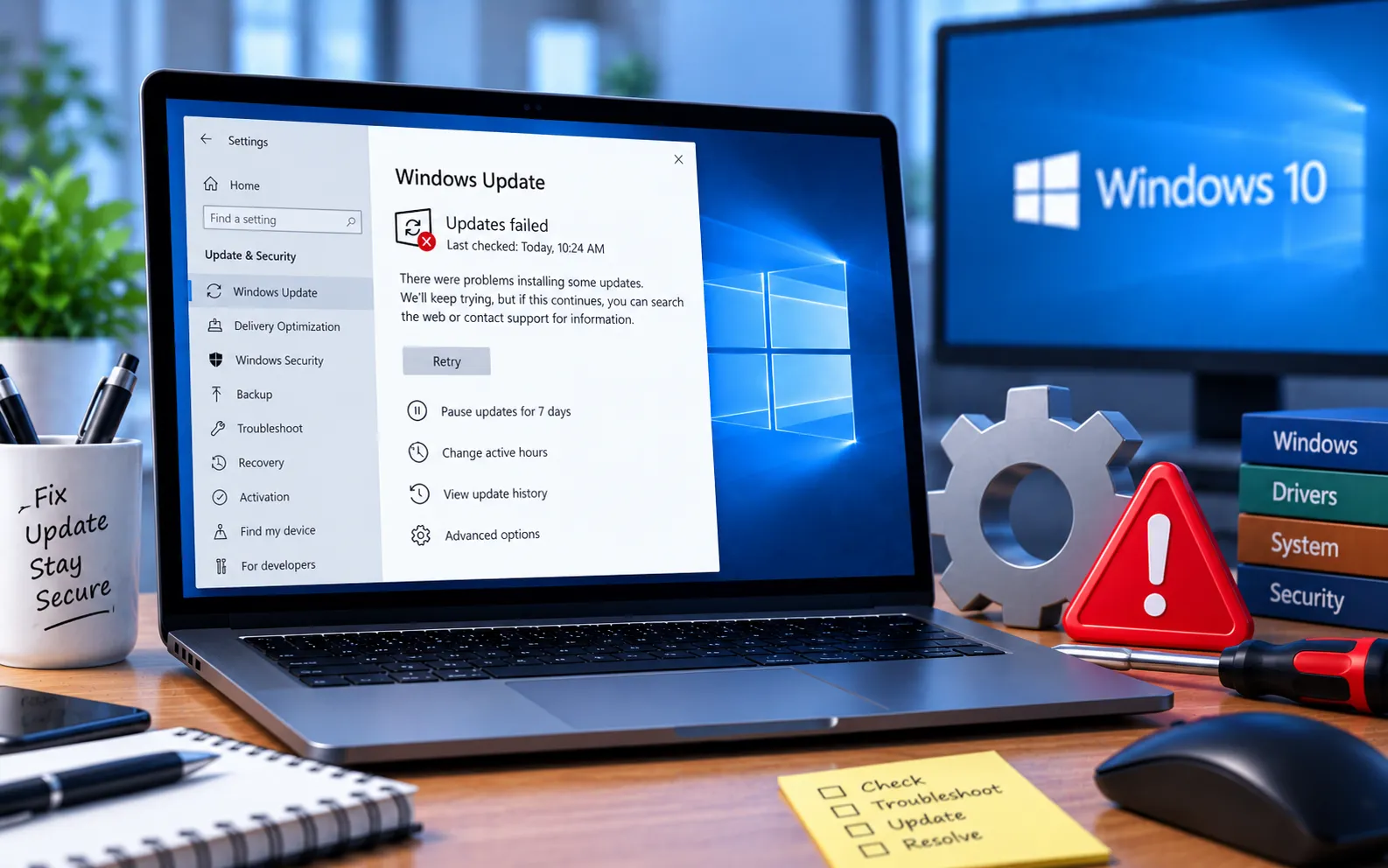
Windows Printer Error 0x0000011b generally appears when trying to print to a network-shared printer, or when installing one and seeing the message “The operation failed with error 0x0000011b.”
This guide explains the causes and the steps to fix it.
How to Fix Windows Printer Error 0x0000011b
This error is most often triggered by a recent Windows update changing how print spooler communication works over the network. Work through these methods in order.
Here’s how to fix it:
Uninstall recent Windows updates
Go to Control Panel → Uninstall a program → View installed updates, select the most recent update, and click Uninstall. This is often the fastest way to confirm and fix the issue if it started right after a Windows update.
Add the printer manually using its IP address
Go to Settings → Bluetooth & devices → Printers & scanners → Add device. Select the option indicating the printer you want isn’t in the list, then choose “Add a printer using a TCP/IP address or hostname” and enter the printer’s IP address directly.
Disable RPC Print Spooler encryption
Back up your registry before making changes. Open Registry Editor and navigate to HKEY_LOCAL_MACHINE\System\CurrentControlSet\Control\Print. Right-click the Print key, select New → DWORD (32-bit) Value, and name it RpcAuthnLevelPrivacyEnabled. Double-click the new key and set its value to 0. Restart your computer and check whether it connects to your printer.
Still Not Resolved?
If you’re still not able to resolve this error code, we suggest taking our experts’ guidance. Our experts are here to assist you — Chat with a specialist — for more technical support.
We are an independent technical support provider and are not affiliated with, endorsed by, or sponsored by Microsoft.
FAQ
What causes Windows Printer Error 0x0000011b?
It’s usually caused by a recent Windows update changing how the print spooler communicates over the network with shared or network printers.
Why does uninstalling a Windows update fix this error?
Microsoft has previously changed print spooler security requirements through updates — reverting a recent update often restores compatibility with network printers that don’t yet support the new requirement.
Is it safe to edit the registry to fix this error?
Yes, if you follow the exact key path and value — but back up your registry first as a precaution before making any changes.
What does adding a printer by IP address do differently?
It connects directly to the printer’s network address instead of relying on the standard network discovery process, which can bypass the specific communication issue causing this error.
